The right information. The right access. For everyone.
Monitoring a site, viewing data and sending a command carry different responsibilities. Immersive connects identities, objects and permissions so each team has an access scope suited to its role.
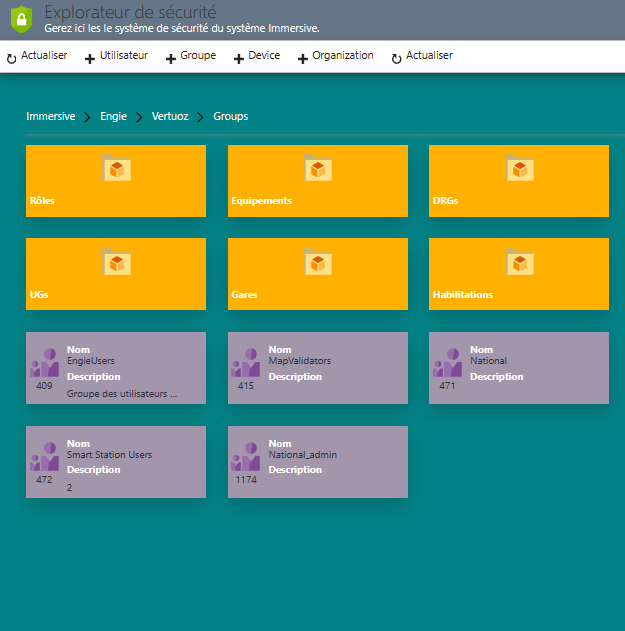
A directory and permissions structured around your teams.
Security starts with a clear framework.
Who can access what, perform which action and within which scope? These questions shape access management. They support three complementary objectives across the application and its operation.
Confidentiality
Limit data and functions to the people who need them for their work.
Integrity
Control changes and commands to preserve the reliability of information and operations.
Availability
Plan service continuity with maintained infrastructure, backups and suitable recovery procedures.
Our application directory: Immersive’s own identity structure.
Immersive has its own security directory. Its structure follows familiar Active Directory concepts: domains, organizational units, users, groups and devices. Together, these objects form a shared reference for managing identities and assigning permissions.
The hierarchy locates each account in its context and groups identities that share permissions. This application directory can coexist with your corporate directory: authentication is connected through the SSO mechanisms configured for the project.
An organization that reflects yours.
Structure the directory by entity, site, department or team. Organizational units provide an administration framework, while groups bring together people with shared access needs. The result remains understandable even when several functions use the same digital twin.
Prefer group-based permissions to simplify onboarding, role changes and departures. A change of responsibilities should trigger a review of memberships and granted rights, keeping the directory aligned with your access policy.

A corporate identity, with Immersive permissions.
Use Immersive authentication or connect your corporate identity provider. SSO provides a shared sign-in experience with your other applications. Available integrations use OpenID Connect and SAML 2.0, according to the chosen configuration.
The identity provider confirms who is signing in; Immersive then determines which data and actions are allowed. Mapping the external identity to an Immersive account is part of the setup. In an SSO deployment, multifactor authentication requirements are defined at the identity provider.
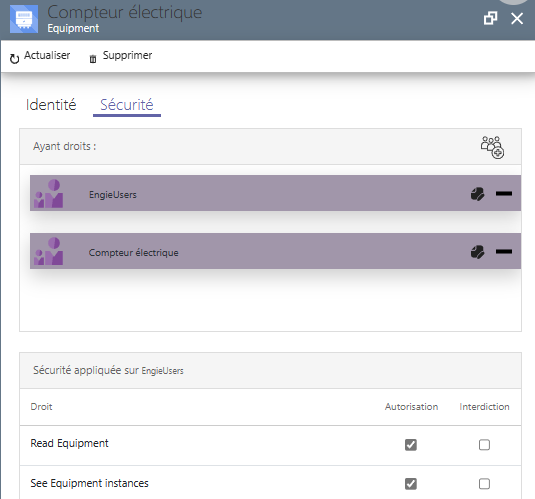
Define who can view, change and act.
Permissions apply to secured objects and the operations they expose. Granted or denied rights can be assigned to users and groups. Viewing, editing and administration can therefore be distributed according to responsibilities.
In Beholder, this supports separate profiles for observing a site, operating its equipment or administering its reference data. Map access and permission to perform an action should be designed together, using the rights actually available for each object type.

Extend administration through APIs.
Web services and OData let you build business tools around the directory and permissions. An internal interface can use the exposed operations to support your account and access management processes.
These integrations run under an identity and its assigned permissions. We place access checks in the server services: a custom interface must follow the same authorization framework as Immersive applications.
Practical principles in the security model.
Our model separates identities, resources and operations. This structure supports an explicit permission policy that evolves with the organization. The following rules guide its configuration and use.
Least privilege
Grant the rights needed for the task, within the appropriate scope. Reserve broader permissions for responsibilities that justify them.
Authenticate, then authorize
Verifying identity and deciding access are separate steps. Signing in through SSO alone does not grant access to every object.
Check access on the server
Services check permissions on protected resources. Hiding a button improves usability; the access decision belongs on the server.
Separate responsibilities
Separate viewing, operations and administration. Groups and object permissions make these distinctions explicit.
Manage the account lifecycle
The directory manages account activation and expiry. Failed sign-in tracking and temporary lockout help protect local authentication.
Keep useful records
Recorded authentication events help explain sign-ins and denials. Access to these records, retention and analysis are defined according to deployment needs.
One site, different responsibilities.
These profiles illustrate one possible policy, to adapt to your objects, teams and the operations available in your project.
The operator
They view equipment and status within their scope. Operational actions needed for their role are granted without assigning identity administration.
The technician
They access the locations and information needed for an intervention. A contractor account can have an expiry date, with permissions reviewed when the assignment ends.
The administrator
They organize the directory, groups and permissions within their administration scope. A dedicated privileged account helps separate administrative duties from everyday use.
Rules to maintain throughout operations.
Access management is part of a broader approach. Project and operations teams should jointly define technical and organizational measures suited to the site, its data and its criticality.
Identify and review access
Use individual accounts, document permissions, restrict default access and review groups regularly. Remove unnecessary rights when someone leaves or changes role.
Protect connections
Plan HTTPS, certificate management and appropriate network segmentation. Define stronger authentication for sensitive access and restrict administration interfaces to authorized people and networks.
Maintain and be able to recover
Schedule updates, protect backups and test restoration. Continuity also depends on hosting, dependencies and the operating procedures in place.
Monitor and respond
Organize log review, define retention periods and identify who may read the records. Establish an incident response procedure and verify permissions after significant changes.
For further guidance: OWASP recommendations on authorization and ANSSI’s IT hygiene guide.
Let’s design the right access model.
Start with your teams, sites and requirements to organize the directory, SSO and permissions needed for your Immersive deployment.