Enable an object type for security
- Undefined type
This document describes how to enable or disable an object type in the RestFrontage security configuration.

1. What is the purpose of activating a type?
A type represents a family of business objects, for example Map, Equipment, Workspace, Folder or SupervisionScope.
Activation allows the administration of this type:
- create new permissions;
- creation of new automatic entitlement rules;
- the type is taken into account by the automatic rights audit tool, when it knows how to find its objects and their organization.
The state is maintained in the security configuration. After each change, the in-memory security domain is reloaded, and other instances of the server are notified so that they can also reload their cache.
The toggle alone does not enable or disable business code access controls. A controller or service should always call the central security computation to protect objects of this type.
2. Open the configuration
- Log in with the Cerebrate account.
- Open
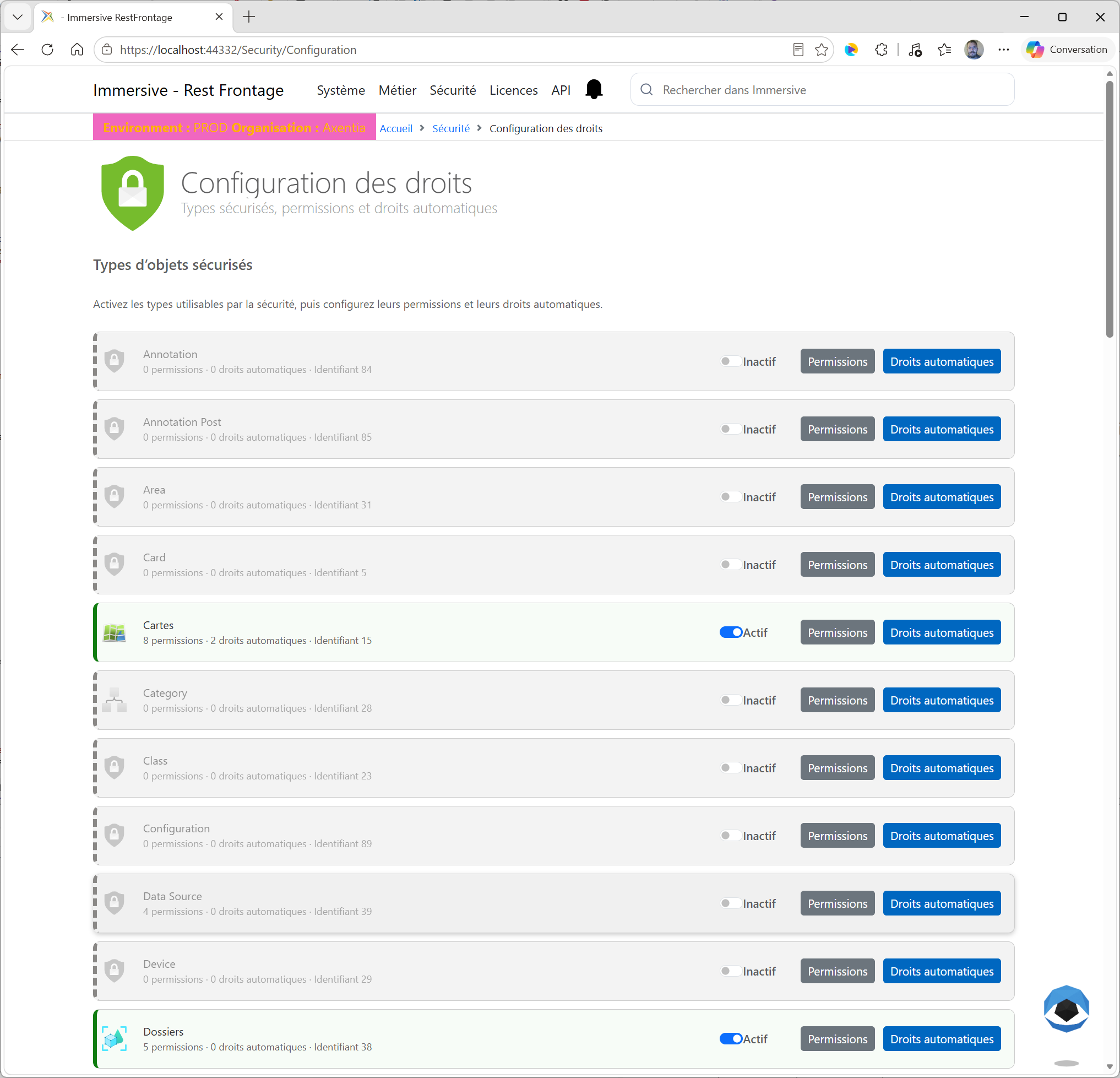
/Security/Configuration. - Locate the type to configure in the list Types of Secure Objects.
Each item displays:
| Information | Meaning |
|---|---|
| Icon and name | The functional name of the object type. |
| Number of permissions | Permissions currently set for this type. |
| Number of automatic entitlements | Currently saved, active, or inactive automated rules. |
| Login | A stable identifier of the type, usually derived from ImmersiveObjectType. |
| Toggle | The configuration is active or inactive. |
Button Permissions |
Opens the permission management of the type. |
Button Droits automatiques |
Opens the management of its automatic rules. |
An active type is visually highlighted. An inactive type is grayed out and has a discontinuous outline.
3. Consult the identity of a type
Clicking on the descriptive part of an element, apart from the toggle and action buttons, opens the properties window.
This window distinguishes:
- The display name, which is intended for users.
- the technical name of the object type;
- its stable numerical identifier.
This information is read-only. The copy icon allows you to copy each value.
Snapping to add here — properties of a type
Open the properties window of a representative type, for example SupervisionScope.
Recommended file name: Content/Images/security-type-proprietes.png
Directive to be inserted in place of this block: [[img:Content/Images/security-type-proprietes.png|80%|Propriétés en lecture seule d’un type d’objet sécurisé]]
4. Activate a type
- Place the toggle of the type on Active.
- Wait for the processing window to end.
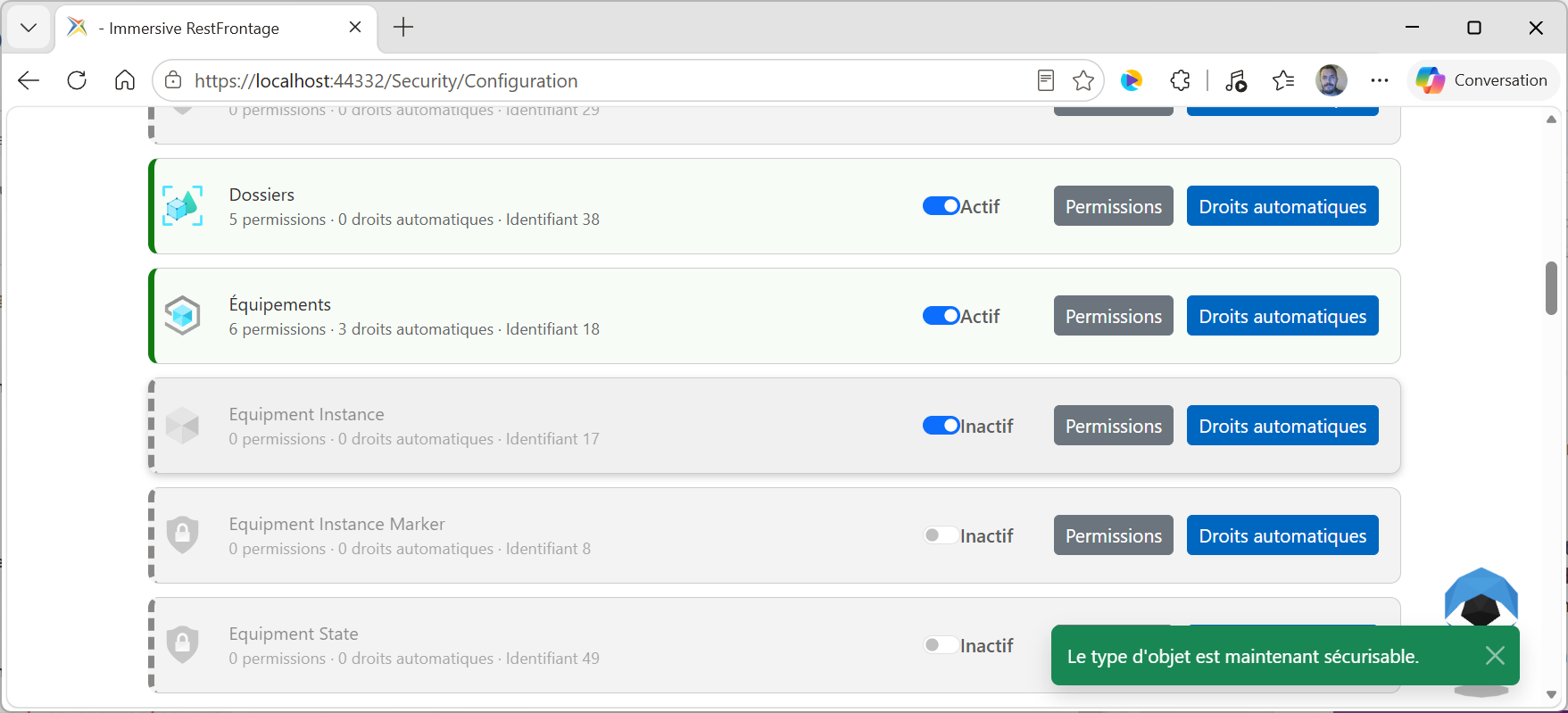
- Check the message confirming that the type is now securable.
- Open next Permissions to define the available actions.
- Finally open Automatic fees whether certain beneficiaries should receive rights when creating objects.
Enabling a type does not automatically create permissions, secure objects, or rights. These elements configure or occur in their respective paths.
5. Disable a Type
- Place the toggle on Inactive.
- Wait for confirmation.
- Verify that the element now appears in its inactive style.
Disabling prevents permissions from being created or modified and new automated rules for that type from being added.
It does not eliminate:
- Permissions that have already been configured.
- Automated rules that have already been configured.
- The
SecurizedObjectalready created; - rights already allocated;
- Authorization checks already called by the business code.
An active automatic rule is not disabled by the type's toggle. To stop using it, open Automatic fees and explicitly disable the rule. The rights it has already produced remain saved until they are removed separately.
Disabling a type does not make its objects public. Existing permissions and rights continue to participate in controls already plugged into the application.
6. Unavailable Types
A type that has been kept in the database but is no longer discovered in the business model can still appear in the list. Its toggle is disabled to avoid reactivating a configuration that the server no longer knows how to link to a business class.
Before reusing it, it must be re-declared in the business catalog with the same stable identifier.
7. In case of error
| Location | What to do |
|---|---|
| The toggle returns to its previous state | Read the error message and then check the account rights and server logs. |
| The configuration has been modified by another administrator | Reload the page before starting again. |
| The toggle is disabled | The type is no longer discovered in the business model. |
| The type is active but no access is granted | Create permissions, plug central control into the business code, and assign the necessary rights. |
| The type is inactive but accesses are still working | It's expected: disabling doesn't remove rights or override existing controls. |
8. Rules to remember
- Enabling a type allows it to be configured.
- A permission defines an action but does not grant any rights.
- A right links a beneficiary to a secure object.
- Disabling a type does not remove any security data.
- An automatic rule must be disabled separately.
- The business code must always call the central compute to make the protection effective.