Multi-factor authentication
- Undefined type
Training
Multi-factor authentication, or MFA, adds verification to the Immersive login: after their usual username and password, the user enters a six-digit code provided by their app on their phone.
This tutorial walks the administrator through MFA mode selection and user management, and explains the first setup and subsequent logins. Examples use Microsoft Authenticator and the fictitious account camille.martin.
In this article
1. Understanding MFA and TOTP
1.1 Two checks for a connection
The password is the first verification. The code produced by the application is the second: it verifies that the person also has the verification method associated with his or her account.
flowchart TD
    A["Saisir l’identifiant et le mot de passe"] --> B["Immersive vérifie le mot de passe"]
    B -->|Mot de passe valide| C["Ouvrir l’application TOTP sur le téléphone"]
    C --> D["Lire le code à six chiffres"]
    D --> E["Saisir ce code dans Immersive"]
    E --> F["Immersive vérifie le code"]
    F -->|Code valide| G["Connexion autorisée"]
This diagram shows a successful login when MFA is required. A declined password or code does not complete the login.
1.2 What is a TOTP?
TOTP means Time-Based One-Time Password : a temporary code calculated from the time and a secret shared during configuration. The mechanism is described in the TOTP open standard, RFC 6238.
In Immersive, the code has Six figures and changes every 30 seconds. The phone calculates it; the Immersive server verifies the code entered. A code that has already been accepted cannot be reused.
Only one TOTP configuration is active per Immersive account. A reset overrides this configuration.
The QR code presented at registration transmits to the application the information necessary to produce these codes. It is specific to the account.
The registration QR code and the manual entry key allow you to reproduce the codes of the account. Keep them confidential.
1.3 Microsoft Authenticator is an example of a compatible app
Immersive uses the TOTP open standard to produce the verification codes. Microsoft Authenticator serves as an example in this tutorial, but you can use another compatible app, depending on your organization's policies.
Here are some apps that support TOTP codes:
| Application | Mobile platforms | Official page |
|---|---|---|
| Microsoft Authenticator | Android and iOS | Explore Microsoft Authenticator |
| Google Authenticator | Android and iOS | Explore Google Authenticator |
| 2FAS Auth | Android and iOS | Discover 2FAS Auth |
| Aegis Authenticator | Android | Explore Aegis Authenticator |
The principle remains the same with these applications: you add your account by scanning the QR code presented by Immersive, then you confirm the configuration with the first six-digit code. On subsequent logins, you enter the current code after your usual password.
Menus and layout may vary depending on the application you choose. Backup and synchronization functions also depend on each application and must comply with your organization's policies.
In this tutorial, the illustrations show Microsoft Authenticator. For the Immersive MFA described here, you open the app and copy a code: no approval notification is sent to the phone.
1.4 Changing your PC or working without the Internet
Registration is associated with the account and the code application. You can log in from another PC or browser with your password and the code from the same phone. You don't have to scan a new QR code every time you change your phone.
Once the account is set up, Microsoft Authenticator can produce its codes without an internet connection. Approval notifications use another mechanism, which requires a login. Microsoft Reference: How Authenticator Works.
For Immersive, this means that:
- the phone can provide the code without a mobile network or Wi-Fi;
- the PC must always be able to reach the Immersive server, for example on the company network or via VPN;
- the telephone and the server must keep a correct time;
- The app must have been installed beforehand, taking into account the constraints of access to the app store.
2. Define who should use MFA
The administrator chooses whether MFA is required for login and password logins. The administrator can enforce MFA on all users or allow individual exceptions, called Exemptions.
2.1 What is an MFA exemption?
A MFA Exemption Allows a user designated by the administrator to log in with their usual username and password. without entering a TOTP code.
This exception is only for the second verification on login. It does not change the user's access rights in Immersive.
For example, when MFA is mandatory with exemptions:
- Camille, who is not exempt, enters her password and then the code for her application.
- Alex, exempted by the administrator, logs in with his password alone.
An exemption only applies if the Mandatory MFA with exemptions is selected. The MFA required without exemptions requires verification on all affected users, even if exemptions have been recorded.
2.2 The three modes available
MFA mode focuses on logins by username and password.
| Fashion | User without exemption | User with a registered exemption |
|---|---|---|
| MFA-free | Usual password login. | Usual password login. |
| Mandatory MFA with exemptions | Password, then TOTP code. Guided setup if needed. | Password-only login. |
| MFA required without exemptions | Password, then TOTP code. Guided setup if needed. | Password, then TOTP code: The exemption is not applied. |
Exemptions are retained when you switch modes. They take effect only in Mandatory MFA with exemptions. A user can be exempted while having already set up their app.
The mode MFA-free Maintains the usual operation of password logins. It does not delete checks that have already been saved.
2.3 SSO and other access
For a connection by SSO, authentication, and any MFA remain handled by the customer's identity provider. An Immersive exemption does not disable the MFA required by that provider.
API keys will continue to work as usual. WebAPI calls will be the subject of a separate article.
2.4 When does the user set up their app?
When a user is subject to MFA and has never set it up, the procedure is automatically displayed after validation of your password, on their next compatible connection. They must scan the QR code and then confirm a first code before accessing the application.
The administrator does not have to select users one by one for their first registration. Each user follows this path when they log in. A user who is already set up goes directly to entering the code.
flowchart TD
    A["Mot de passe validé"] --> B{"MFA exigée pour ce compte ?"}
    B -->|Non| C["Connexion autorisée"]
    B -->|Oui| D{"Vérification déjà configurée ?"}
    D -->|Oui| E["Saisir le code du téléphone"]
    D -->|Non| F["Scanner le QR code"]
    F --> G["Saisir le premier code"]
    E --> H{"Code accepté ?"}
    G --> H
    H -->|Oui| C
    H -->|Non| I["Corriger la saisie ou attendre un nouveau code"]
    I -->|Vérifier à nouveau| H
This diagram covers the first registration and the usual logins. After a reset, use the path described in Lost or replaced phone.
3. Prepare operating parameters
This part is for the person who operates the Immersive server. Users do not need to enter any server settings.
3.1 Access address and clocks
Use an address HTTPS accessible from users' workstations. The certificate must be recognized by their browsers, even on a network without Internet.
Check the time on the phone and server. In an isolated environment, schedule time synchronization that is appropriate for the corporate network.
3.2 MFA Settings
The settings can be found in the Mfa of the application configuration, for example in appsettings.json. Complete the existing configuration without replacing its other sections.
{
  "Mfa": {
    "Origins": [
      "https://immersive.exemple.fr"
    ],
    "Issuer": "Immersive - Demonstration",
    "TotpProtectionKey": "REMPLACER_PAR_LA_CLE_GENEREE"
  }
}
This example needs to be adapted: the domain and key value are benchmarks, not an out-of-the-box configuration.
| Parameter | Expected Value | To remember |
|---|---|---|
Origins |
List of allowed HTTPS origins. | Exact address of the Rest Frontage as seen by the browser: protocol, hostname, and any port, with no path or final bar. Example with a port: https://immersive.exemple.fr:44351. |
Issuer |
The name presented in the code application. | Choose a recognizable label, especially if multiple environments exist. From 1 to 80 characters, with no colons or control characters. The default value is Immersive. |
TotpProtectionKey |
A 32-byte random key encoded in Base64. | It protects the TOTP secrets kept by the server. It does not correspond to Cerebrate's password or the individual secret transmitted by the QR code. |
If users are using a reverse proxy, fill in the HTTPS address they are actually using. If multiple addresses are allowed, add each one to the Origins.
3.3 Generate and maintain the protection key
For a new configuration, this command also works with Windows PowerShell 5.1:
$mfaBytes = New-Object byte[] 32
$mfaRng = [System.Security.Cryptography.RandomNumberGenerator]::Create()
try {
    $mfaRng.GetBytes($mfaBytes)
    [Convert]::ToBase64String($mfaBytes)
}
finally {
    $mfaRng.Dispose()
}
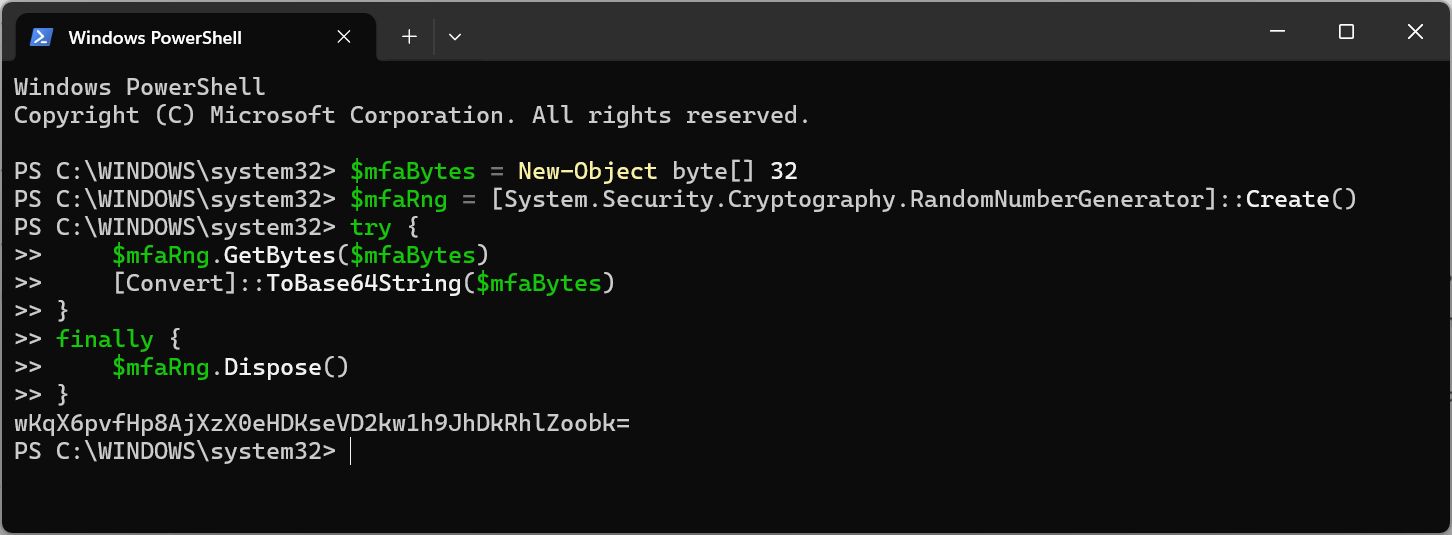
Copy the result to TotpProtectionKey through your usual secrets management procedure. Have the service consider the configuration before MFA testing.
Generate this key only once for a new configuration. If a key is already in use, keep it. All instances that share the same MFA accounts must use the same key.
Save it in a protected manner. Losing or replacing it makes secrets already saved unreadable and may require users to re-register. Don't publish it in a shared capture or document.
4. Prepare Cerebrate and activate the chosen mode
4.1 Open MFA page
Connect to RestFrontage with Cerebrate, open Security, then Multi-factor authentication. The page can be accessed at /Security/Mfa.
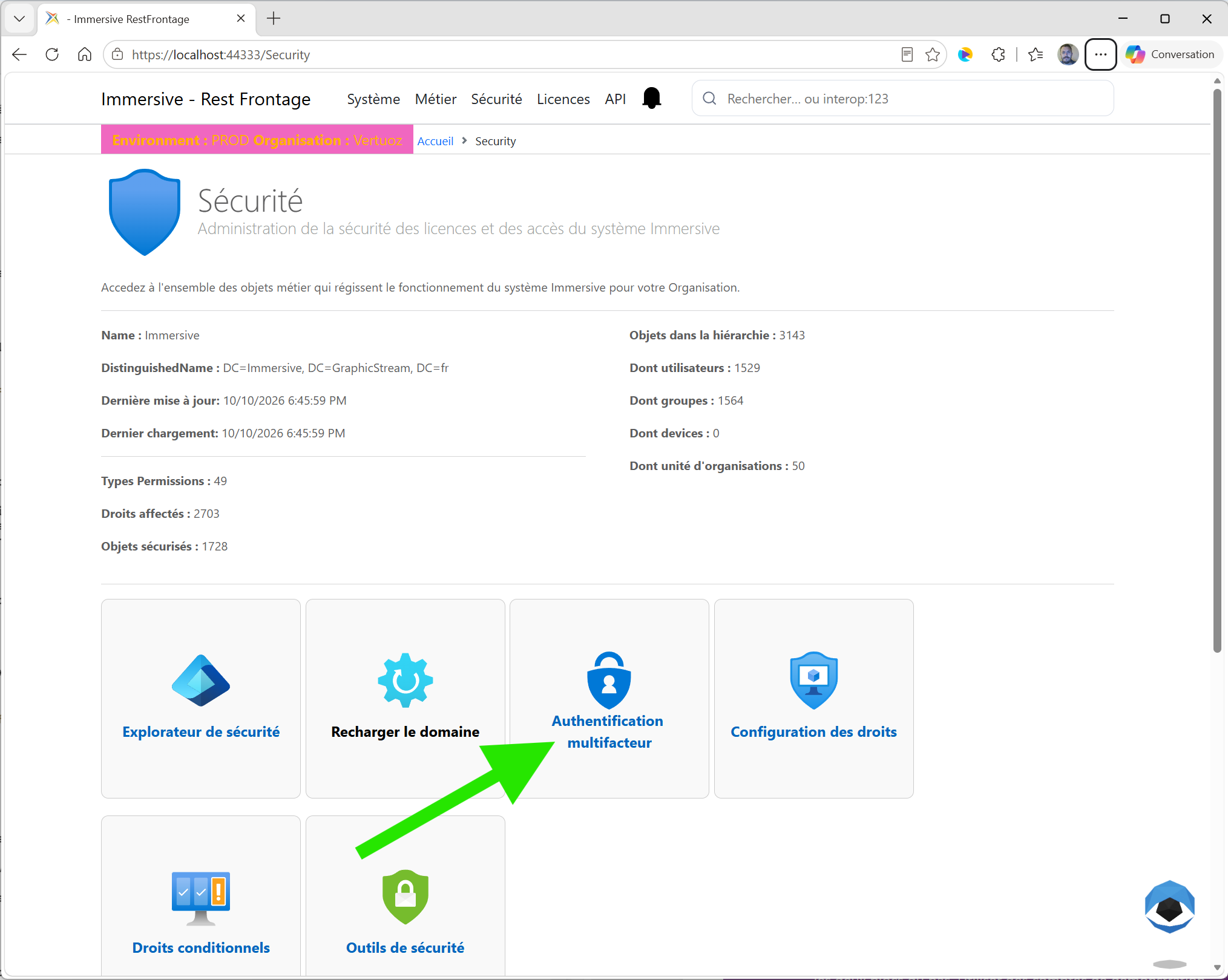
In the current interface, this page and its management operations are reserved for Cerebrate. Ordinary users configure their application during login; they do not have to access the RestFrontage administration.
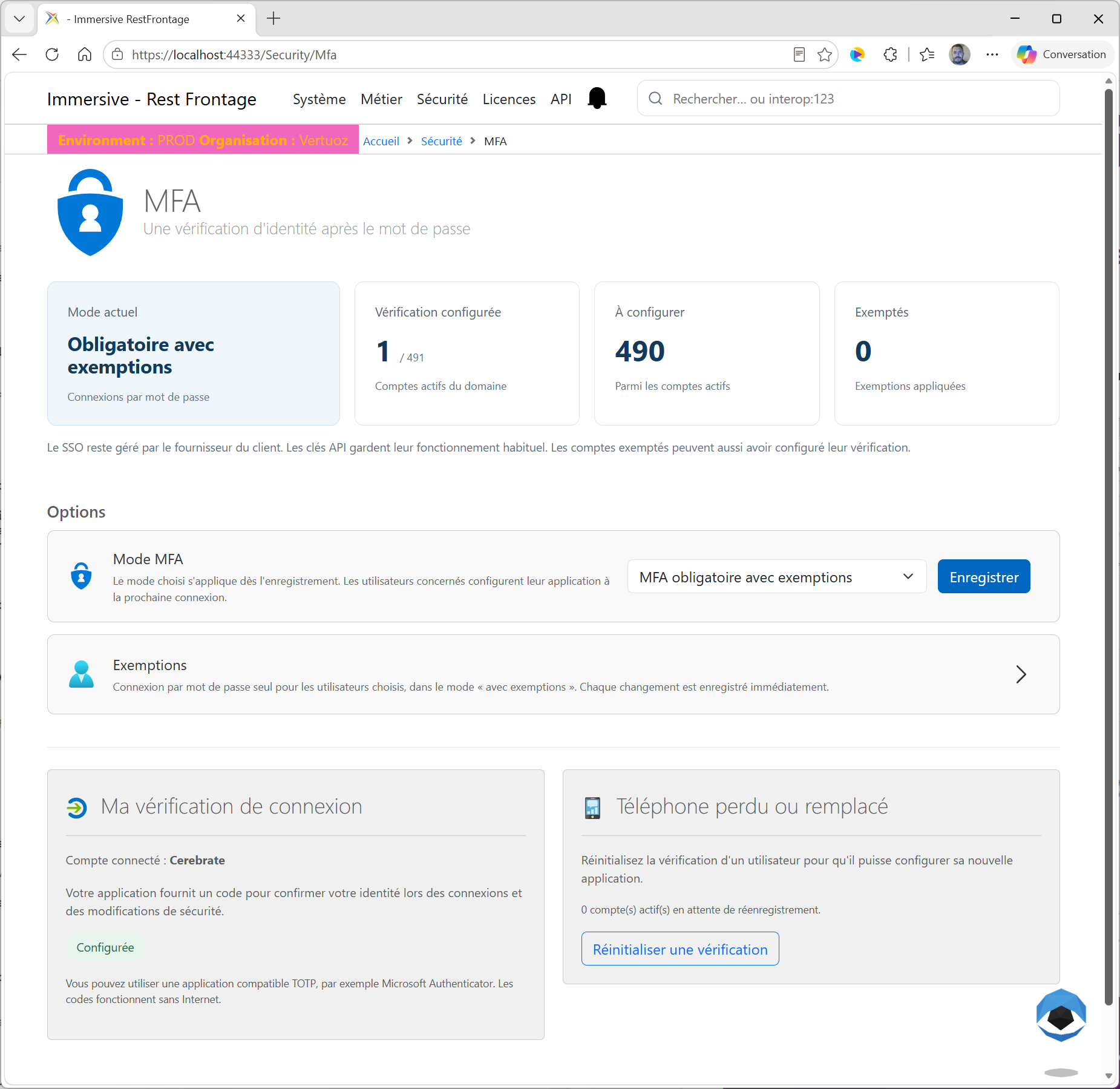
4.2 Configure Cerebrate verification
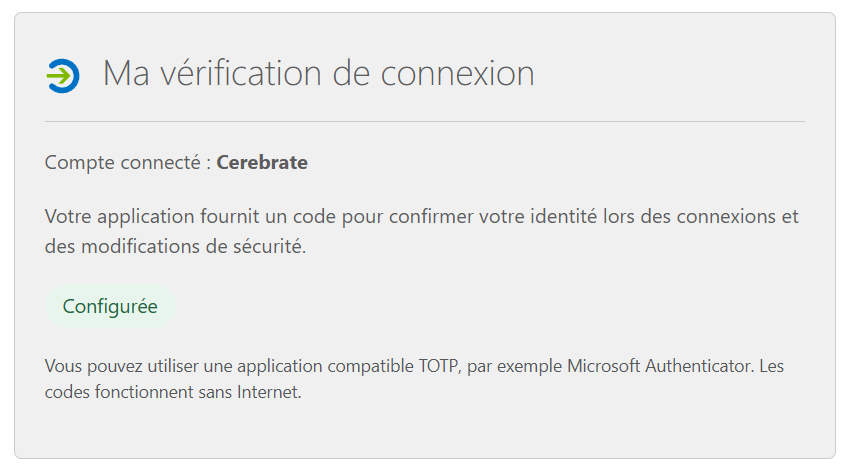
The Bouldering My Login Verification concerns the Currently logged in account. With Cerebrate, it is used to prepare its own code application to confirm security operations.
- In My Login Verification, click Set up my verification.
- Enter the current password of Cerebrate in the verification window.
- Scan the QR code with Microsoft Authenticator, as per the procedure in the next chapter.
- Enter the six-digit code provided by the app and validate.
- Verify that the block indicates Configured.
This prepares Cerebrate. It does not, on its own, make MFA mandatory for all users. Management options become available when its verification is ready.
4.3 Record MFA Mode
- In Options, choose the desired mode in Mode MFA.
- Click Save.
- Confirm your identity in the window that opens: Cerebrate's password, then a six-digit code from its application.
- Wait for the recording result.
- Check the message MFA mode has been recorded and applied. and value Current Mode of the dashboard.
The page displays a wait during the operation. The choice in the list is not enough: it is the confirmed backup that applies the mode. If the check is canceled or failed, the change is not saved.
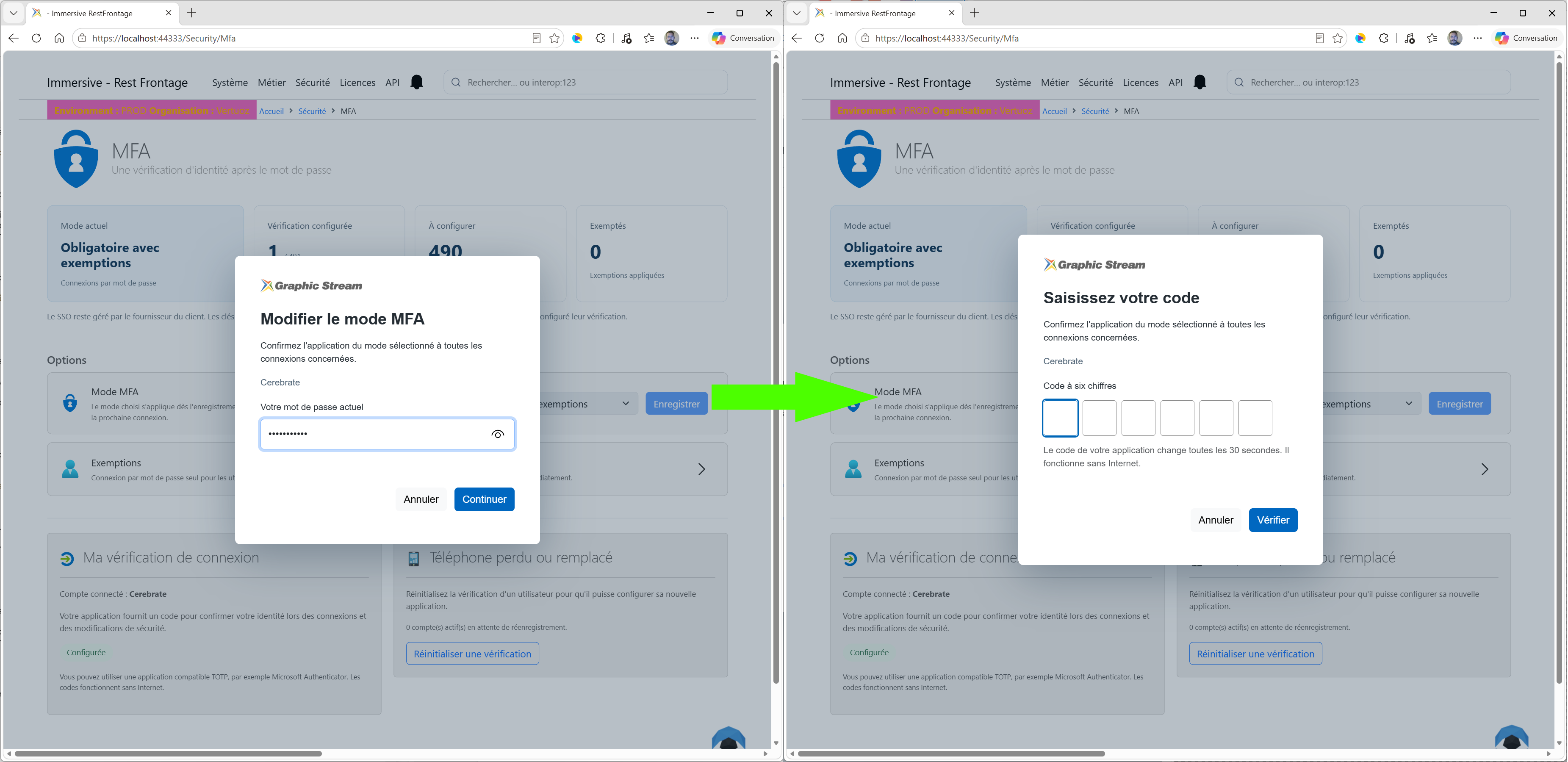
The mode is applied immediately after registration. Logins or sessions that no longer meet the new requirements may request reauthentication. Notify users before making MFA mandatory.
For an organization of several hundred users, everyone configures their application at their next relevant connection. Inform them to prepare their phone and their application; no user sheet tour is necessary to launch the first registrations.
5. Set up Microsoft Authenticator on first sign-in
5.1 On the PC: Start the connection
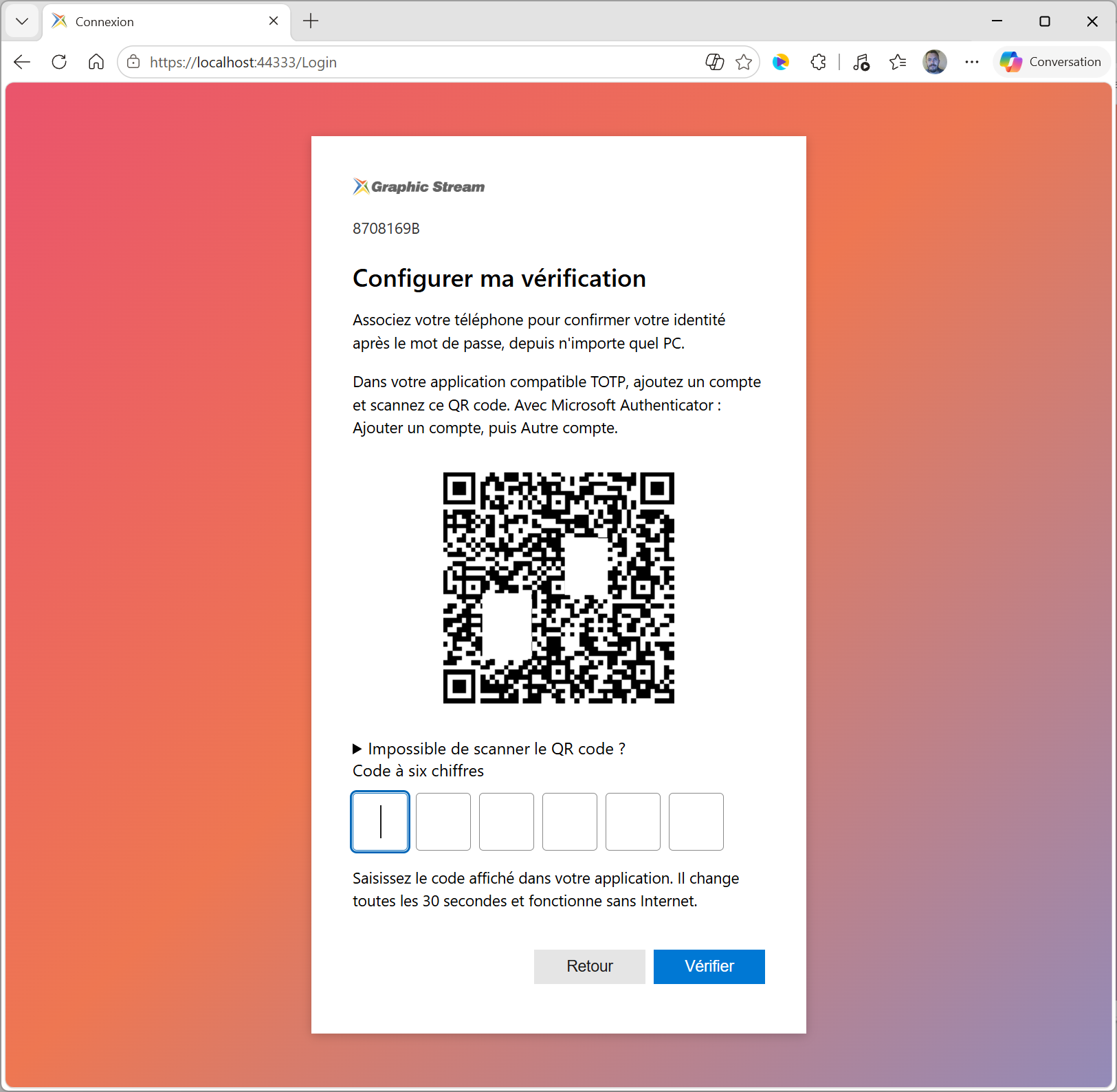
- Open your Immersive app with its MFA-enabled login screen.
- Enter your usual username and password.
- If MFA is required and your account is not yet set up, the Set up my verification appears.
- Keep this screen open: it presents the QR code to be scanned with the phone.
5.2 On the phone: add the Immersive account
- Open Microsoft Authenticator.
- Tap + or Add an account, depending on the version.
- Choose Other Account, sometimes labeled Other account (Google, Facebook, etc.).
- Allow access to the camera if the app requests it.
- Scan the QR code displayed in Immersive.
- Find the added account and its six-digit code.
The Immersive account is added as a TOTP account. The choice Other Account applies even if you use Immersive in your business. Microsoft Help: Add an account in Authenticator.
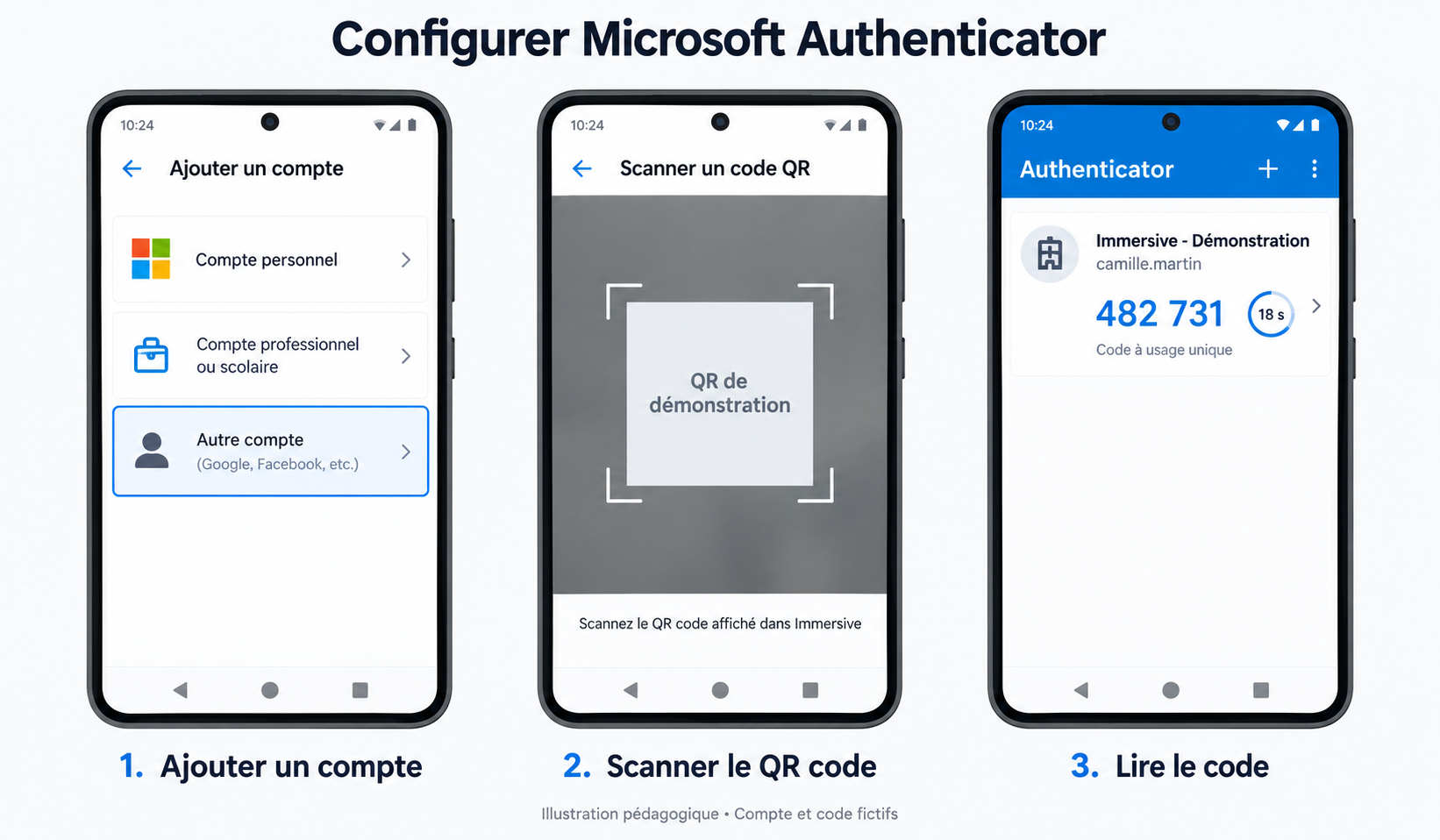
Educational illustration: fictitious account and code. The demo QR is not to be scanned. The labels and presentation may vary depending on the version of the application.
The environment name, defined by the administrator, distinguishes between several Immersive accounts. In the illustration, Immersive - Demo and camille.martin serve only as examples.
5.3 On the PC: confirm the first code
Enter the six digits currently displayed by Authenticator in the six boxes in Immersive, then click Check. You can enter the code in a row or paste it.
The scan alone does not complete the registration: The first accepted code confirms the configuration. During a first guided login, you can then access the application, depending on the rights of your account.
Don't copy the code from the illustration. Always use the code from your own phone. If it's about to change, wait for the next one before validating.
5.4 If the QR code cannot be scanned
In Immersive, open Can't scan the QR code? to view the manual entry key. In the code application, use the manual entry option and copy the key.
If the app asks for the settings: Choose a code Time-based, Six figures, a period of 30 seconds and the algorithm SHA-1. Then confirm the first code in Immersive as after a scan.
The manual key remains confidential: it represents the same secret as the QR code.
6. Log in the following times
- Enter your username and password in Immersive.
- When Verify your identity appears, open Microsoft Authenticator.
- Choose the Immersive account that corresponds to the environment used.
- Enter the current code in the six boxes, then click Check.
There is no new QR code to scan each time you log in. The same account in Authenticator works from the different PCs authorized to access Immersive.
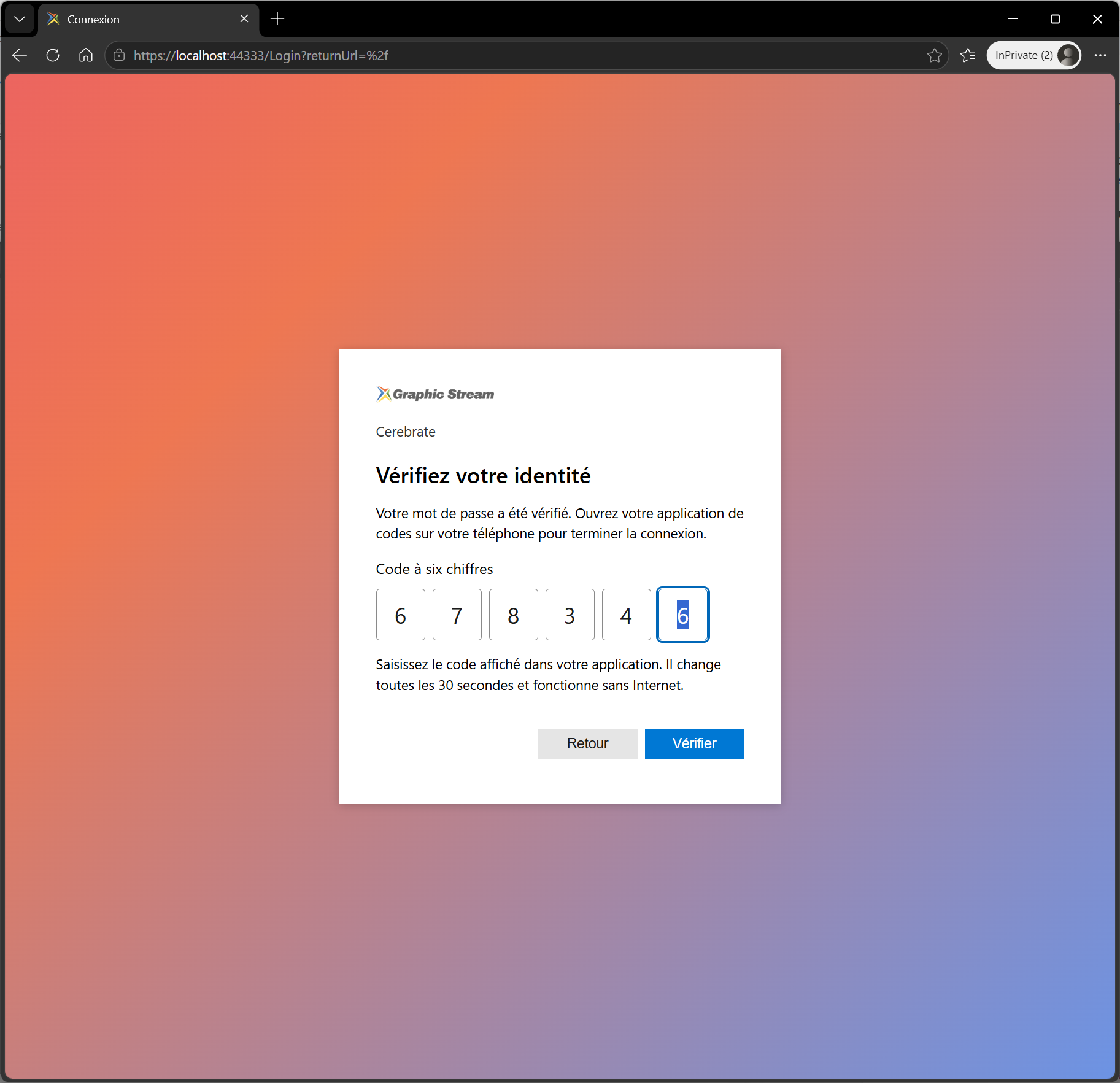
The app may ask to unlock the phone or its own access before displaying the codes. This phone protection is separate from the Immersive password.
7. Read the dashboard and manage exemptions
7.1 Understanding Meters
The top of the MFA page summarizes the situation of the Active Domain Accounts.
| Indicator | Meaning |
|---|---|
| Current Mode | This is currently the policy for password logins. |
| Verification configured | The number of active accounts that have confirmed their registration with a code, compared to the total number of active accounts. |
| Configure | The number of active accounts without confirmed verification. This number may include accounts that are exempt or used only in SSO. |
| Exempted | Number of active accounts with a registered exemption. The text specifies whether exemptions are applied or only retained. |
In Lost or replaced phone, another counter shows active accounts waiting to be re-registered.
Configured and Exempted describe two different pieces of information. Do not add them up to get the number of users: the same account can be counted in both. A QR code simply displayed, without confirmation of the first code, does not constitute a completed configuration.
7.2 Add or remove an exemption
- In Options, open Exemptions.
- Search for the user by their account, first name, last name, description, or distinguished name in the directory, called DN.
- If necessary, use Show to filter All users, Exempted or Not exempt.
- You can inquire Reason for the next additions to explain the exemption.
- Turn the button on or off Exempted of the user concerned.
- Confirm the operation with Cerebrate's password and MFA code, and then wait for the result.
Each change is saved and applied individually. There is no global backup of the list to be made. A change in exemptions can also require reauthentication for sessions subject to MFA. The DN remains searchable when the user hovers, without cluttering the line.
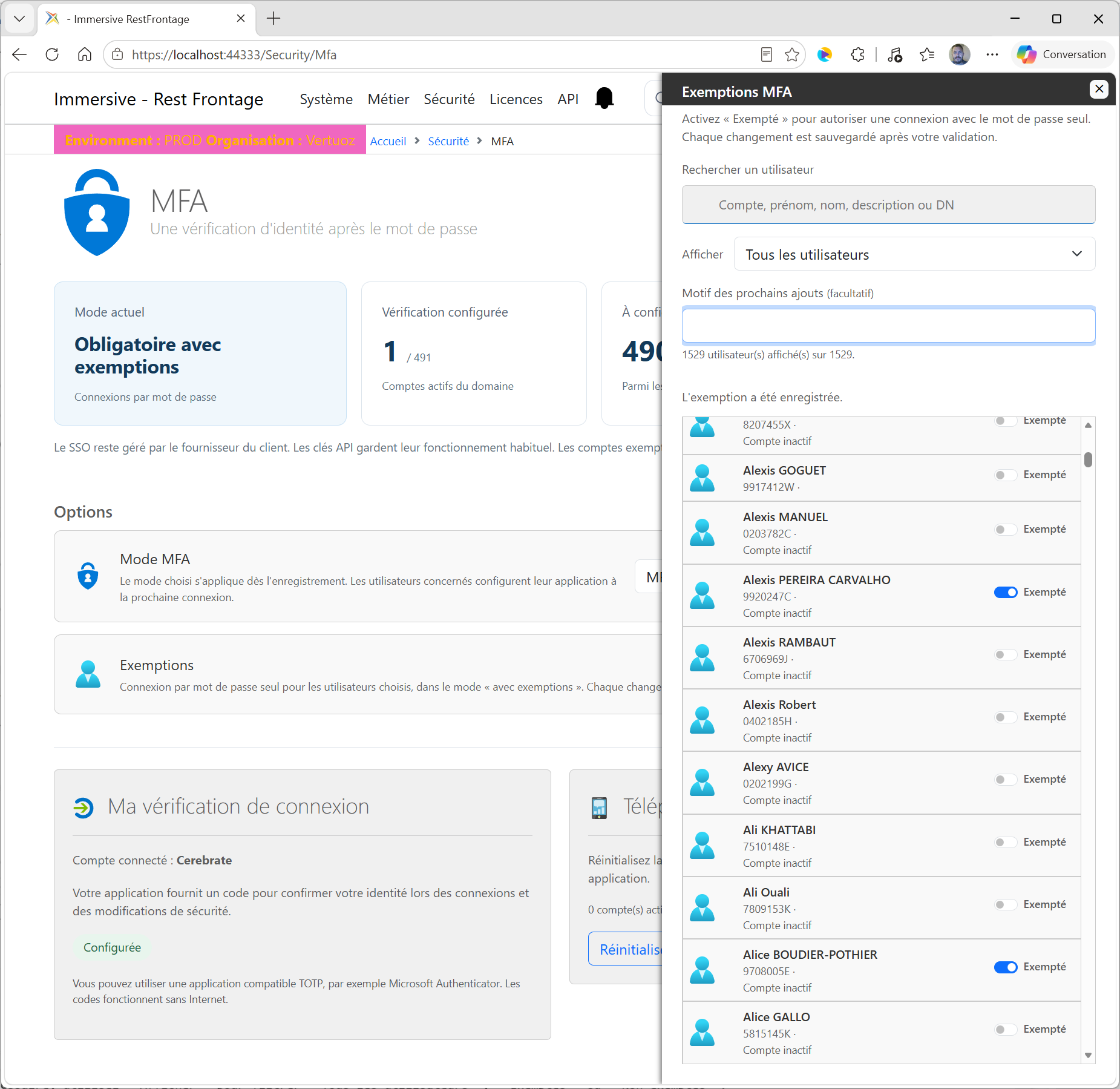
In Mandatory MFA with exemptions, removing an exemption submits the account to MFA: the user will have to provide their code or complete their first setup. Adding an exemption allows them to log in by password only.
In MFA required without exemptions, saved exemptions are ignored. In MFA-free, they are kept for a possible change of mode later.
8. Lost or replaced phone
8.1 What the reset does
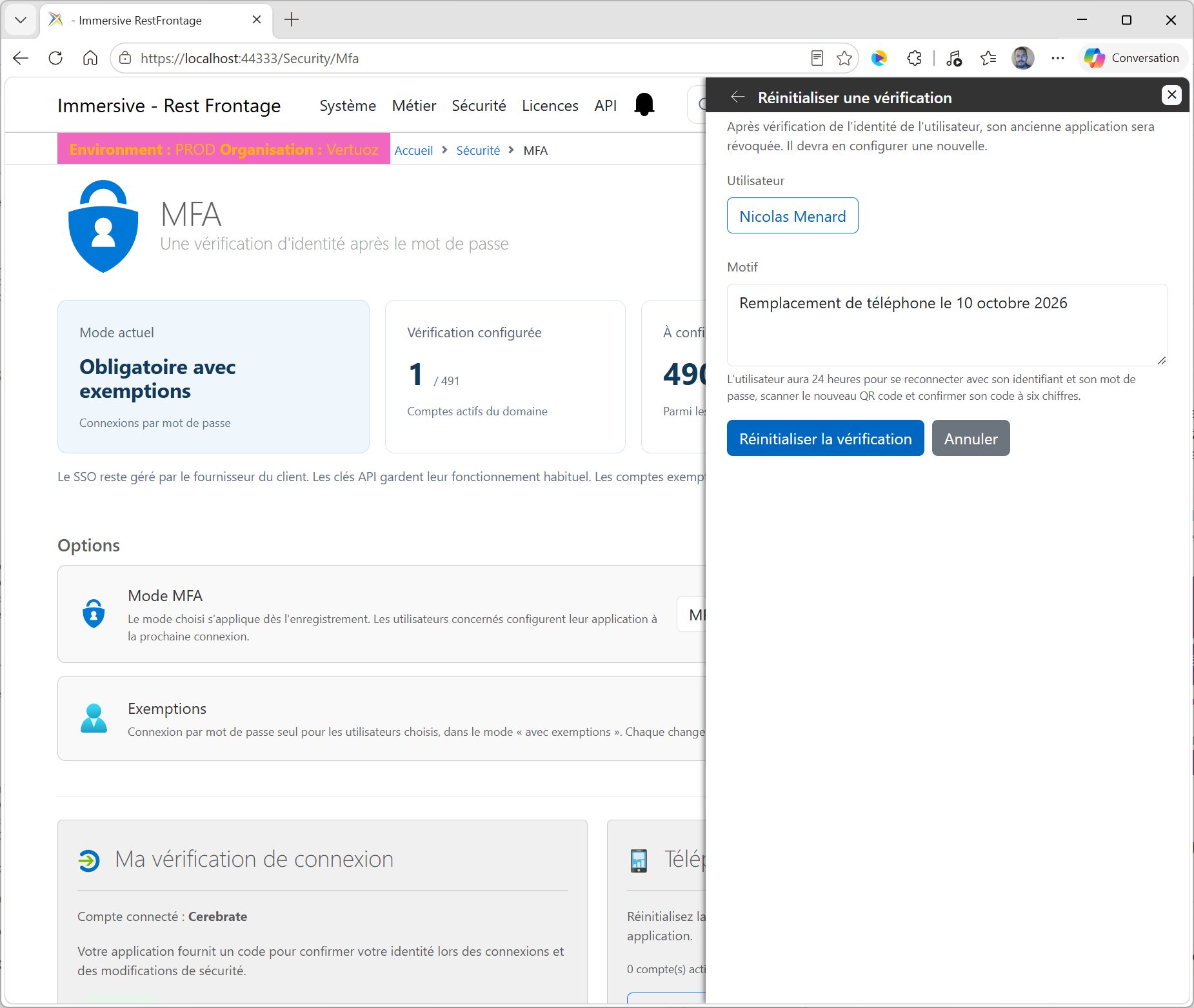
The reset revokes the old account verification and allows a new app to be set up. It doesn't change the user's password.
The user has 24 hours after authorization to log in with their username and password, scan a new QR code and confirm a first code. They do not have to keep or copy any additional re-registration code.
flowchart TD
    A["Identité de l'utilisateur vérifiée"] --> B["Cerebrate confirme la réinitialisation"]
    B --> C["Ancienne vérification révoquée"]
    C --> D["Utilisateur : identifiant et mot de passe"]
    D --> E["Nouveau QR code à scanner sous 24 heures"]
    E --> F["Premier code accepté"]
    F --> G["Nouvelle vérification prête"]
8.2 Reset from the MFA page
- Verify the identity of the user requesting help, according to your organization's procedure.
- In Lost or replaced phone, click Reset a check.
- Click Choose a user ; Find and select the person in the choice window.
- Fill in the Reason of reset.
- Click Reset verification.
- Confirm with Cerebrate's password and MFA code.
- Wait Re-registration allowed and note the posted deadline.
8.3 Reset from the user card
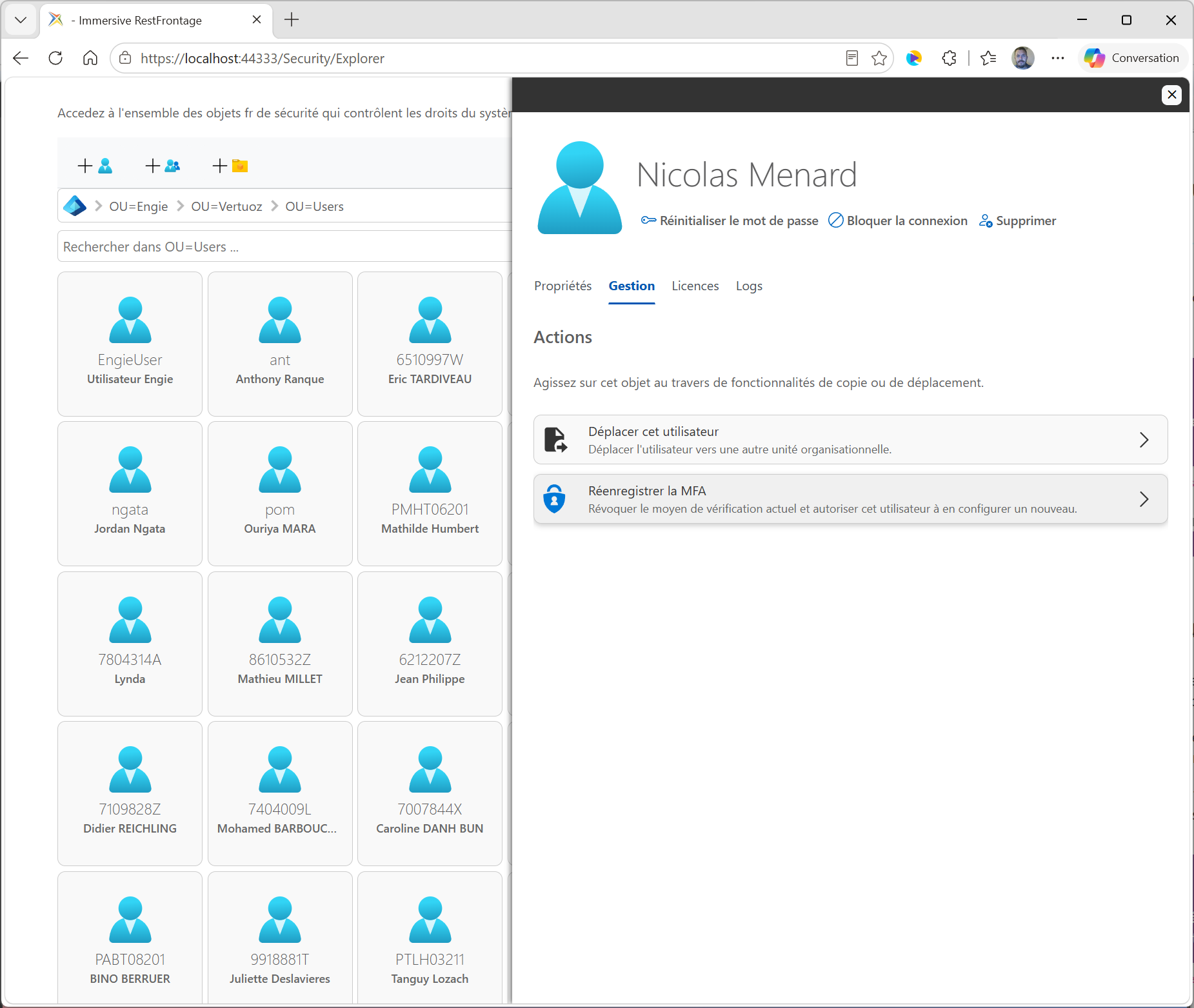
You can also open the user's record in Security → Users, go to the Management, then choose Re-register MFA.
The confirmation window is directly associated with the user of the listing. Verify their identity, fill in the reason, and then click Confirm Re-Registration. Cerebrate validation is still required.
8.4 What the user should do
Ask the user to start a new Immersive login. After their regular password, they will go through the procedure of scanning and confirming the first code on their new phone again.
An authorized reset can trigger this configuration even if the account is exempt or if global mode is MFA-free. It corresponds to an explicit request for the replacement of the means of verification.
If the procedure is interrupted before it is confirmed, the user can start again within the allowed time. Once the new code is accepted, the re-registration authorization is used.
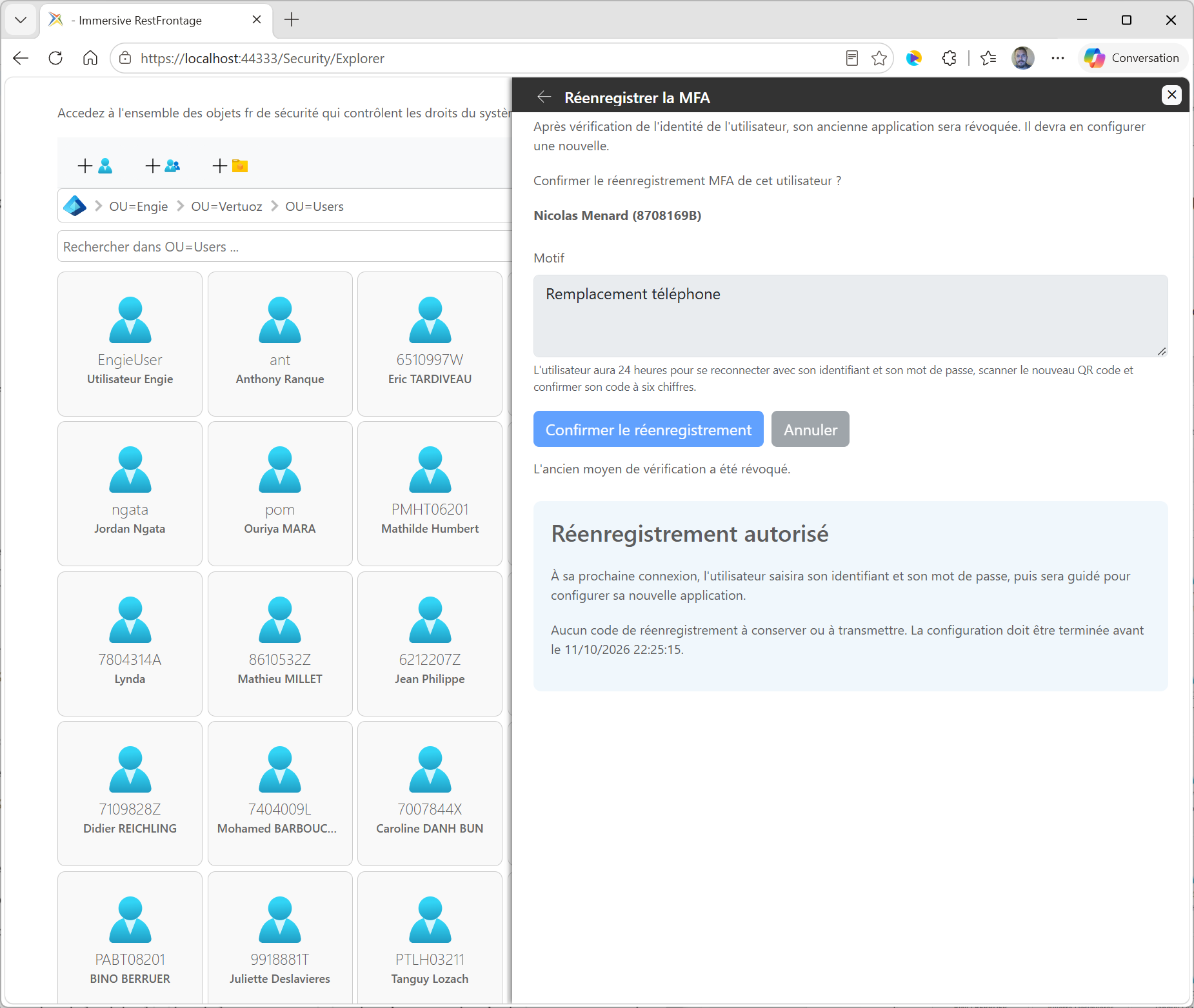
If the time limit has expired, the administrator must renew the reset. A change in the password or MFA settings during this time can also cause the authorization to lapse.
The old entry may still be visible in Authenticator, but its codes are no longer valid for Immersive. After confirming the new account, delete the stale entry to avoid confusion.
8.5 Special case: Cerebrate's phone
For a scheduled replacement, start while the old app is still available: its code confirms the reset. Then sign back in to set up the new app. The personal block can offer Re-register my verification as long as the authorization is valid.
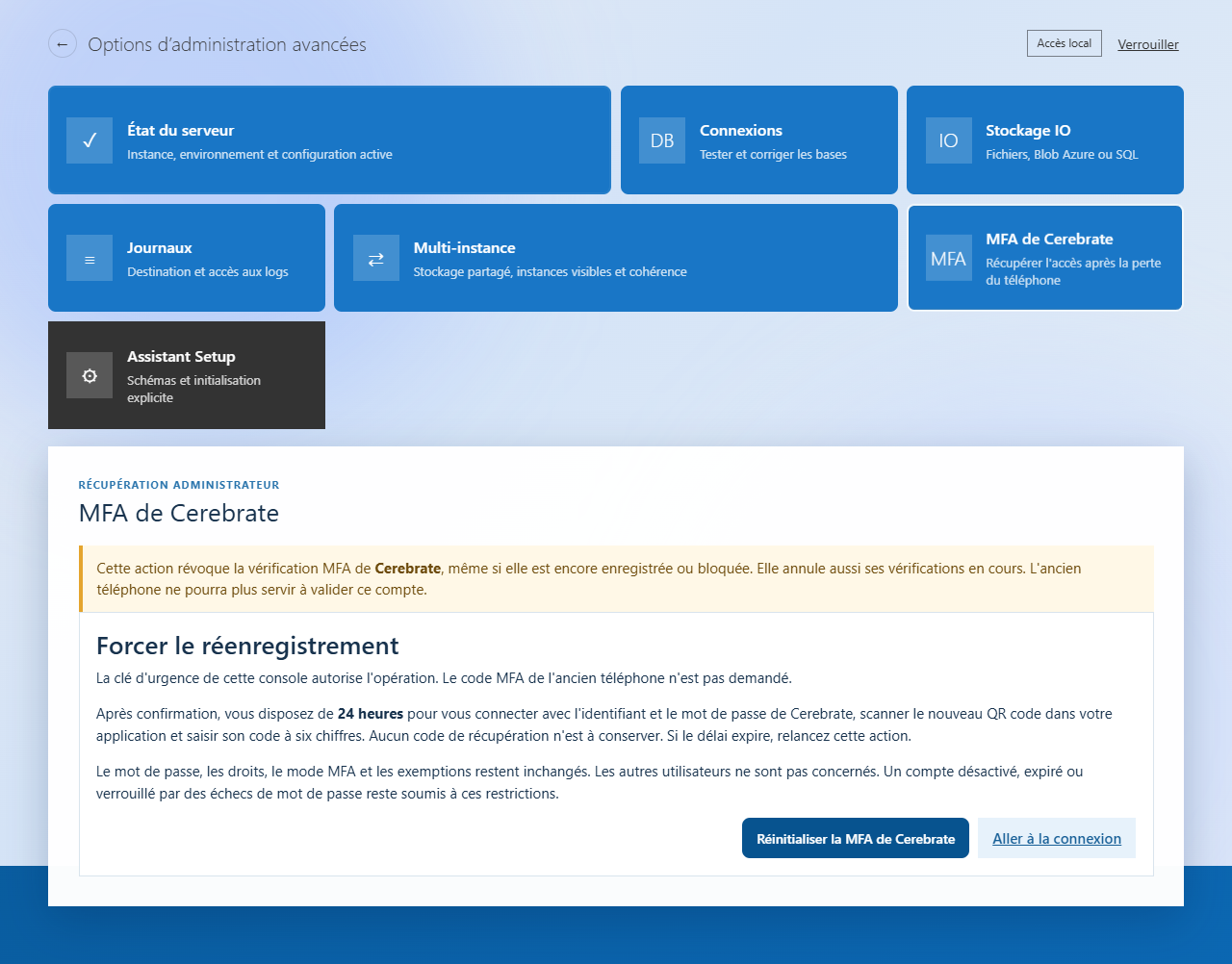
If the phone is lost or inaccessible, the operator can force the re-registration from the recovery console.
Open disaster recovery
- Open /Setup/Tools and unlock the console with the Server Emergency Key.
- Open Cerebrate's MFA, then click Reset Cerebrate MFA and confirm.
Configure the new app
- Click Go to login and enter the usual Cerebrate username and password.
- Scan the new QR code in your TOTP-enabled app.
- Enter the six-digit code displayed by the app, then click Check.
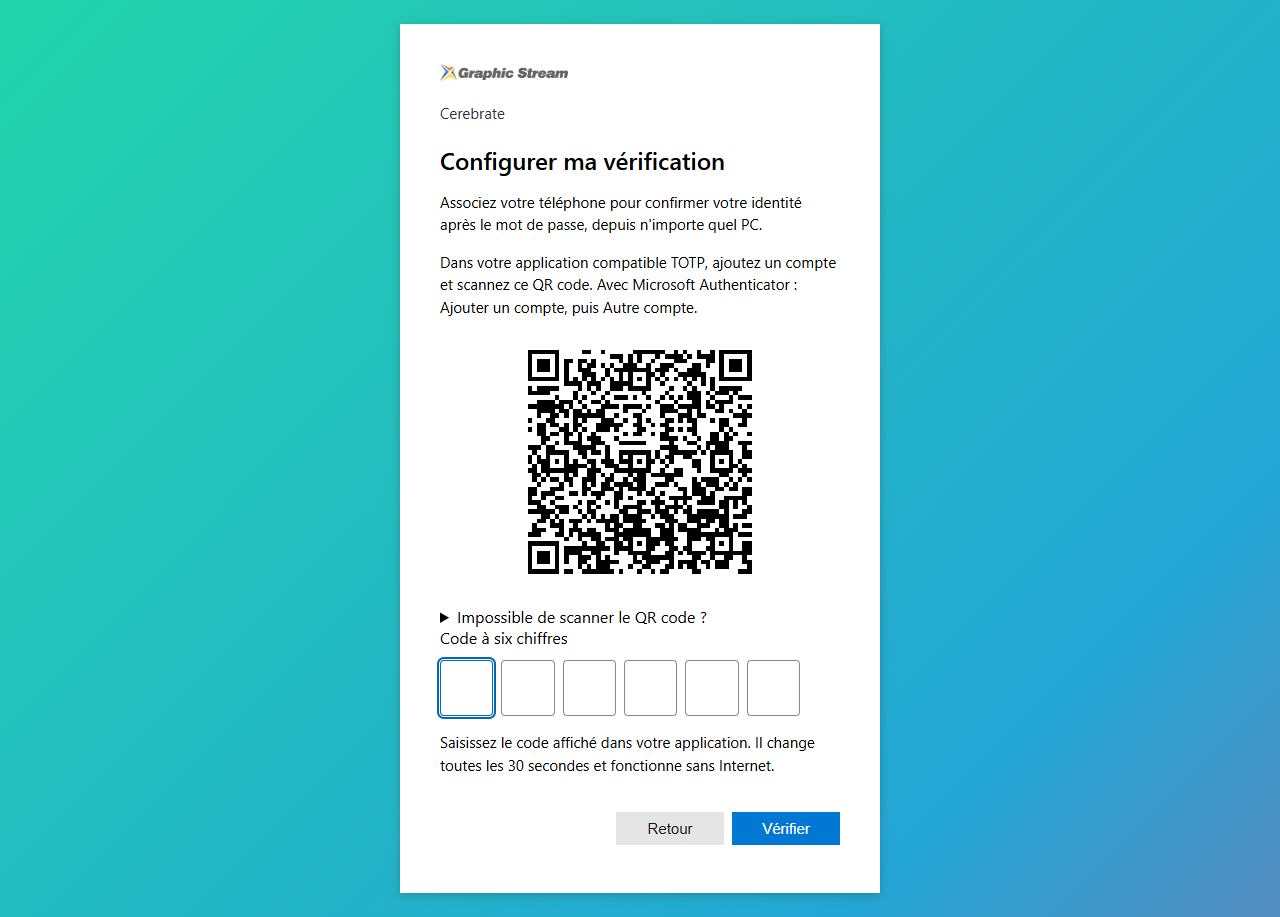
Captures made in a test environment. The QR code shown does not allow you to configure your account: use the one displayed by your server.
The old verification method is revoked, even if it is still registered. You have 24 hours to complete the new configuration. If this timeout expires, restart the action from the console.
The old MFA code is not required and no additional recovery codes are required. The emergency reset is authorized by the console key; Cerebrate's password is then used to log in.
9. Solving common challenges
| Location | Verification or action |
|---|---|
| The code is refused. | Verify the selected account and environment in Authenticator. Wait for the next code, then enter its six digits. |
| A code has already been accepted for another action. | Wait for it to be renewed: an accepted code cannot be used a second time. |
| Codes remain refused. | Check the phone and server time. If the verification has been reset, the old Authenticator entry no longer works. |
| Too many incorrect codes. | After five failures, the MFA verification is locked for 15 minutes. Restarting the login does not reset this counter. |
| The configuration or verification has timed out. | Repeat from the username and password. For a re-registration whose authorization has expired, request a new reset. |
| No code request appears. | Control the actual registered mode, the account exemption, and the type of login. An SSO login follows the rules of the identity provider. |
| The phone doesn't have internet. | Open the app and use its code. TOTP generation works offline; the PC still needs to join Immersive. |
| The client application does not offer MFA. | Use a compatible version and login screen. An account subject to MFA can't complete its password login on its own. |
| The user does not have an authorized phone. | Have the organization define a compatible TOTP means or assumed exemption, if the mode allows exemptions. |
| Administrator options are unavailable. | Check the server configuration shown as missing and the status of Cerebrate's personal verification. |
10. Check that everything is ready
10.1 Administrator side
- The HTTPS addresses and MFA settings correspond to the environment being used.
- The protection key is kept and stored securely.
- Cerebrate has confirmed its own code application.
- The dashboard displays the chosen mode after recording.
- The necessary exemptions were checked individually.
- Users know the procedure and the contact to reach in case the phone is lost.
10.2 With a test user account
- A user subject to MFA is guided to the QR code when they first log in.
- The scan is followed by the validation of the first code before accessing the application.
- A new connection asks for the password and then the code.
- The connection works from another PC with the same code application.
- The code works with the phone offline, while the PC retains access to the server.
- An exemption is applied only in the mode with exemptions.
- A reset leads to a new QR code, with no recovery code to transmit.