Integrate Immersive Authentication
- Undefined type
Documentation
An application can use RestFrontage login screens to authenticate its users, apply MFA and retrieve a token that can be used with WebAPI and OData. It does not have to reproduce password, QR code or TOTP entry screens.
This guide provides two comprehensive projects: a WPF Windows application and a JavaScript-based web application, hosted by a small project ASP.NET Core. Neither of them references GraphicStream.Immersive.Server.Interop or any other Immersive DLL. The future independent authentication package is not required to use them.
Download the examples
Download WPF and Web Integration Samples
Unzip the archive, then open Samples/Immersive.Authentication.Samples.slnx in Visual Studio.
Then follow the section Prepare the two examples to declare applications in RestFrontage and configure their connection.
The illustrations are screenshots of the examples and the RestFrontage login in an isolated test environment. The accounts shown are demo accounts. The ports and IDs of the captures are from the test bench; use the values from your own configuration.
In this article
1. Understanding the principle
1.1 A common connection interface
The user clicks Log in in your application. The browser displays the Immersive login. It enters its username and password, then its MFA code when required by server policy. If its verification needs to be configured, the server presents it with the QR code and asks it to confirm a first code.
The application then automatically receives a token. This token allows it to call the APIs with the rights of the logged-in user. A successful connection does not grant them any additional rights.
MFA follows the setting already set in Immersive: disabled, required with exemptions, or required for all affected users. The client application does not choose to bypass this policy.
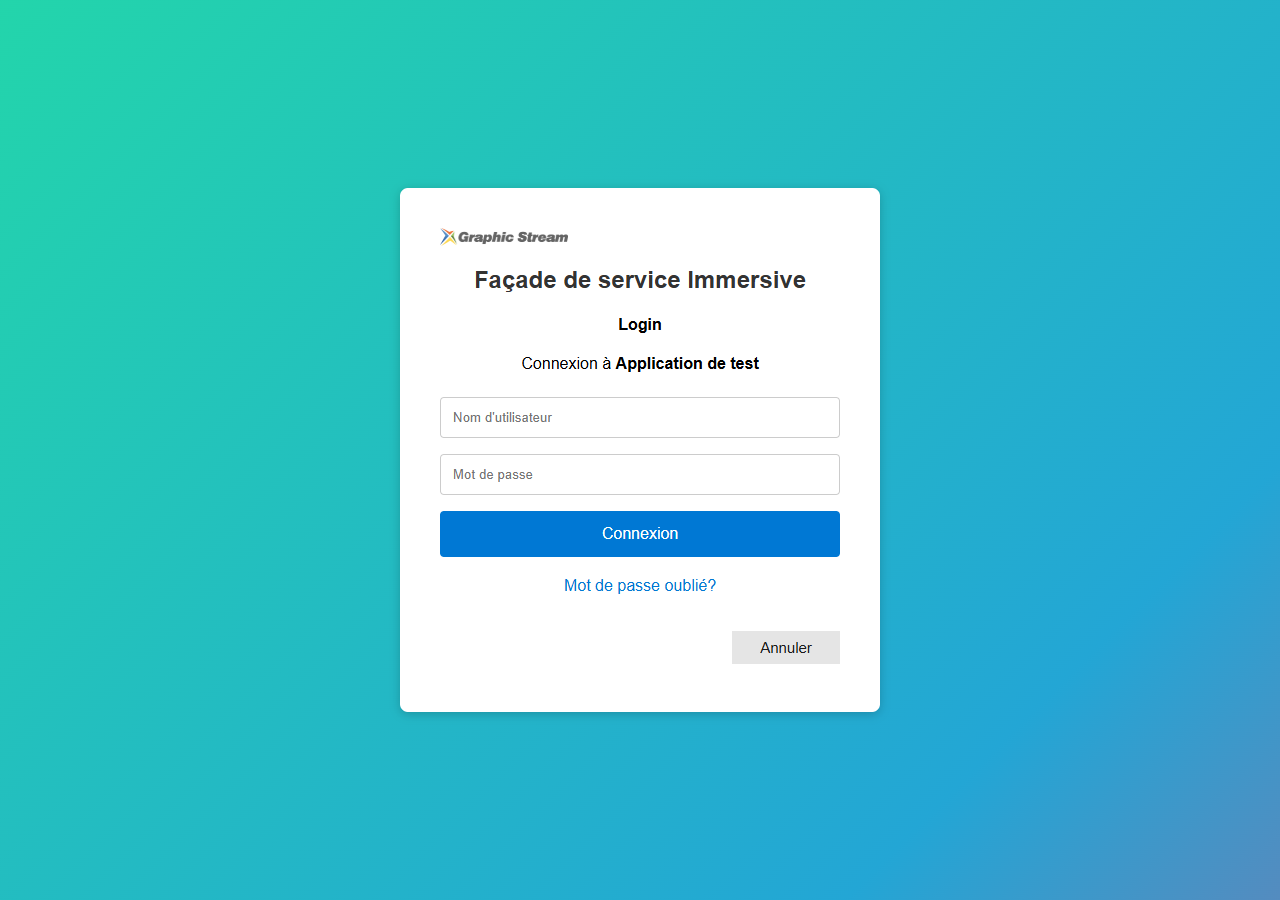
The journey for an application is separate from logging in to the RestFrontage administration. A regular user can use it without belonging to EnhancedAccess. This journey does not create an administrative session.
1.2 Two codes that have different roles
The TOTP code is the six-digit code displayed by the phone's app. It is used to confirm identity after the password. It usually changes every 30 seconds and is calculated without the internet.
The Return Code is a technical code, generated by the server after login. It is automatically transmitted to the application, which exchanges it for the token. The user never has to copy it, keep it or transmit it to an administrator. This code expires after 60 seconds and only works once.
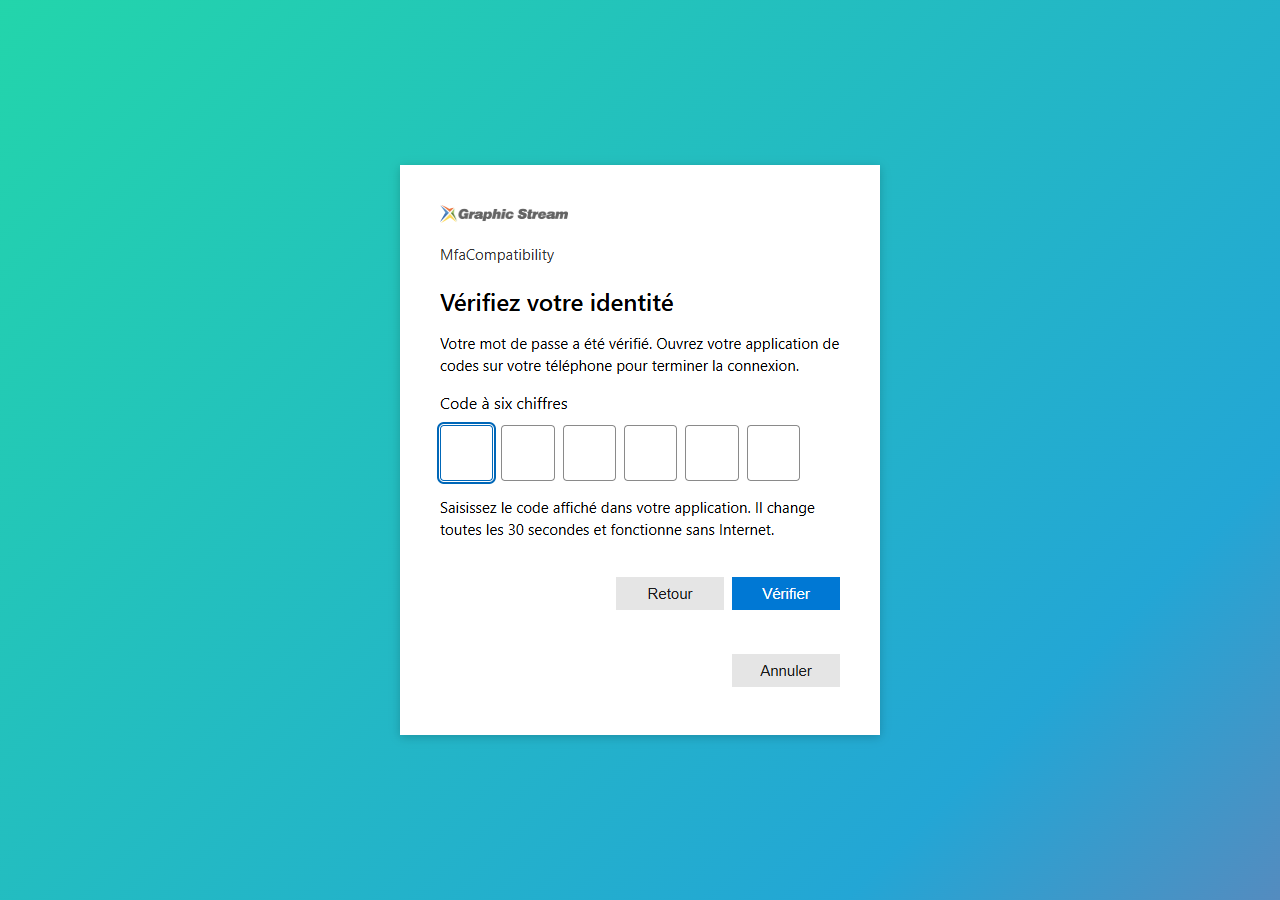
1.3 The complete journey
sequenceDiagram
    participant A as Votre application
    participant N as Navigateur
    participant R as RestFrontage
    A->>A: Préparer state et une preuve PKCE
    A->>N: Ouvrir Browser/Authorize
    N->>R: Demander la connexion pour l'application déclarée
    R-->>N: Afficher le login Immersive
    N->>R: Saisir identifiant et mot de passe
    opt MFA requise
        R-->>N: QR code si inscription nécessaire, puis saisie TOTP
        N->>R: Confirmer un code à six chiffres
    end
    R-->>N: Rediriger vers le callback avec un code temporaire
    N-->>A: Transmettre code, state et iss
    A->>A: Vérifier le retour attendu
    A->>R: Browser/Token avec le code et la preuve PKCE
    R-->>A: Token Immersive et durée restante
    A->>R: WebAPI ou OData avec Authorization: Bearer
    R-->>A: Réponse autorisée selon les droits du compte
Protection PKCE S256 links the code exchange to the application that started the connection. The application maintains a private random value, the code_verifier, and initially only transmitted his fingerprint, the code_challenge. Intercepting the return code alone is therefore not enough to obtain the token. This mechanism is described by the RFC 7636.
state Links the return to the current connection request. iss Identifies the server that is responding. The provided clients verify these values and the return address before the exchange.
2. Prepare the two examples
2.1 Content of the file provided
Open Samples/Immersive.Authentication.Samples.slnx in Visual Studio. The solution contains exactly two independent projects.
| Project | Function | Outbuildings |
|---|---|---|
| Immersive.Authentication.Wpf | Windows executable; offers the external browser or a built-in WebView2 window, and then calls an API. | .NET 10 for Windows, WPF, and the Microsoft.Web.WebView2 package. No immersive DLLs. |
| Immersive.Authentication.Web | JavaScript application; redirects the tab to Immersive and then redeems the code on return. | .NET 10/ASP.NET Core to serve files. JavaScript can also be hosted by another web server. |
The dossier Executables/WPF, in the delivery archive, contains the published executable and its configuration. This release requires the .NET Desktop Runtime 10 x64 and, for the integrated mode, the Microsoft Edge WebView runtime2. Keep all published files together, including the WebView2 uploader.
To compile the sources, use the .NET 10 SDK and, in Visual Studio, the development components Desktop .NET and ASP.NET/Web. Both projects can be detached from the server repository: you can copy the Samples folder to another computer.
2.2 Declare apps in RestFrontage
This step is required before clicking Connect. Starting RestFrontage at the correct address is not enough: it needs to know the sample's ClientId and its callback. An absent declaration causes the message "Connection request invalid". In development, this section can be added to appsettings. Development.json of RestFrontage.
Add this section to the RestFrontage instance configuration, replacing the addresses according to your environment. The appsettings.example.json contains the same example. It does not overwrite your existing configuration.
{
  "BrowserAuthentication": {
    "Issuer": "https://localhost:44333",
    "Clients": [
      {
        "ClientId": "immersive-desktop",
        "DisplayName": "Exemple Immersive WPF",
        "RedirectUris": [ "http://127.0.0.1/callback/" ],
        "AllowLoopbackRedirect": true
      },
      {
        "ClientId": "immersive-web",
        "DisplayName": "Exemple Immersive Web",
        "RedirectUris": [ "https://localhost:5173/auth/callback" ]
      }
    ]
  }
}
Issuer is the HTTPS origin of RestFrontage as the browser accesses it: schema, host, and optionally port, with no path or final bar. This journey awaits a server mounted at the root of this origin. If a reverse proxy is used, the server must receive the correct external schema and host through its trusted configuration.
ClientId identifies the application and is not a secret. DisplayName is its name displayed in the login. Declare only applications that are authorized to use their users' rights. No shared secrets should be embedded in a binary or JavaScript for these examples.
RedirectUris Lists the exact return addresses. No wildcards, request parameters, or fragments are accepted. Every web address uses HTTPS. AllowLoopbackRedirect Allows only the native client to choose a free port on the declared local loop address. The literal host and path remain controlled. With the WPF example, the return becomes for example http://127.0.0.1:54321/callback/.
To pause an app, add "Enabled": false to its declaration. An absent or disabled entry cannot use this path.
localhost refers to the workstation that uses the browser. For a true deployment, replace the RestFrontage address with its HTTPS name that is accessible to clients. The return address 127.0.0.1 of the WPF remains local to the user's workstation, even if RestFrontage is hosted elsewhere.
2.3 Check HTTPS and network access
RestFrontage must be reachable by extension and have a recognized certificate. The web project also uses HTTPS. For local testing ASP.NET Core, if necessary, install the trusted development certificate with:
dotnet dev-certs https --trust
The provided applications do not disable certificate validation. For an internal network, use a certificate that is recognized by the relevant devices.
For the web project, RestFrontage must allow calls from the origin of the application, for example https://localhost:5173, in its CORS policy. In particular, the WebAPI request must be able to send the Authorization. The CORS authorization does not override the callback declaration. WPF calls do not depend on CORS.
The connection works without the Internet if the extension reaches RestFrontage and any Web application on the internal network. The resources in the examples are local. The phone calculates its TOTP code offline; its date and time settings must remain correct.
3. Use the WPF sample
3.1 Launch and connect
In the project Immersive.Authentication.Wpf, the appsettings.json Sets the initial values:
{
  "Server": "https://localhost:44333",
  "ClientId": "immersive-desktop",
  "BrowserMode": "External",
  "ApiPath": "/api/Security/Mfa/Context"
}
From the Samples folder, run:
dotnet run --project Immersive.Authentication.Wpf
You can also run Immersive.Authentication.Wpf.exe from the published folder, or set this project as a startup project in Visual Studio.
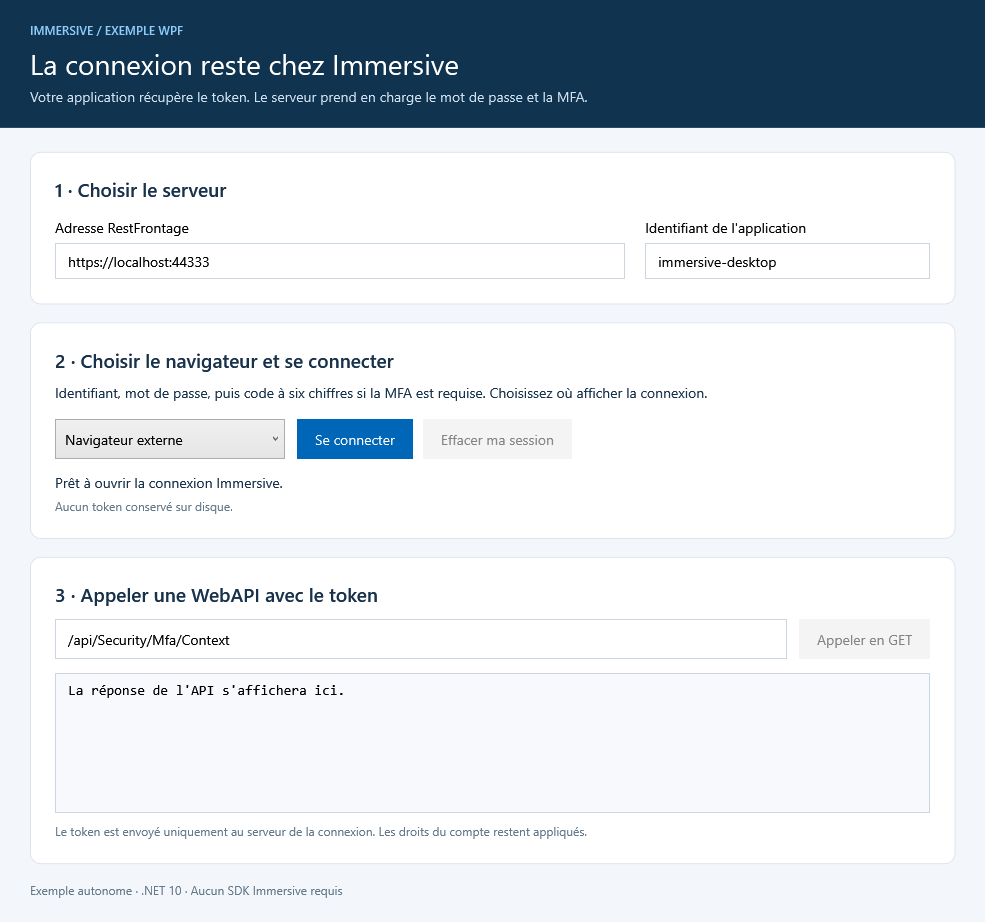
- Check the RestFrontage address and application ID.
- Choose External browser or Built-in browser (WebView2), then click Log in.
- Complete password entry and, if prompted, MFA verification.
- In external mode, return to the WPF. In integrated mode, the login window closes automatically.
- Click Call in GET. The proposed route returns the name of the connected account.
After a successful connection, the WPF displays the token's due date. The proposed call returns HTTP 200 and the name of the connected account.
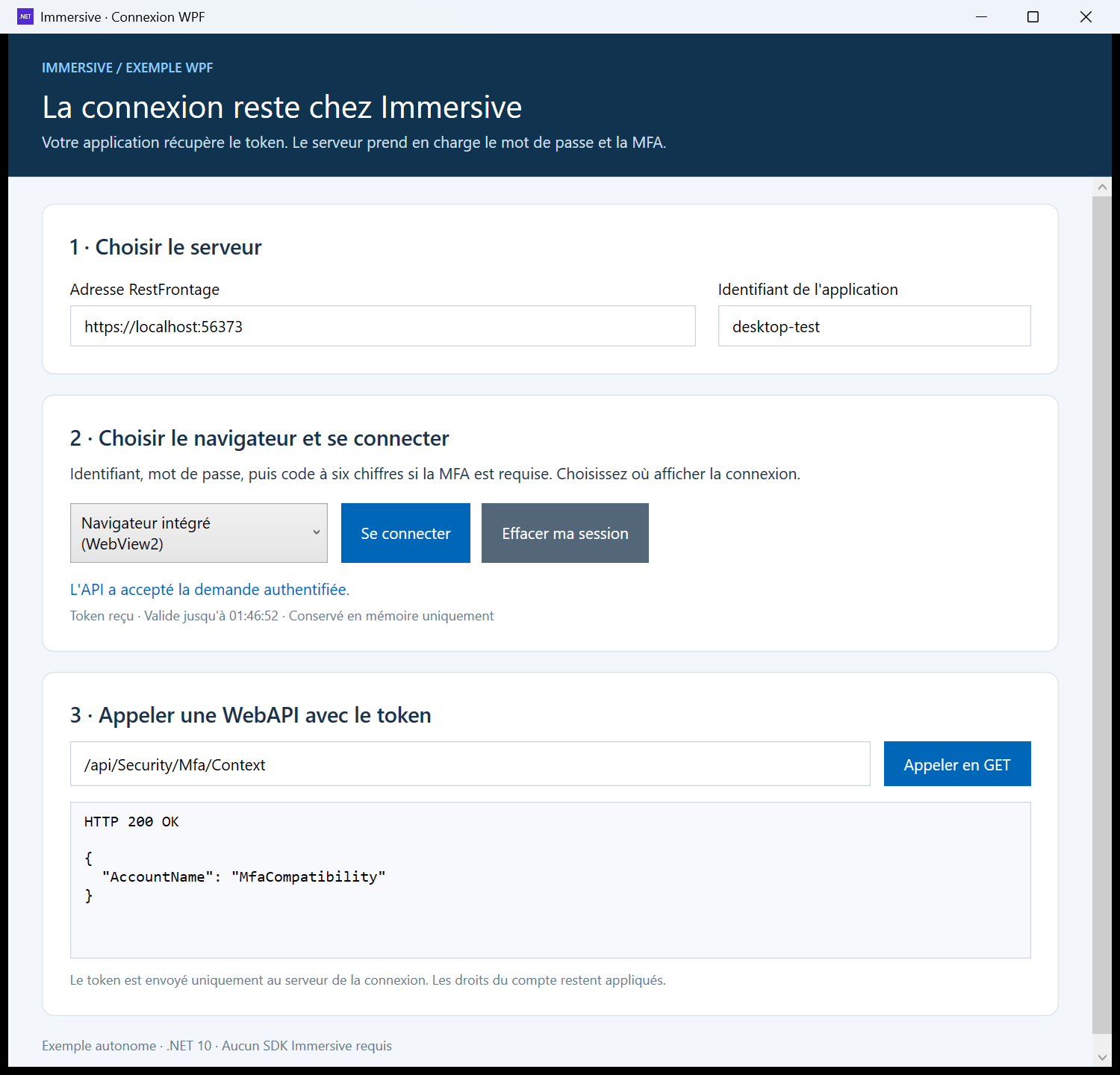
In external, the return uses a temporary network listening, limited to 127.0.0.1, on an automatically chosen port. This listening starts before the browser is opened and stops at the end of the journey. The maximum connection time is ten minutes. The Cancel Pauses waiting in the app. It doesn't close the browser tab.
3.2 Choose the browser
Both choices use the same server, the same ClientId, and the same return and PKCE checks. MFA is still enforced by Immersive. You don't need to declare an additional application to switch between them.
| Fashion | What the user sees | Return Processing |
|---|---|---|
| External browser | The system browser opens the login. The user then returns to the WPF. This is the default choice. | Temporary listening on 127.0.0.1, with a free port. |
| Built-in browser (WebView2) | A window belonging to the WPF displays the login. It closes automatically after login. | The WPF intercepts the navigation to http://127.0.0.1/callback/ before it loads, and then exchanges the code. No local network listeners are opened. |
Adjustment BrowserMode in appsettings.json chooses the initial value: External or Embedded. The list allows you to change modes for the next connection; it does not rewrite the configuration file.
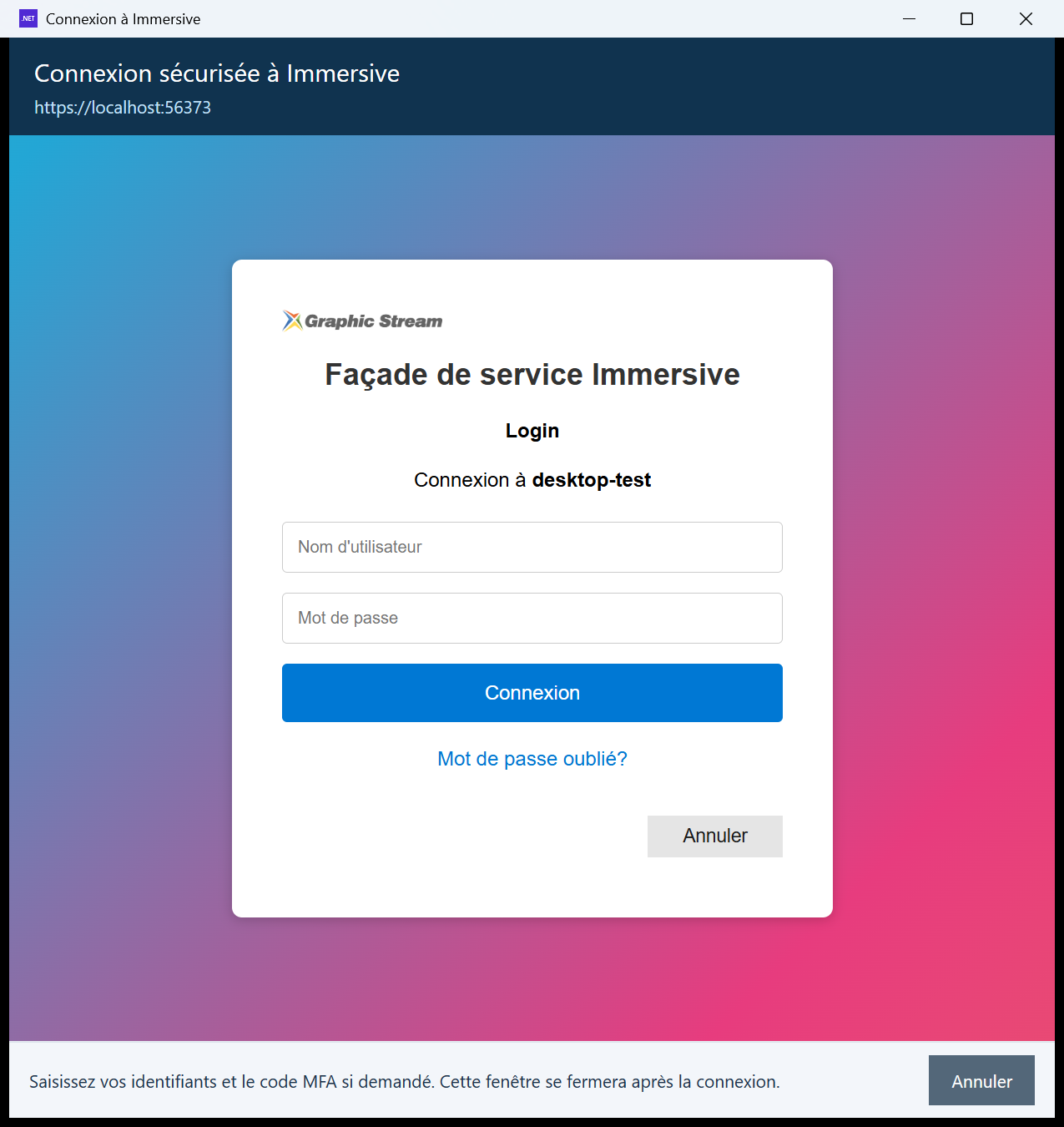
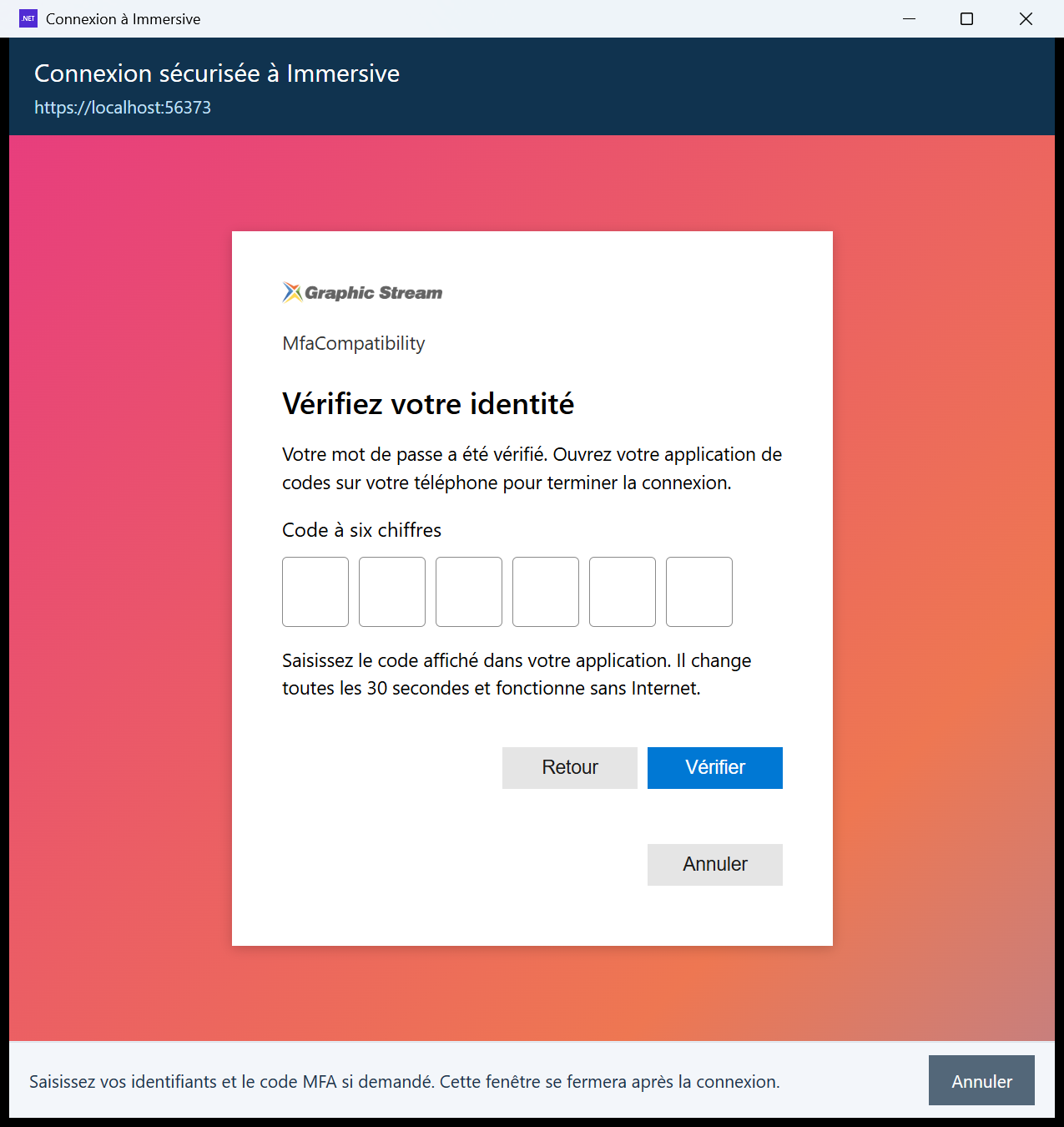
The built-in window displays the server origin above the login. It retains the usual steps, including entering the six-digit code and registering with a QR code when the server requests it. Cancel, the close cross, or timeout interrupts the connection and returns the WPF to the WPF.
The WebView2 profile is private and separate from the usual browser profile. Password saving and autofill are disabled. Browsing outside the configured server, new windows, downloads, and access to native objects are blocked. No credential reading scripts are injected by the sample. Certificate errors are not ignored.
The external browser remains the default choice for isolating the application's authentication page. The built-in variant is suitable for a mastered application: its host can technically access the web content. PKCE protects the exchange of code, but does not take this ability away from the program that hosts WebView2. The principles of protecting the component are described in the Microsoft WebView documentation2.
3.3 Prepare Stations for WebView2
The WPF reference project Microsoft.Web.WebView2. This package provides the control and its charger; the Microsoft Edge WebView runtime2 Must be present on the computer for the integrated mode. Its presence is separate from that of the Edge browser. If the runtime is missing, the sample displays a message and allows you to choose the external browser.
For a position without Internet, plan theEvergreen Standalone Installer the appropriate architecture in your deployment process. The small web bootstrapper requires a download and is not suitable for a completely offline installation. The connection can still work on the internal network once the runtime is installed. View Distribute WebView2.
The component's technical file is created under %LOCALAPPDATA%/Immersive.Authentication.Sample/WebView2, in a user-accessible location. The sign-in profile is opened in private mode. The app keeps the Immersive token in memory in both modes.
3.4 Reuse code in your app
The BrowserAuthenticationClient.cs contains the standalone client. It uses the standard .NET libraries to prepare the request, open the browser, control the return, and exchange the code. It has no dependency on the Immersive SDK.
using Immersive.Authentication.Wpf;

using var http = new HttpClient(new HttpClientHandler
{
    AllowAutoRedirect = false,
    UseCookies = false
});

var authentication = new BrowserAuthenticationClient(
    "https://localhost:44333", http);

var session = await authentication.SignInAsync(
    "immersive-desktop", cancellationToken);

// session.Token : token Immersive à garder en mémoire.
// session.ExpiresAt : échéance du token.
MainWindow.xaml.cs shows the connect button, cancel, session state, and API call. You can change the namespace of the standalone file when you integrate it into your project.
For the built-in mode, the files EmbeddedLoginWindow.xaml and EmbeddedLoginWindow.xaml.cs complement the standalone client. The call is made from the WPF UI thread, with the main window as the owner:
var session = await EmbeddedLoginWindow.SignInAsync(
    this, authentication, "immersive-desktop", cancellationToken);
The result has the same properties Token and ExpiresAt. Callback controls and HTTP exchange remain in BrowserAuthenticationClient.cs ; The window only takes care of displaying and intercepting the final navigation.
The external browser method can receive a function openBrowser If your app already has its browser open abstraction. Methods CreateBrowserLoginRequest and CompleteBrowserLoginAsync allow you to manage the start and return separately if you already have a compatible callback mechanism.
The system browser keeps the input of credentials in the server page. This choice follows the principle recommended for native applications by the RFC 8252. An iframe is not a mode of integration of this login.
4. Use the Web Sample
4.1 Launch the site
The appsettings.json of the project Immersive.Authentication.Web Contains:
{
  "Authentication": {
    "Server": "https://localhost:44333",
    "ClientId": "immersive-web",
    "ApiPath": "/api/Security/Mfa/Context"
  }
}
From Samples:
dotnet run --project Immersive.Authentication.Web
Open https://localhost:5173. In Visual Studio, the launch profile opens this address automatically. The return route is https://localhost:5173/auth/callback ; it must be declared exactly as such in RestFrontage.
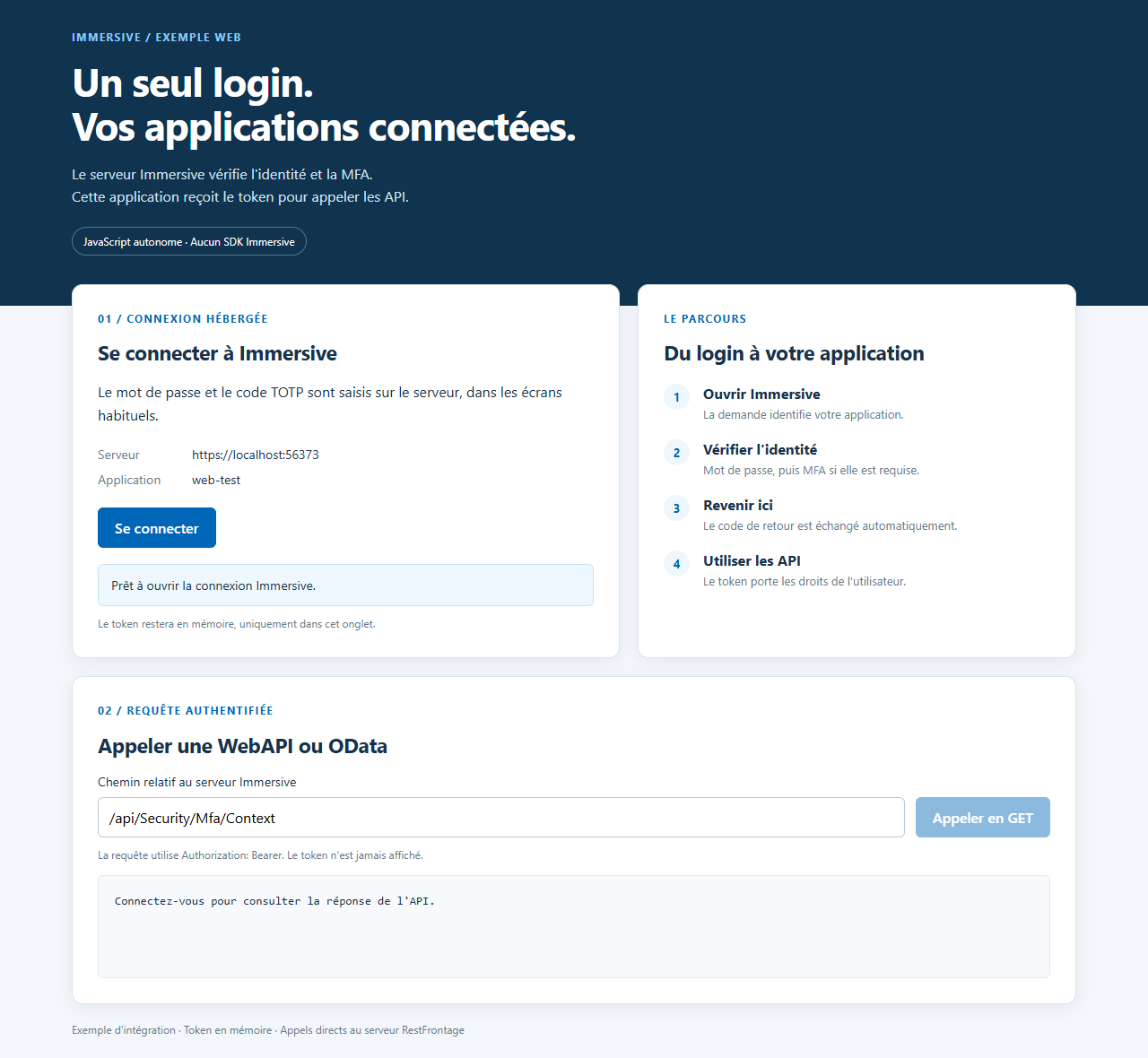
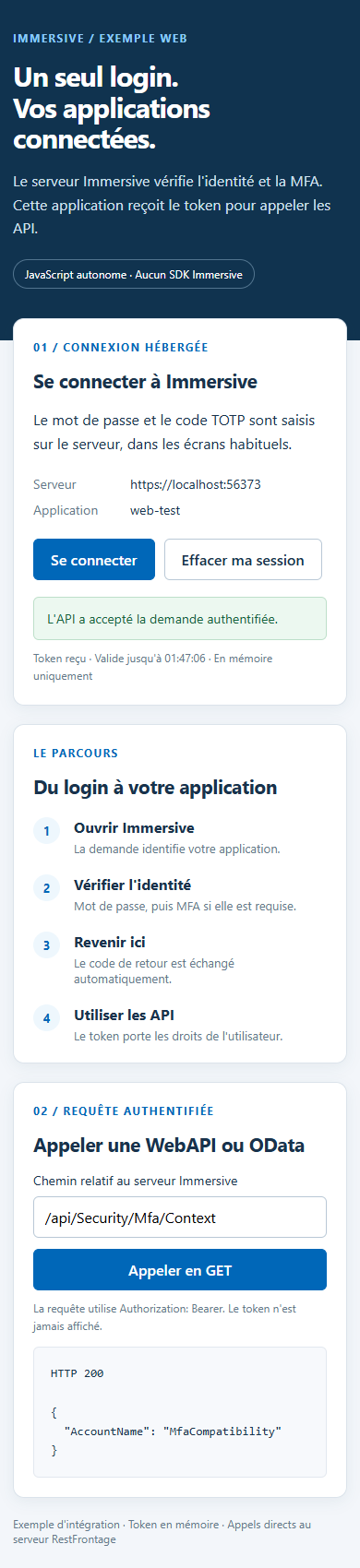
- Click Log in : The tab is redirected to RestFrontage.
- Enter your credentials, then the MFA code if necessary.
- The server redirects the tab to
/auth/callbackin your app. - The JavaScript verifies the return and exchanges the code for the token.
- Click Call in GET to read the context of the account.
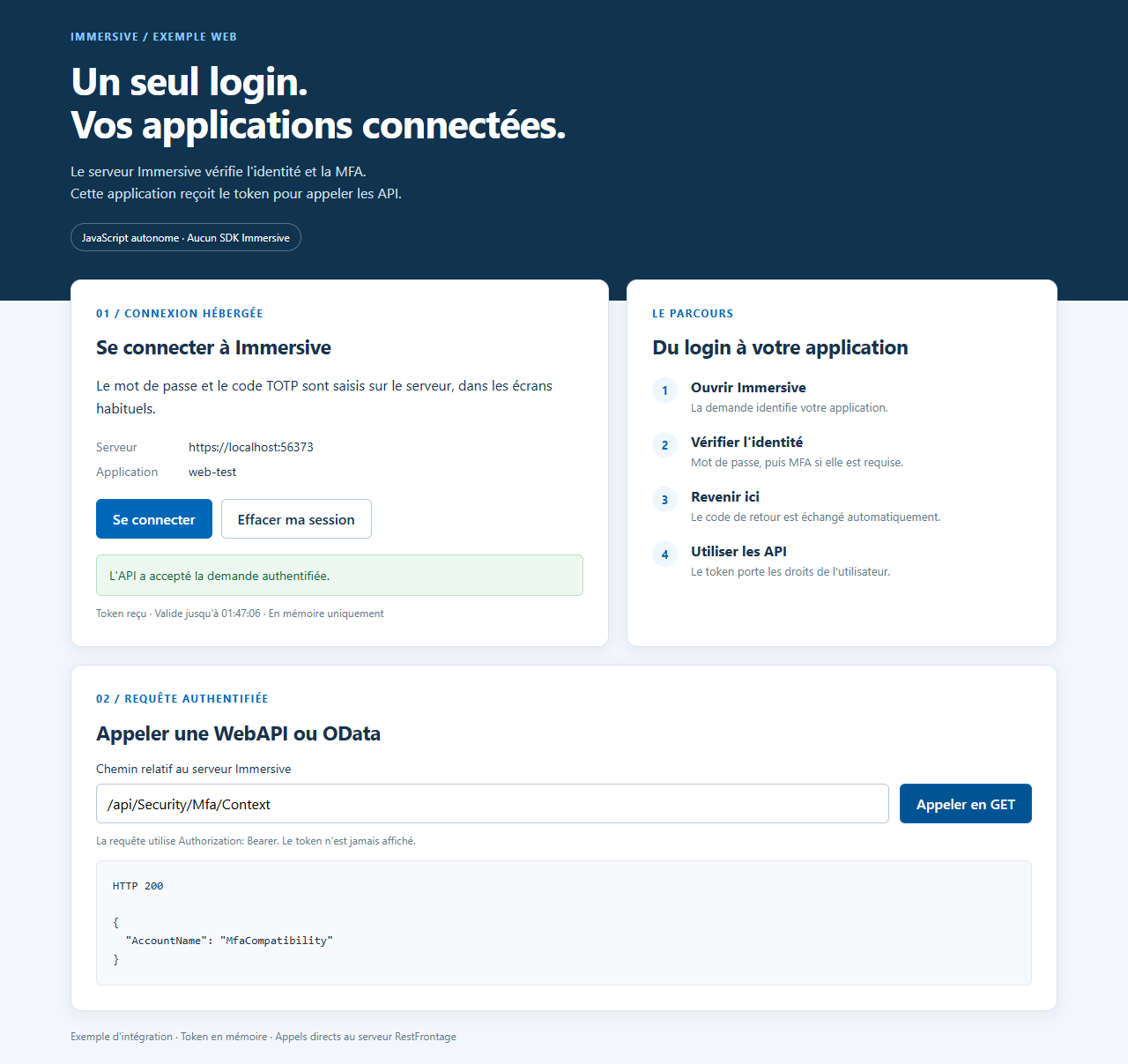
The same web example adapts its layout to small screens. The login path and the use of the token remain the same.
4.2 Reuse the JavaScript module
The files wwwroot/ImmersiveAuthentication.js and wwwroot/app.js show the connection client and its integration into the page, respectively. The small ASP.NET Core server serves these resources and public configuration. It does not receive the token: the browser calls RestFrontage directly.
import { ImmersiveAuthentication } from "/ImmersiveAuthentication.js";

const authentication = new ImmersiveAuthentication({
    Server: "https://localhost:44333",
    ClientId: "immersive-web",
    RedirectUri: location.origin + "/auth/callback"
});

// Dans l'action « Se connecter » :
await authentication.SignIn();
On the return page, recreate the customer with the same options, and then call:
const session = await authentication.CompleteSignIn();
// session.Token : token Immersive.
// session.ExpiresIn : durée restante, en secondes.
The module only keeps the provisional PKCE transaction in sessionStorage during page change. It deletes this transaction after validation and removes the code from the browser's address. The token is not written to localStorage, sessionStorage, or a cookie.
The return must occur in the same tab and on the same origin as the application that started the request. The route /auth/callback must be accessible directly on your hosting, even before JavaScript loads. In the example, the server returns index.html for this road.
For your accommodation, keep Referrer-Policy: no-referrer on the return page, avoid third-party resources on that page and don't log its URL parameters. A proxy or hosting configuration should preserve these properties.
5. Call WebAPIs and OData
5.1 The same token regardless of the customer
Once the connection is complete, both applications use the same type of Immersive token. They add the header Authorization: Bearer to their requests. Here is the same operation in C#, JavaScript and HTTP; server refers to the origin of RestFrontage and token the token obtained.
using System.Net.Http.Headers;

using var request = new HttpRequestMessage(
    HttpMethod.Get, server + "/api/Security/Mfa/Context");
request.Headers.Authorization = new AuthenticationHeaderValue("Bearer", token);
using var response = await http.SendAsync(request, cancellationToken);
string content = await response.Content.ReadAsStringAsync(cancellationToken);
response.EnsureSuccessStatusCode();
const response = await fetch(server + "/api/Security/Mfa/Context", {
    headers: { Authorization: `Bearer ${token}`, Accept: "application/json" },
    credentials: "omit",
    cache: "no-store",
    redirect: "error"
});
if (!response.ok) throw new Error(`HTTP ${response.status}`);
const context = await response.json();
GET {{server}}/api/Security/Mfa/Context
Authorization: Bearer {{token}}
Accept: application/json
A successful response contains AccountName. For OData, change the path to an OData route of your instance: the header remains the same. The examples only make GET requests. They prevent the token from being sent to another server through the path field and deny HTTP redirects on authenticated calls.
A 401 means that the request is not authenticated or that the token is no longer accepted; Repeat the connection. A 403 Indicates a denial of access: Check the rights and rules of the relevant API. Passing MFA doesn't give access to all resources.
5.2 Expiration and end of session
The token retains its usual validity period in Immersive. The exchange response indicates its Remaining time. The samples stop using it when it expires; a new connection is then required. This journey does not provide a refresh token.
Delete my session removes the token from the sample's memory. This button does not revoke the token already issued to the server or disconnect all other applications. Closing the WPF executable or reloading the Web tab also clears their connection state.
Projects voluntarily show a session in memory. An application that wants to keep a session longer must explicitly define its storage and logout policy. For a site with a backend, it is possible to keep the token exclusively on the server side.
6. Understanding the HTTP contract
6.1 Start Connection
The application prepares random values state and code_verifier. The provided clients use 32 random bytes encoded in Base64URL, with no padding. The challenge is BASE64URL(SHA256(ASCII(code_verifier))).
It then opens this address in the browser, encoding the parameter values:
GET {{server}}/api/Security/Browser/Authorize?response_type=code&client_id={{clientId}}&redirect_uri={{redirectUriEncoded}}&state={{state}}&code_challenge={{challenge}}&code_challenge_method=S256
Don't start the integration by opening directly /Login : the entrance Browser/Authorize carries the information of the application and the expected return. The connection request is valid for ten minutes.
After success, the server redirects to the callback declared with Code, state and ISS. After canceling from the login, it returns error=access_denied, state and ISS. An invalid initial request remains on a local error: it does not redirect to an unauthorized address.
6.2 Redeem Code
After controlling the callback, state and iss, the application passes an HTTP form. The values are encoded like a form, with no conversion to JSON.
POST {{server}}/api/Security/Browser/Token
Content-Type: application/x-www-form-urlencoded

grant_type=authorization_code&client_id={{clientId}}&redirect_uri={{redirectUriEncoded}}&code={{code}}&code_verifier={{verifier}}
using var content = new FormUrlEncodedContent(new Dictionary<string, string>
{
    ["grant_type"] = "authorization_code",
    ["client_id"] = clientId,
    ["redirect_uri"] = redirectUri,
    ["code"] = code,
    ["code_verifier"] = verifier
});
using var response = await http.PostAsync(server + "/api/Security/Browser/Token", content);
response.EnsureSuccessStatusCode();
const response = await fetch(server + "/api/Security/Browser/Token", {
    method: "POST",
    credentials: "omit",
    cache: "no-store",
    redirect: "error",
    body: new URLSearchParams({
        grant_type: "authorization_code",
        client_id: clientId,
        redirect_uri: redirectUri,
        code,
        code_verifier: verifier
    })
});
if (!response.ok) throw new Error("Échange refusé : recommencez la connexion.");
The response contains:
{
  "access_token": "JWT Immersive",
  "token_type": "Bearer",
  "expires_in": 3600
}
The duration is illustrative. These three names follow the OAuth contract, in lower case. The WPF client exposes Token and ExpiresAt, and the JavaScript module exposed Token and ExpiresIn. The other Immersive WebAPIs retain their PascalCase convention.
Roads Browser/VerifyCredentials, Browser/VerifyTotp and Browser/Cancel are part of the inner workings of the hosted interface. Your integration uses Authorize and Token ; It does not have to control the login steps.
7. Other means of integration
WPF and JavaScript aren't the only choices. The contract is HTTP: both projects show two ways to use it, not a technology restriction.
| Integration | Where is the token located? | Current compatibility |
|---|---|---|
| WPF, WinForms, desktop tool, or interactive console | In memory in the process. | External browser traversal with local loop callback. WPF also provides a WebView2 window; adapting it to another framework requires browser control. |
| React, Vue, Angular, JavaScript, or other application running in the browser | In memory in the tab. | The JavaScript module can be integrated into the chosen framework. Declare a true HTTPS callback route and configure CORS. |
| Site with backend: ASP.NET, PHP, Java, Node.js... | In session on the backend side. | The backend can prepare PKCE, receive the HTTPS callback, and exchange the code. The browser only receives a site-specific session cookie. This guide describes the principle; it does not provide a third draft. |
| Mobile App | In the process or protected storage of the platform as per its design. | The browser principle remains applicable. HTTPS links associated with the application require platform integration. Private schemas such as monapp:// are not accepted by the current server. No mobile examples are provided here. |
| Fully customized connection interface | In the application that directly calls the MFA APIs. | Existing MFA APIs allow for this journey, but the application must handle credentials, enrollment, codes, and errors. The hosted interface avoids this duplication. |
| Service, automation, or scheduled task without a user | Application secret kept in its protected configuration. | Use an API key. An MFA interactive login isn't suitable for running without people. |
7.1 Web variant with backend
In this variant, the backend retains state and the PKCE proof in the user session before the redirect. It controls the callback and then exchanges the code on the server side. It then keeps the Immersive token and makes the API calls for the browser.
sequenceDiagram
    participant N as Navigateur
    participant B as Backend de votre site
    participant R as RestFrontage
    N->>B: Se connecter
    B->>B: Stocker state et PKCE dans la session
    B-->>N: Redirection vers le login hébergé
    N->>R: Mot de passe et MFA éventuelle
    R-->>N: Redirection vers le callback du site
    N->>B: Callback avec code et state
    B->>B: Vérifier session, state et iss
    B->>R: Échanger code et PKCE
    R-->>B: Token Immersive
    B-->>N: Session du site, cookie sécurisé HttpOnly
    N->>B: Demander une ressource
    B->>R: Appeler l'API avec le token
    R-->>B: Résultat autorisé
    B-->>N: Résultat pour l'interface
In particular, the session cookie must be secure, HttpOnly and suitable for browsing feedback. Protect the site's actions against cross-site requests. The token remains on the backend; it must not be sent back to the browser via a utility route. PKCE and state remain necessary in this variant.
8. Scope and diagnosis
8.1 What this course covers
The hosted tour covers username/password and TOTP, with the exemptions, first registration, and authorized re-registration provided for in Immersive. It does not yet connect existing SSO providers to this entry; their own operation remains distinct.
The server uses the Authorization Code with PKCE, but is not represented as a complete OpenID Connect provider. This batch does not provide OIDC discovery, ID token, consent by scopes, refresh token, or Device Authorization Flow. A component that requires these functions cannot be plugged in without adaptation.
For multiple RestFrontage instances, the operator must maintain a shared persistent Data Protection keyring, the same Data Protection application identity, and the same Security database. JWT keys and MFA settings must also be consistent. A loss of temporary protections requires that current connections be restarted.
8.2 Fix common errors
| Symptom | Verification |
|---|---|
| Connection request invalid upon opening | Check Issuer, ClientId enabled, callback exact match, and S256. |
| Browser refuses HTTPS | Check the RestFrontage and website certificates, their name, and the trust of the extension. |
| Login succeeds but web return fails | Check the /auth/callback route, the same tab, sessionStorage, CORS origins, and the public name of the server. |
| Built-in browser won't start | Check the WebView2 runtime and the rights on its data folder. Choose the external browser if necessary. |
| Built-in browser rejects server | Check your HTTPS certificate and the configured origin. Browsing to another domain is blocked. |
| The WPF window waits after login | Check the return to 127.0.0.1 and temporary port, the local rules of the extension, and then start again if the wait has been canceled. |
| invalid_grant during exchange | The code can be expired, already in use, linked to another proof, or invalidated by an account or policy change. Start over from Sign In. |
| The API returns 401 or 403 | Check the validity of the token and the rights of the account for the transaction concerned. |
| The connection disappears after a web reload | This is the behavior of this example: the token remains only in memory. |
Do not log tokens, PKCE proofs, passwords, TOTP secrets, or callback settings. This also applies to IIS, reverse proxy, and client application logs. General best practices are detailed in the RFC 9700.
8.3 Verify your integration
Test an account that is subject to MFA, an account that needs to be set up for the first time, and, if your policy allows them, an exempt account. Also check for cancellation, TOTP error, and API access denied due to lack of rights.
The expected result is always the same: Your application retrieves a token only after the connection steps required by the server. They can then use the APIs within the limits of the account's rights.