Manage the account lifecycle in Immersive
- Undefined type
Training
Immersive allows you to define when a user needs to renew their password and what happens to their account after a long period of time without use. This guide outlines the administrator's settings, possible exceptions, and screens the user encounters.
The examples use a renewal every 90 days, a change on return after 15 days of inactivity, deactivation after 30 days and a logical deletion afterwards 90 days. These values illustrate a policy requested by a customer; they do not constitute obligations imposed by Immersive.
The captures are from the actual RestFrontage interface, in an isolated demo environment. Accounts, dates, and counters are fictitious. No settings for a client environment have been changed to produce this guide.
In this article
1. Understanding the Four Rules
1.1 Two rules for the password, two for the account
The rules are independent. You can enable one, several, or none. All durations are expressed in days, including periodic password renewal.
| Rule | Example | Effect for the user |
|---|---|---|
| Periodic renewal | Every 90 days | When their password reaches this age, the user must choose a new password to continue. |
| Change after inactivity | After 15 days | Upon returning from this period of inactivity, the user must choose a new password. |
| Automatic deactivation | After 30 days | The account can no longer log in. Its sessions are revoked and the account remains present. |
| Automatic logical deletion | After 90 days | The account is marked as deleted and its access is revoked. Its data and links are retained. |
Periodic renewal depends on the age of the password. The other three rules depend on user inactivity. Logging in every day does not prevent a password from reaching its 90-day expiration.
At 15 days of inactivity, Immersive does not generate a new password or send one by email. It requires the user to change it when he returns, after verifying his identity.
1.2 What is an exemption?
A Exemption exempts a specific user from a specific rule. For example, Camille can be exempted from recurring renewal while still being subject to inactive change and automatic deactivation.
This exemption does not change the account's rights, password, or MFA obligations. MFA and lifecycle exemptions are two separate settings.
1.3 How do you read the inactivity thresholds?
With the three inactivity rules activated at 15, 30 and 90 days, and without exemptions or special protections:
flowchart LR
    A["Dernière activité<br/>Jour 0"] --> B["Jour 15<br/>Mot de passe à changer<br/>si l'utilisateur revient"]
    B --> C["Jour 30<br/>Compte à désactiver<br/>au passage du serveur"]
    C --> D["Jour 90<br/>Compte à supprimer logiquement<br/>au passage du serveur"]
Days 15, 30, and 90 have all been counted since the same last activity. Deletion does not occur 90 days after deactivation, but 90 days after the last activity.
If the user returns before deactivation, terminates their login, and satisfies the requested checks, this new activity becomes the baseline for future idle timeouts.
Creating an account is still a routine administrative operation. The policy does not automatically create accounts: it then tracks their usage and deadlines. For a new account, the initial password is set to date; if there is no first login, its inactivity is counted from the time it was created. For an already existing account with unknown history, the delay starts at the start of tracking; Immersive does not assume that it was previously inactive. Changing a threshold does not reset known dates.
2. Understand what matters as a business
2.1 Real-world use, even with a session already open
A user login Successfully completed is an activity. This includes password, MFA, and SSO logins. A denied attempt or a pending login for the MFA code is not enough.
In RestFrontage, interactions on a visible page, such as clicking, typing, or scrolling, also refresh tracking. This means that you don't have to log out and sign back in to remain considered active.
On the other hand, a tab left open without interaction, an automatic refresh or background notifications are not enough. Reading a page without any movement alone does not distinguish a presence from an absence.
2.2 External applications and automations
A web or binary application that uses Immersive must report its own user interactions so that they can continue to be tracked after login. Its robocalls are not considered a human presence.
Before enabling inactivity rules for users of an external app, have the app integrator verify this report. Without it, the last successful sign-in can still be the last known activity, even if the user is working in the app.
Calls made with an API key do not constitute user activity. Accounts associated with an API key have specific protections, which are discussed in the chapter on exemptions.
2.3 Limited follow-up
Immersive maintains a per-user state, including their last known activity. It doesn't create a row for each click and doesn't keep content entered in fields.
In RestFrontage, reports are spaced at least one minute apart per page. Trace writes are limited to one per minute per account, even with multiple sessions. A page without new interaction stops reporting activity.
3. Open the dashboard
Connect with Cerebrate, then open Security → Account Lifecycle. The page is also accessible at the related address /Security/AccountLifecycle.
This admin page is for Cerebrate only. An ordinary user does not have to access it to renew their password: the necessary form will be presented to them during login.
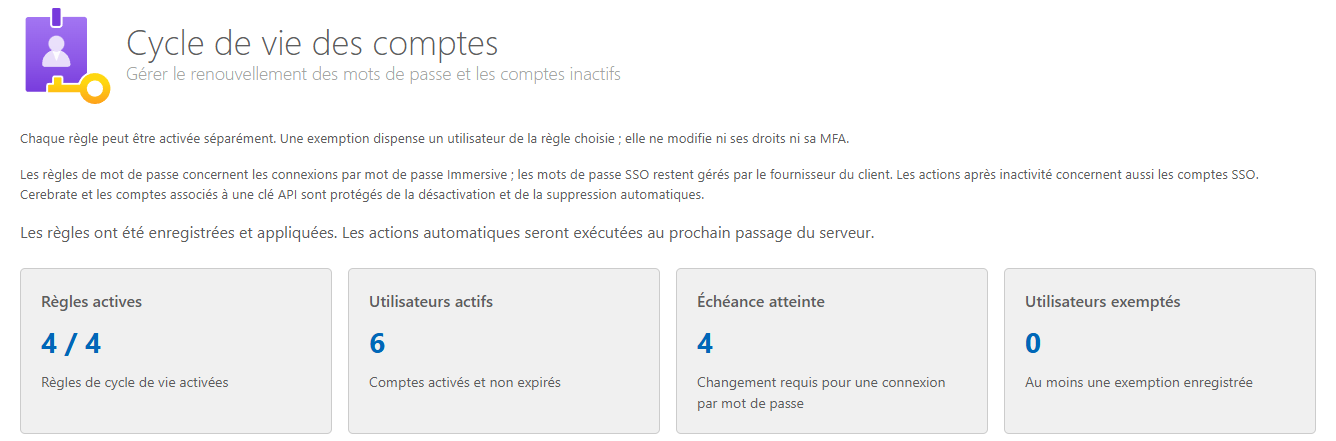
| Indicator | Reading |
|---|---|
| Active Rules | Number of rules currently saved as active, out of four. |
| Active users | Accounts that are activated and not expired. This counter does not represent people who are logged in at this time. |
| Deadline reached | Active accounts for which a password change is required during an Immersive Password login. |
| Exempt Users | Accounts with at least one manual exemption on file. Automatic protections are not, on their own, manual exemptions. |
Below the inactivity rules, two more numbers indicate which accounts to deactivate and delete logically with the Saved settings, after taking into account exemptions and protections. These numbers do not constitute the history of actions already carried out.
4. Configure the policy
4.1 Choose password rules
In the Password → Configuration :
- Pros Periodic renewal, choose Mandatory change.
- Enter 90 in Every (day).
- Pros Change after inactivity, choose Mandatory change.
- Enter 15 in After (days).

Durations are whole numbers of days, greater than or equal to 1. A day corresponds to a duration that has elapsed by 24 hours. 90 days does not mean three calendar months.
4.2 Choose actions after inactivity
In Actions after inactivity :
- Pros Automatic deactivation, choose Deactivate Account and grab 30 days.
- Pros Automatic logical deletion, choose Delete logically and grab 90 days.
- Check the exemptions and protections needed for the affected accounts.
- Click Save rules and wait for the confirmation message.
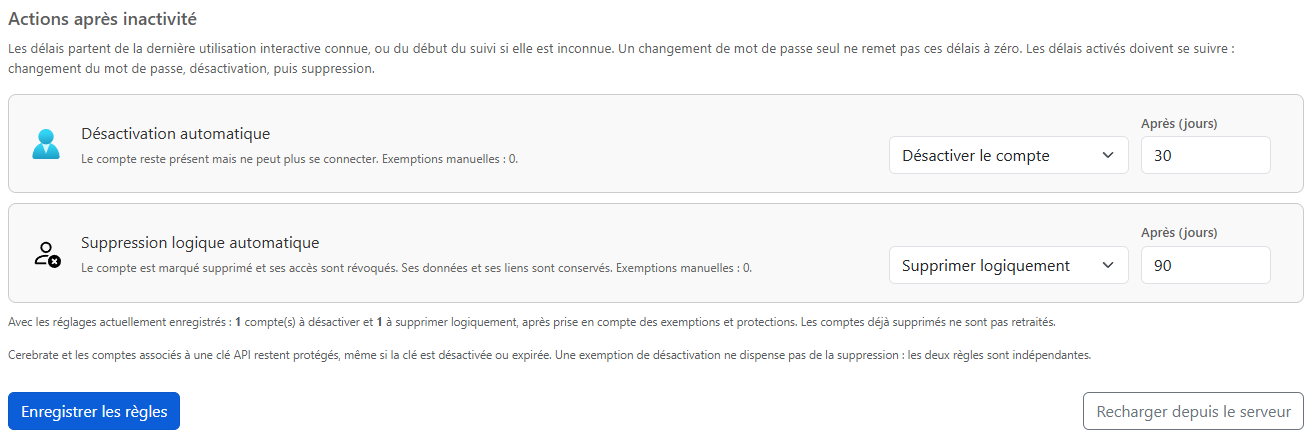
The inactivity thresholds that are enabled must be in ascending order: password change, then deactivation, then deletion. For example, 15, 30, and 90 days. The time frame for recurring renewal is independent of this order.
The registration applies the settings. Password deadlines are checked for subsequent logins and protected requests. Deactivations and deletions wait for the next pass of the server's automatic processing.
Password rules can also affect Cerebrate if they are not exempt. If you reduce a duration, accounts may already have reached the new deadline: their dates are not reset by the registration.
4.3 Leaving a rule without a policy
Choose No policy for the rule you don't want to apply, and then click Save rules. Other rules can remain active.

By default, none of the four rules are enabled. A pre-populated duration in a disabled field is only a suggestion, not a current policy.
Disabling a rule prevents its future actions. It doesn't reactivate an account that's already deactivated, and it doesn't logically restore an account that's already deleted.
4.4 Save or reload: two different actions
Save rules Saves the four choices displayed and applies them.
Charging from the server replays the settings that have already been saved. Unsaved changes to the form are replaced. This button does not save anything and does not immediately trigger the processing of inactive accounts.
5. Manage exemptions by user
5.1 Exempt an account from a rule
- Click Exemptions by user, under the configuration.
- Select the rule in the window.
- Search for the user by their account name, first name, last name, or description. Search also accepts their directory display name, known as DN.
- Activate Exempted on that user's line.
- Wait for the message confirming that the exemption has been registered and applied.
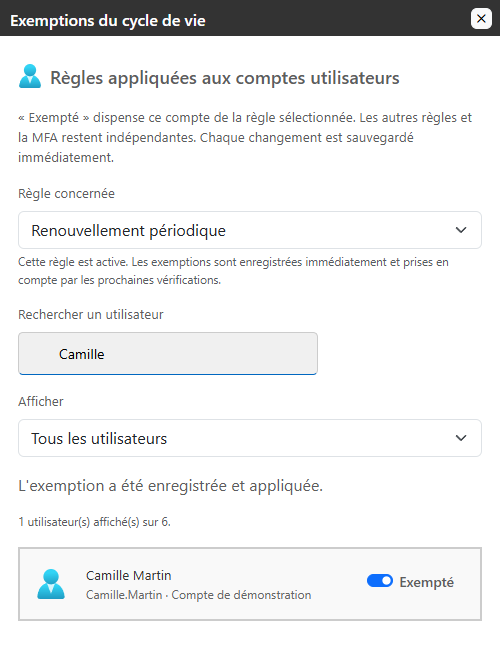
Every change is saved immediately. You don't have to go back to the global button Save rules. To remove an exemption, turn off the same switch.
The filter Show allows you to consult all users, exempt or non-exempt. The DN remains accessible when a user hovers, without cluttering the list.
You can prepare exemptions while a rule is disabled. They will take effect if you then enable that rule. If the settings have changed in another window in the meantime, use Update exemptions when the interface asks you to, then start your choice again.
An opt-out exemption does not exempt from logical deletion. If an account needs to evade both actions, check the two rules separately. An exemption does not reset the account's dates.
5.2 Cerebrate and API Key Account Protections
Cerebrate is always protected from automatic deactivation and deletion. The window indicates this protection and does not allow it to be removed with the switch.
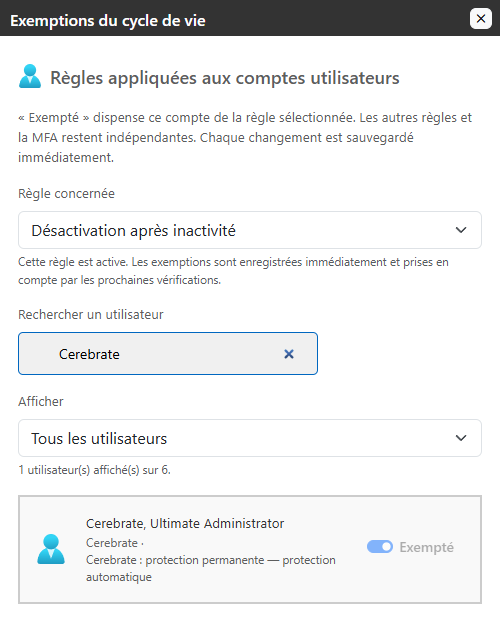
Accounts associated with at least one API key are also protected from both actions, regardless of whether the key comes from server configuration or API key management at the site. This protection remains even if the key is expired or disabled.
These protections prevent you from cutting off the primary administrator account or an account used by an application simply because it doesn't make human connections. They don't exempt you from MFA or password renewal that would be required when logging in to users.
Removing the last association to an API key removes this automatic protection. If the account needs to continue to be protected, prepare its exemptions before removing the association. Otherwise, its previous active date could make it immediately eligible for the next server visit.
6. Renew your password when you log in
6.1 Start with your current password
Open your regular login page. Enter your username and Current password, then click Log in.
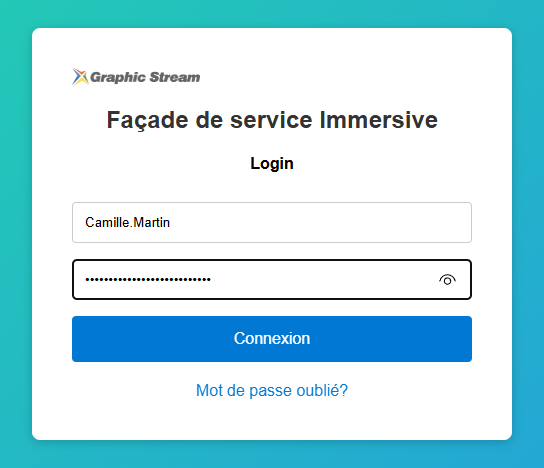
If MFA is required for your account, first complete this verification with your code application. Password renewal occurs after your identity has been verified; it does not replace MFA.
6.2 Choose and confirm the new password
When the allowed time is reached, the screen Change your password appears automatically. It explains why the change is necessary.
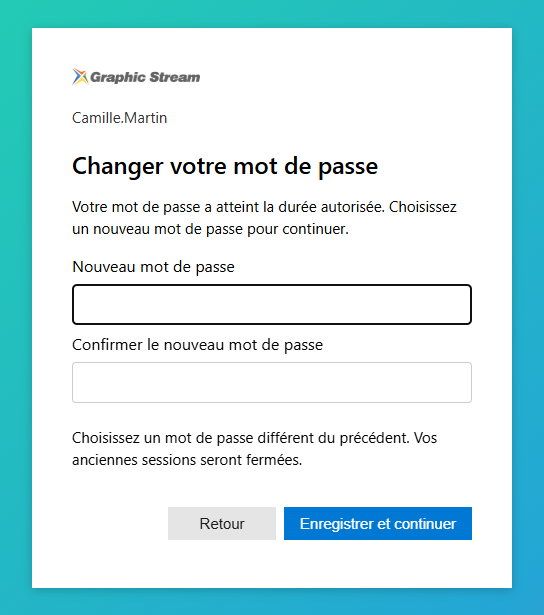
- Enter your new password in New password.
- Retype the exact same in Confirm the new password.
- Click Save and Continue.
The new password must be non-empty, different from the previous one, and the same as the password confirmation. The journey can be a maximum of 1,024 characters; it doesn't add any special complexity rules. Also, follow your organization's password guidelines.
After registration, the login continues with the new password. Your old sessions are invalidated: another window or application may ask you to log in again.
You don't have to keep a re-registration code and no QR codes to re-scan for this one renewal. Your MFA app remains set up. In an app using the Immersive-hosted login page, you'll see the same steps before returning to the app.
6.3 Fix a different confirmation
If the two entries do not match, a message appears in the form. The change is not saved.
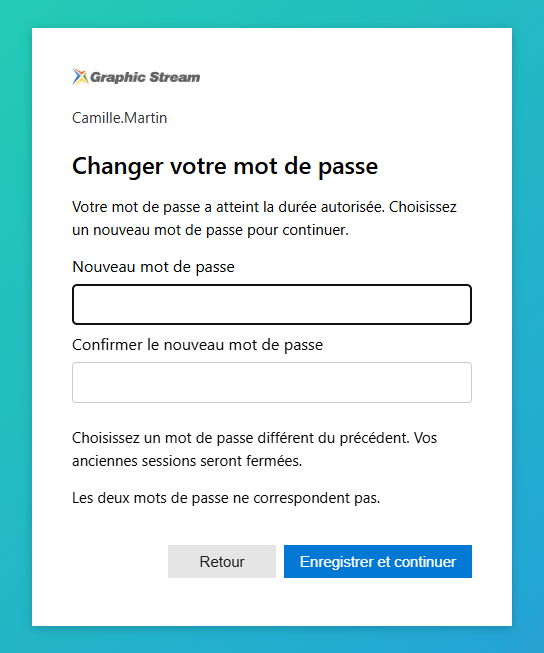
The fields are cleared after the error. Re-enter the new password in The two fields, then click again Save and Continue. If the verification has expired, start logging in again with your current password.
The Back allows you to go back to the first step. It does not remove the requirement to renew the password.
flowchart TD
    A["Identifiant et mot de passe actuel vérifiés"] --> B{"MFA requise ?"}
    B -->|Oui| C["Terminer la vérification MFA"]
    C -->|Vérification réussie| D{"Renouvellement requis ?"}
    B -->|Non| D
    D -->|Non| J["Connexion autorisée"]
    D -->|Oui| E["Saisir le nouveau mot de passe<br/>et sa confirmation"]
    E --> F["Cliquer sur Enregistrer et continuer"]
    F --> G{"Changement accepté ?"}
    G -->|Non| H["Lire le message<br/>et corriger les champs"]
    H --> F
    G -->|Oui| I["Nouveau mot de passe enregistré<br/>Anciennes sessions invalidées"]
    I --> J
6.4 Returning after a period of inactivity
After an absence exceeding the password change threshold, the procedure is the same. The message specifies that the renewal is requested after a period of inactivity.
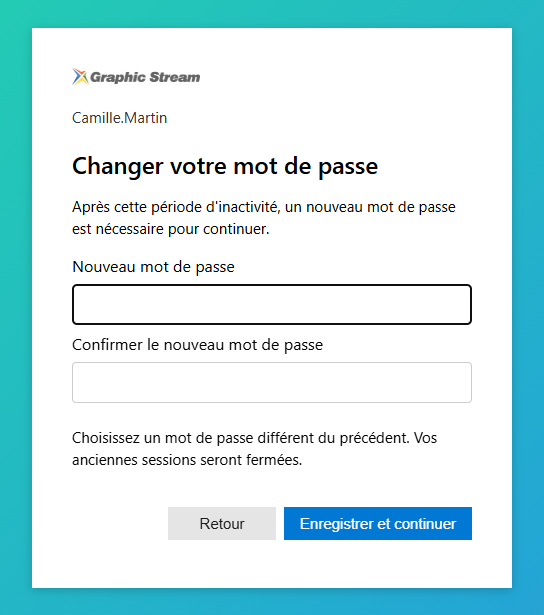
Example: Camille returns after 20 days without using. With thresholds of 15 days for change and 30 days for deactivation, she can still log in, check her MFA if necessary, and choose a new password.
If her account has already been deactivated or logically deleted, changing the password is no longer enough: she must contact the administrator.
6.5 If a session was already open
An existing session does not prevent a missed deadline. Immersive also controls it during protected access requests. Log in again when it asks you to, then complete the renewal.
If you've forgotten your current password, this is an account recovery, not the renewal described here. Use the recovery path available in your environment or contact the administrator. Losing the MFA phone also falls under MFA recovery.
7. Understanding automatic processing
7.1 The role of the periodic engine
The Periodic Engine is the background processing of the RestFrontage server that examines accounts and applies expired deactivations or deletions. It does not require an administrator to keep the page open.
A pass is scheduled when the server starts, and then no more than once per hour per instance. The server must be running and its security domain must be available. Therefore, a threshold reached is processed on the next pass, not necessarily at the exact minute.
If the server was down, the accounts are examined on restart. An account that has already been inactive for 100 days can then be directly deleted logically with a threshold of 90 days: it does not wait for a new period of 30 days and then 90 days.
The engine takes into account registered rules, exemptions, and automatic protections. It does not modify accounts that have not met the processing conditions.
7.2 Disable and delete logic
The Deactivation Blocks the connection while retaining the account. The administrator should investigate the situation before re-establishing access.
The Logical deletion marks the account as deleted and blocks its access. It retains the data, rights and relationships of the account; it does not physically delete them.
In both cases, the old sessions no longer allow you to continue using Immersive. Processing does not constitute a data purge or a retention policy for all user documents.
A password change made by the administrator updates the age of that password. It does not simulate human activity and does not on its own extend the deactivation or deletion deadlines.
8. Special cases and frequently asked questions
| Location | Explanation or action |
|---|---|
| The user logs in via SSO | The SSO provider remains responsible for its password. The two Immersive password rules do not apply to this connection. The Immersive account inactivity rules remain applicable. |
| An application uses an API key | API key calls don't require a password renewal. The linked account is protected from automatic deactivation and deletion. |
| Cerebrate sees renewal form | Its permanent protection concerns deactivation and deletion, not password rules. He must renew his password if a rule applies to him. |
| An exemption has been added but another action is still possible | The four exemptions are independent. Check the selected rule in the window. |
| I selected a rule but nothing changes | Click Save Rules. The values visible in the form are not applied until the backup is successful. |
| Deactivation does not reach the exact threshold | It depends on the next time the server passes. Also check for exemptions, associations to API keys, and that the server is working. |
| I chose No policy, but an account remains blocked | This choice stops the next actions in that rule. It doesn't undo a deactivation or deletion that has already been made. |
| The Due Date Met counter includes an SSO user | It describes what would be required during an Immersive password login. It does not mean that the SSO login requires this renewal. |
| An app is working but its user seems inactive | Check with the integrator to make sure the app reports human interactions. Automated exchanges don't prolong user activity. |
Before applying this policy to your users, review the thresholds your organization is requesting, which accounts to exempt, and the renewal path on a demo account. Notify users of the change and who to contact if they lose access.