Embeddable File Explorer
- Undefined type
This document is the functional and technical reference for RestFrontage's File Explorer. It is intended for users, Immersive administrators, and integrators.
Explorer allows you to browse folders and access files from:
- of the Immersive database (
Media.Content) ; - a server-managed file (
Media.Handle) ; - an Azure Blob container mounted on an Immersive folder (
Folder.VirtualFolderPath).
1. Access the Explore
The page is available from the RestFrontage server:
/Business/Resources/Explorer
1.1 Default Multi-Root Mode
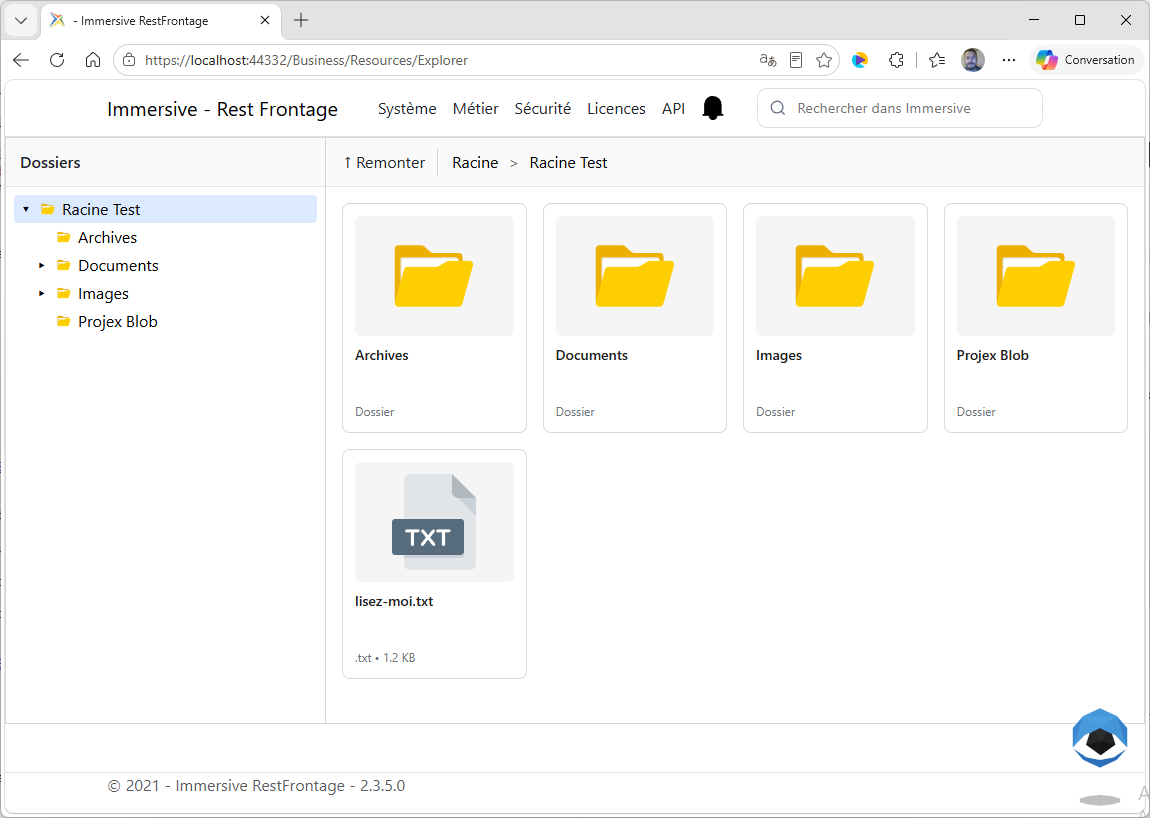
Without RootFolderIdentifier, the Explorer presents all the Immersive folders that you have ParentIdentifier is void:
https://mon-serveur/Business/Resources/Explorer
These folders appear in the content area and in the Folders. The Entrance Root breadcrumb allows us to return to this overview.
A RootFolderIdentifier absent, null or negative activates this multi-root mode.
1.2 Limit Explorer to a tree
To present only one file and its descendants:
https://mon-serveur/Business/Resources/Explorer?RootFolderIdentifier=131
The server denies browsing to a folder that does not descend from this root.
1.3 Kiosk Display
Kiosk mode hides the usual RestFrontage skin:
https://mon-serveur/Business/Resources/Explorer?Render=Kiosk&RootFolderIdentifier=131
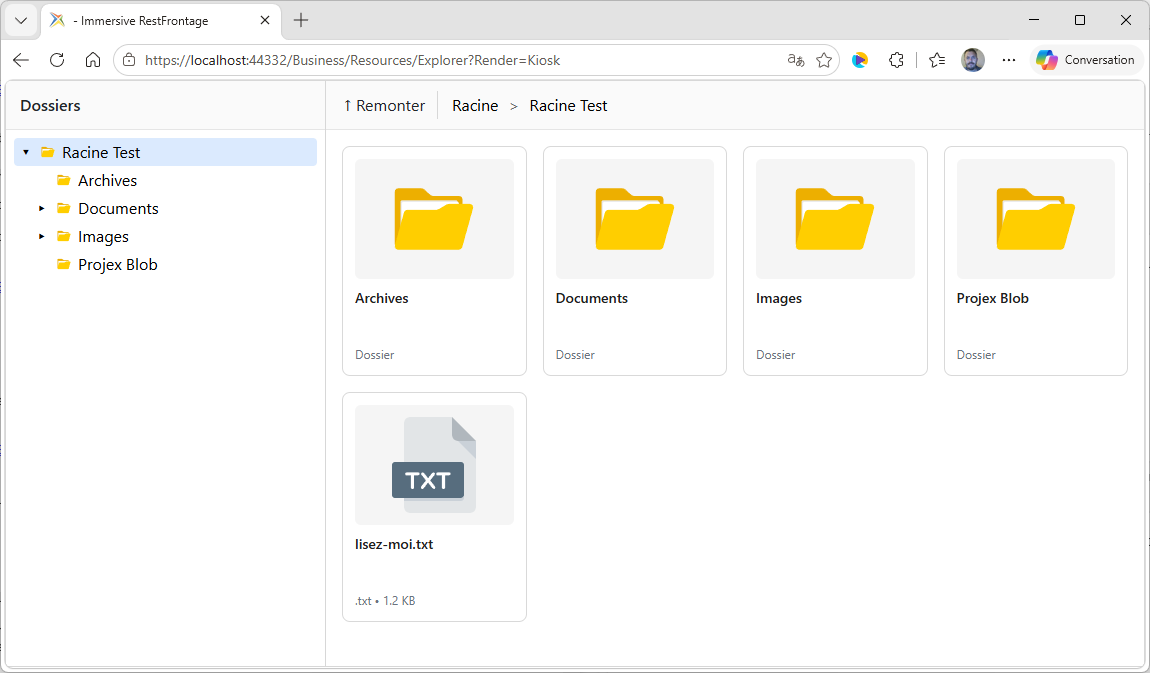
Value Kiosk is not case-sensitive. Any other value retains the usual layout.
2. Understand and use the interface
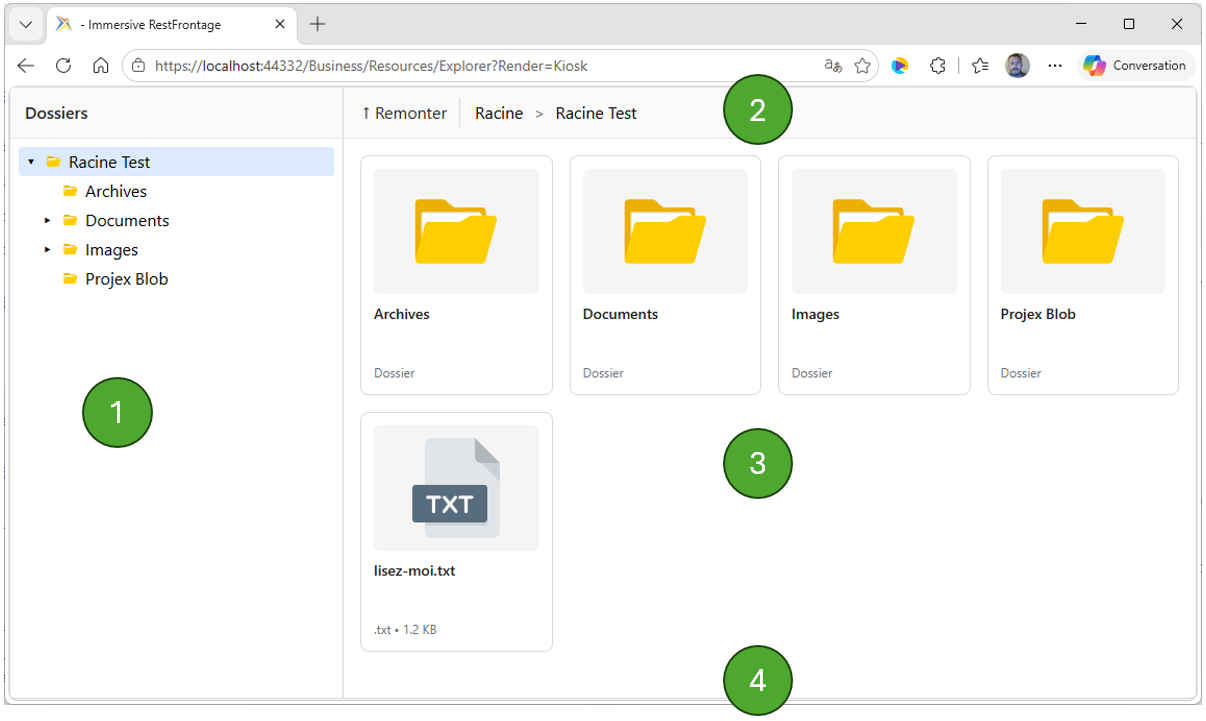
The interface has five areas:
- Command bar : Create, modify, delete, and refresh according to the user's configuration and rights.
- Folders —The Immersive and Blob tree on the left side of large screens.
- Breadcrumb Trail : The path of the current folder and the arrow button to go back to the parent.
- Contents : Subfolder and file maps.
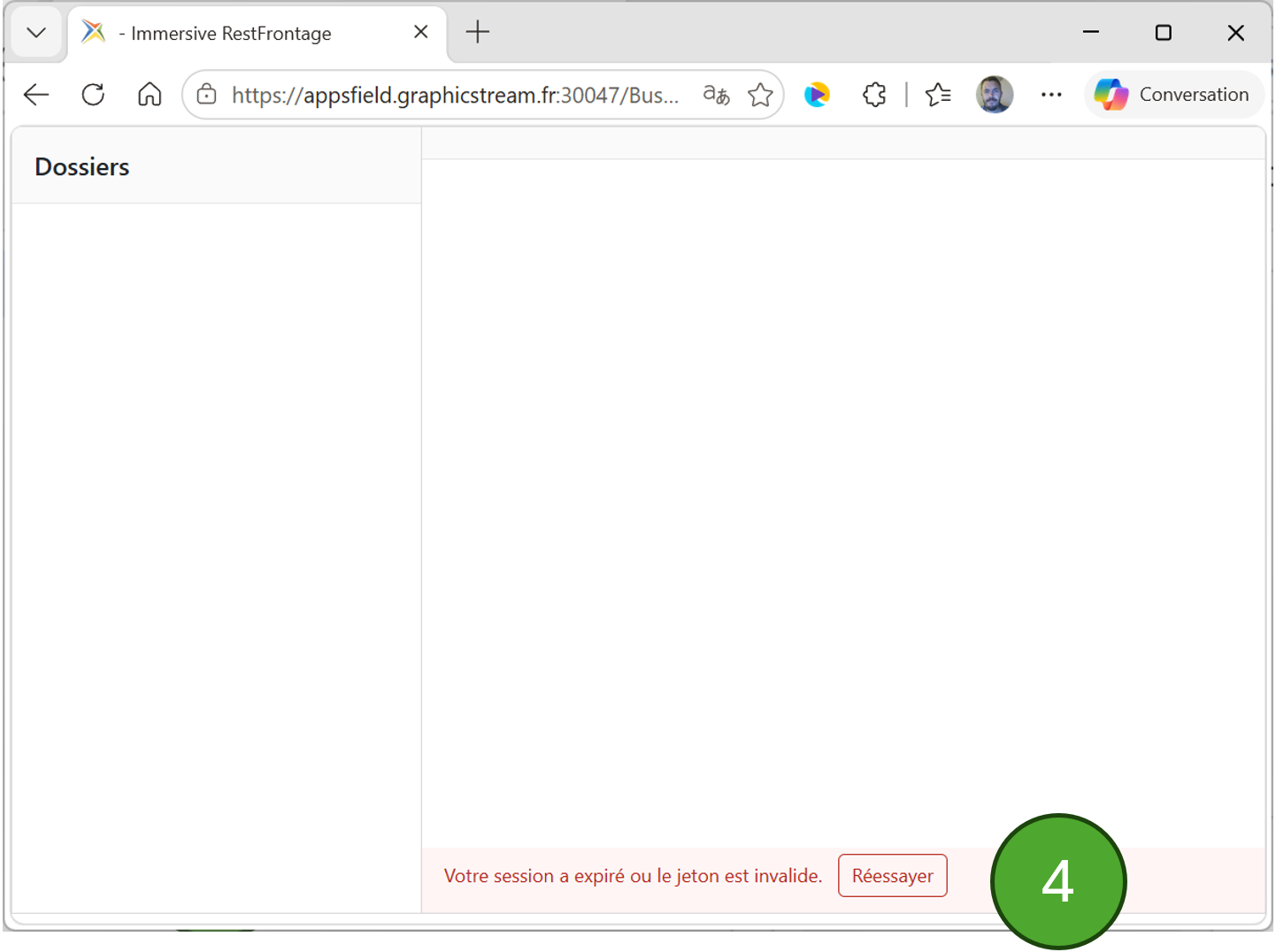
- Status : loading, possible error and button to try again.
To navigate:
- Select a folder in the tree view.
- Select a folder card.
- select a stage of the breadcrumb trail;
- Use the arrow button Move up to reach the parent;
- Use Root to revert to the multi-root view when no root is imposed.
The standard page configures DownloadOnClick: true : Clicking on a file calls the selection callback and then opens or downloads the file. Recognized images are displayed as thumbnails.
On a screen of 720 px or less, the left panel is folded down. The button Folders opens or closes it. The command bar remains on a single line and can scroll horizontally. At 480 px or less, controls with an icon become more compact. The grid and cards also adjust to the available width.
3. Comprehensive URL Parameter Reference
| Parameter | Type | Required | Default | Description |
|---|---|---|---|---|
RootFolderIdentifier |
positive integer | No | none | Restricts Explorer to an Immersive folder and its descendants. Without a valid value, enables multi-root mode. |
AllowedExtensions |
repeatable chain | No | all | Filters the displayed files by their extension. |
RelativePath |
Chain | No | none | The initial path to be resolved in the Immersive tree and then optionally in a Blob. |
Render |
Chain | No | Normal layout | Value Kiosk Enables the Kiosk layout. |
Token |
Chain | Context-specific | Current Session | A token used when the caller does not already have a valid Immersive session. |
A URL contains only one
?. All of the following parameters are separated by&.
3.1 Filter extensions
The parameter can be repeated:
https://mon-serveur/Business/Resources/Explorer?RootFolderIdentifier=131&AllowedExtensions=.jpg&AllowedExtensions=.png&AllowedExtensions=.pdf
It can also contain a comma-separated list:
AllowedExtensions=.jpg,.png,.pdf
Rules:
- Case is ignored.
- the initial point is optional;
- empty values are ignored;
- If the setting is absent or empty, all extensions are displayed;
- the filter is based on the file name;
- This filter is a display rule, not a security permission.
3.2 Full Resolution of RelativePath
RelativePath can successively cross:
- Immersive folders, identified by their ownership
Name; - the internal path of a Blob, from the first folder with a
VirtualFolderPath.
The segments are separated by /.
With RootFolderIdentifier
The path starts under the targeted folder. The root name should not be repeated.
Tree structure:
Projets (Identifier=10)
└── Chantier A
    └── MNM Blob (VirtualFolderPath configuré)
        └── 06 PLANS VITRINES
            └── SC01
URL:
https://mon-serveur/Business/Resources/Explorer?RootFolderIdentifier=10&RelativePath=Chantier%20A%2FMNM%20Blob%2F06%20PLANS%20VITRINES%2FSC01
Chantier A and MNM Blob are resolved in Immersive. 06 PLANS VITRINES/SC01 is then solved in the Blob.
If the targeted root is itself the Blob folder, the path contains only the Blob segments:
https://mon-serveur/Business/Resources/Explorer?RootFolderIdentifier=15&RelativePath=06%20PLANS%20VITRINES%2FSC01
Without RootFolderIdentifier
The first segment must be the name of an Immersive folder without a parent. This folder becomes the starting root of the resolution.
https://mon-serveur/Business/Resources/Explorer?RelativePath=MNM%20Blob%2F06%20PLANS%20VITRINES%2FSC01
In this example, MNM Blob must be an Immersive folder with no parent. The remaining segments are resolved in its Blob.
If more than one root folder has the same name, the folder with the smallest Identifier is used. Therefore, it is recommended that you give unique names to the root folders used in a URL.
Path Rules
- Use
/as a separator; - Do not provide an absolute URL.
- Do not use segments
.or..; - encode spaces and special characters in the URL;
- Immersive folder names are compared in a case-insensitive manner.
- Blob names and prefixes retain Azure Blob Storage case rules.
- each segment of an Immersive Folder must correspond to a direct child of the previous segment;
- as soon as a virtual folder is encountered, all remaining segments belong to the Blob.
It is recommended that you construct the URL with URL and URLSearchParams :
const url = new URL("/Business/Resources/Explorer", window.location.origin);
url.searchParams.set("Render", "Kiosk");
url.searchParams.set("RootFolderIdentifier", "10");
url.searchParams.append("AllowedExtensions", ".pdf");
url.searchParams.append("AllowedExtensions", ".ifc");
url.searchParams.set(
    "RelativePath",
    "Chantier A/MNM Blob/06 PLANS VITRINES/SC01"
);
3.3 Full URL Example
https://mon-serveur/Business/Resources/Explorer?Render=Kiosk&Token=<JETON>&RootFolderIdentifier=15&AllowedExtensions=.jpg&AllowedExtensions=.png&AllowedExtensions=.pdf&AllowedExtensions=.ifc&AllowedExtensions=.riv&RelativePath=sous-repertoire%2Fsous-repertoire-2
4. Authentication and Security
The Explorer's page and APIs are protected by Immersive's global security.
Two contexts are supported:
- An Immersive session is already active.
- A token is passed with
Token=<JETON>, especially in kiosk mode.
The component automatically passes the token present in the URL of the page:
- in the header
Authorization: Bearerits JSON calls; - in media URLs belonging to the same server.
Best practices:
- use HTTPS;
- Produce URLs that contain a server-side token.
- Limit the duration and rights of the token.
- Never place a real token in an accessible repository, documentation, screenshot, or log.
- Do not use
AllowedExtensionsas access control.
4.1 Records Management Rights
Editing relies on the permissions of the secure object Folder :
| Permission | Flag Value | Use in the Explorer |
|---|---|---|
See |
1 |
See the dossier. |
Read |
3 |
Read its content. |
Modify |
5 |
Change its name and description. |
Write |
11 |
Create a subfolder and, in a later evolution, add media. |
FullControl |
15 |
Delete a folder and administer all its rights. |
Default rights are applied to each Immersive: Reading for Group folder Users organization and full control over its Administrators, global server administrators, domain administrators, and Cerebrate. Folders that existed before this change can be regularized from the RestFrontage default rights audit.
EnableEditing never constitutes an authorization. The server recalculates the capacities returned to the component, controls the opening of each modal, and then re-controls the registration request.
Blob folders remain read-only. Deleting an Immersive folder is denied as long as it contains at least one subfolder or media.
5. Mount an Azure Blob container
A virtual folder is a Folder Immersive VirtualFolderPath contains the root URL of the container:
https://monstockage.blob.core.windows.net/mon-conteneur
Prefixes separated by / are presented as subfolders:
06 PLANS VITRINES/SC01/plan-01.pdf
06 PLANS VITRINES/SC01/plan-02.pdf
06 PLANS VITRINES/SC02/plan-03.pdf
Current Release Terms:
- The RestFrontage server must be able to reach Azure.
- the reading and enumeration of the container must be accessible anonymously;
VirtualFolderPathMust target the root of the container, not a file.- The settings after
?, in particular an SAS, are not kept during the enumeration; - Azure tagging is not yet supported: a very large container may require further evolution.
6. Integration into an iframe
<iframe
src="https://mon-serveur/Business/Resources/Explorer?Render=Kiosk&RootFolderIdentifier=15&AllowedExtensions=.pdf"
title="Documents du projet"
loading="lazy"
allow="fullscreen">
</iframe>
If sandbox is used, authorize as needed:
allow-scriptsto run the Explorer;allow-same-originfor the authentication context;allow-downloadsfor downloads;allow-popupsto open files in a new tab.
Both the RestFrontage CSP and the parent page's CSP must allow the integration.
7. Comprehensive JavaScript Integration Reference
7.1 Construction
The Explorer is distributed as two standalone files with the paths to the current Rest server as follows:
/css/media-explorer.css
/js/media-explorer.js
For consultation alone, they do not depend on css/site.css, nor js/common.js, jQuery or Bootstrap. The stylesheet must be loaded on the page and the script must be loaded before the code that builds the Explorer.
On the other hand, the edit mode uses the RestFrontage modals and the ShowModal, UpdateData, ShowProcessingModal, HideProcessingModal and showToast of js/common.js. External integration that activates EnableEditing must therefore also take over the layout of modals, Bootstrap and common.js, or provide compatible features.
const explorer = new MediaExplorer(hostElement, options);
await explorer.initialize();
hostElement must be an existing HTML element. The constructor prepares the report; initialize() generates the interface and then loads the data.
Full example:
<link rel="stylesheet" href="/css/site.css">
<link rel="stylesheet" href="/css/media-explorer.css">

<div id="MediaExplorerHost"></div>

<script src="/js/commons.js"></script>
<script src="/js/media-explorer.js"></script>
<script>
    const explorer = new MediaExplorer(
        document.getElementById("MediaExplorerHost"),
        {
            RootFolderIdentifier: 15,
            CurrentFolderIdentifier: 15,
            RelativePath: "06 PLANS VITRINES/SC01",
            AllowedExtensions: [".pdf", ".ifc"],
            ApiBaseUrl: "/api/Explorer",
            DefaultFileIconUrl: "/Content/Common/file.svg",
            DefaultFolderIconUrl: "/Content/Common/folder.svg",
            DownloadOnClick: true,
            EnableEditing: true,
            ExtensionIconUrlBuilder: (extension, media) =>
                extension ? `/Content/Common/${extension.substring(1)}.svg` : null,
            MimeTypeIconUrlBuilder: (mimeType, media) =>
                mimeType ? `/Content/Common/${mimeType.replace("/", "-")}.svg` : null,
            Labels: {
                Up: "Niveau supérieur"
            },
            OnFolderChanged: folder => console.log("Dossier", folder),
            OnMediaClicked: media => console.log("Fichier", media),
            OnMediaDoubleClicked: media => console.log("Double-clic", media),
            OnError: error => console.error(error)
        }
    );

    await explorer.initialize();
</script>
For view-only, both files can be served directly by RestFrontage or copied to the client application's assets. If the client application and the RestFrontage API do not have the same origin, ApiBaseUrl must be an absolute URL, and RestFrontage must allow that origin in its CORS configuration.
7.2 All Options
| Option | Type | Default | Description |
|---|---|---|---|
RootFolderIdentifier |
number | null |
null |
Imposed root. null Enables multi-root mode. |
CurrentFolderIdentifier |
number | null |
null |
Initially opened in the absence of RelativePath. It must belong to the imposed root. |
RelativePath |
string | null |
null |
Mixed Immersive/Blob initial path. It is resolved once on initial load. |
AllowedExtensions |
string[] |
[] |
Visible extensions. An empty array allows everything. |
ApiBaseUrl |
string |
"/api/Explorer" |
API route prefix. |
DefaultFileIconUrl |
string |
"/Content/Common/file.svg" |
A generic icon used for a file that cannot be previewed or folded. |
DefaultFolderIconUrl |
string |
"/Content/Common/folder.svg" |
Folder and tree icon. |
ExtensionIconUrlBuilder |
function | null |
null |
Builds an icon from (extension, media). Return a URL or null. |
MimeTypeIconUrlBuilder |
function | null |
null |
Builds an icon from (mimeType, media). Return a URL or null. |
DownloadOnClick |
boolean |
false |
If true, one click opens the file. Otherwise, the default opening is double-clicked. |
EnableEditing |
boolean |
false |
Requests the display of folder commands authorized by the server. Does not grant any rights. |
Labels |
object |
See below | Partial overloading of interface texts. |
OnFolderChanged |
function | null |
null |
Receives the folder after successful browsing. |
OnMediaClicked |
function | null |
null |
Receives the media after a single click. |
OnMediaDoubleClicked |
function | null |
null |
Receives media on double-click when DownloadOnClick is worth false. |
OnError |
function | null |
null |
Receives the item Error after the error is displayed in the interface. |
The page embedded in the RestFrontage overrides the following defaults:
DownloadOnClick: true;EnableEditing: true;ExtensionIconUrlBuilderto/Content/Common/{extension}.svg;MimeTypeIconUrlBuilderto/Content/Common/{mime-type}.svg.
7.3 All wording (Labels)
Labels is a partial overload: only the keys that are provided are replaced.
| Key | Default | Location or situation |
|---|---|---|
Folders |
"Dossiers" |
The title of the left panel and the text of the mobile button opening this panel. |
Root |
"Racine" |
The name of the synthetic root of the multi-root mode. |
Up |
"Remonter" |
The accessible label and tooltip of the parent arrow button. To replace it, use for example Up: "Niveau supérieur". |
Loading |
"Chargement…" |
Status bar during a query. |
EmptyFolder |
"Ce dossier est vide." |
Content area without children or media. |
Folder |
"Dossier" |
Metadata displayed below a folder card. This key does not control the title Folders. |
VirtualFolder |
"Dossier virtuel" |
Metadata displayed below a Blob folder card. |
Virtual |
"Virtuel" |
Metadata added under a file from a Blob. |
CreateFolder |
"Nouveau dossier" |
Create button in the current folder. |
EditFolder |
"Modifier" |
Edit current folder button. |
DeleteFolder |
"Supprimer" |
Delete button for the current folder. |
Refresh |
"Rafraîchir" |
Button to reload the tree view and the current folder. |
EditingUnavailable |
"Les outils d’édition de l’Explorer ne sont pas disponibles sur cette page." |
Error when EnableEditing is active without a compatible modal framework. |
Retry |
"Réessayer" |
Button displayed after a recoverable error. |
TreeLoadError |
"Impossible de charger l’arborescence." |
Network or generic error while loading the tree. |
FolderLoadError |
"Impossible de charger le contenu du dossier." |
Network or generic error while loading a folder. |
UnauthorizedError |
"Votre session a expiré ou le jeton est invalide." |
HTTP 401 response. |
ForbiddenError |
"Vous n’avez pas accès à cette ressource." |
HTTP 403 response. |
NotFoundError |
"La ressource demandée est introuvable." |
HTTP 404 response. |
UnexpectedError |
"Une erreur inattendue est survenue." |
Error with no actionable message. |
Example with all keys:
Labels: {
    Folders: "Documents",
    Root: "Tous les espaces",
    Up: "Niveau supérieur",
    Loading: "Chargement en cours…",
    EmptyFolder: "Aucun document disponible.",
    Folder: "Répertoire",
    VirtualFolder: "Répertoire distant",
    Virtual: "Distant",
    CreateFolder: "Créer un répertoire",
    EditFolder: "Renommer",
    DeleteFolder: "Effacer",
    Refresh: "Actualiser",
    EditingUnavailable: "L’édition n’est pas disponible dans cette intégration.",
    Retry: "Recharger",
    TreeLoadError: "L’arborescence ne peut pas être chargée.",
    FolderLoadError: "Le contenu ne peut pas être chargé.",
    UnauthorizedError: "Authentification requise.",
    ForbiddenError: "Accès refusé.",
    NotFoundError: "Élément introuvable.",
    UnexpectedError: "Une erreur est survenue."
}
Navigation graphics and size units are not configurable by Labels in the current version. The Key Up However, configures the accessible name and tooltip of the parent arrow.
7.4 Icon Resolution
For a media, the order of resolution is:
- real thumbnail if
media.IsImageandmedia.PreviewUrlare filled in; - result of
ExtensionIconUrlBuilder(extension, media); - result of
MimeTypeIconUrlBuilder(media.ContentType, media); DefaultFileIconUrl.
If the chosen image does not load, DefaultFileIconUrl is tried. If the fallback also fails, the image is hidden. Folders use DefaultFolderIconUrl and then hide the image if that URL fails.
The extension provided to the builder is normalized in lowercase and starts with a period, for example .pdf.
7.5 Click Behavior
| Configuration | Simple click | Double-click |
|---|---|---|
DownloadOnClick: true |
Select, call OnMediaClicked, then opens DownloadUrl. |
No additional treatment. |
DownloadOnClick: false |
Select and call OnMediaClicked. |
Call OnMediaDoubleClicked if it exists; if not, opens DownloadUrl. |
Files are opened in a new tab. An iframe with sandbox must therefore allow the necessary downloads or windows.
7.6 All Callbacks
OnFolderChanged(folder)
Called after navigateToFolder() and after a return to the synthetic root. He is not called by the very first initialize().
OnMediaClicked(media)
Called after each simple click, before the eventual automatic opening.
OnMediaDoubleClicked(media)
Called only on double-click when DownloadOnClick is worth false. Its presence replaces the automatic double-click opening.
OnError(error)
Called after the error is displayed. For an HTTP response, error.status Contains, in particular, 401, 403 or 404. For a network error, status may be absent.
7.7 All Supported Public Methods
| Method | Back | Description |
|---|---|---|
initialize() |
Promise<void> |
Builds the interface and performs the initial load. To be called once after the constructor. |
load() |
Promise<void> |
Recharges the current shaft and folder. Also resolves the RelativePath if it has not yet been consumed. |
navigateToFolder(folder) |
Promise<void> |
Opens a folder from a folder ID or object. |
setAllowedExtensions(extensions) |
Promise<void> |
Replaces the filter and reloads the current view. [] authorizes everything. |
setRootFolder(rootFolderIdentifier) |
Promise<void> |
Change the root, reset the navigation and reload. null, 0 or a negative value reactivates multi-root mode. |
setSidebarOpen(isOpen) |
void |
Opens or closes the responsive panel. |
refreshFolder(folderIdentifier) |
Promise<void> |
Reloads the tree and opens the requested folder after a mutation. null Returns to the available root. Normally triggered by the refresh partial. |
destroy() |
void |
Flushes the HTML content from the host. The instance should not be used again without re-initialization. |
Examples:
await explorer.load();
await explorer.navigateToFolder(58);
await explorer.navigateToFolder({
    Identifier: 15,
    Path: "06 PLANS VITRINES/SC01",
    IsVirtual: true
});
await explorer.setAllowedExtensions([".jpg", ".png"]);
await explorer.setAllowedExtensions([]);
await explorer.setRootFolder(42);
await explorer.setRootFolder(null);
explorer.setSidebarOpen(true);
explorer.setSidebarOpen(false);
await explorer.refreshFolder(42);
explorer.destroy();
8. Structure of Objects Passed to Callbacks
8.1 Folder Object
| Property | Type | Description |
|---|---|---|
Identifier |
number | null |
Object ID Folder. null only for the synthetic root. |
Key |
string |
Display stable key: Folder:{id}, Virtual:{path} or ExplorerRoot. |
Name |
string |
Display Name. |
Description |
string | null |
Description, if any. |
ParentIdentifier |
number | null |
Parent ID Folder. |
Path |
string | null |
A relative blob path for a virtual folder. |
IsVirtual |
boolean |
Specifies a Blob folder. |
IsExplorerRoot |
boolean | undefined |
Worth true only for the client synthetic root. |
CreationDate |
JSON date or absent | Date the file was created. |
LastModificationDate |
JSON date, null or absent |
Last known change. |
HasChildren |
boolean |
Indicates the possible presence of subfolders. |
HasMedia |
boolean |
Indicates the possible presence of media. |
8.2 Media Object
| Property | Type | Description |
|---|---|---|
Identifier |
number |
Identifier of the Media ; is worth 0 for a virtual file. |
Key |
string |
Media:{id} or VirtualMedia:{path}. |
Name |
string |
File name. |
Description |
string | null |
Description, if any. |
ContentType |
string | null |
Known MIME type. |
Handle |
string | null |
Possible server path; should not be used directly by the client. |
ParentFolderIdentifier |
number |
Record Identifier (Folder) owner or timeline folder. |
Size |
number | null |
Size in bytes. |
CreationDate |
JSON date | Date of creation known. |
LastModificationDate |
JSON date or null |
Last known change. |
Extension |
string |
Standardised extension, for example .pdf. |
Path |
string | null |
The relative blob path for a virtual file. |
IsVirtual |
boolean |
Specifies a Blob file. |
IsImage |
boolean |
Indicates a recognized aspect ratio. |
CanPreview |
boolean |
Indicates that a preview is available. |
PreviewUrl |
string | null |
Thumbnail or image content URL. |
DownloadUrl |
string | null |
The opening or download URL. |
9. Comprehensive HTTP API Reference
All roads are GET under /api/Explorer and require the same authentication context as the page.
9.1 GET /api/Explorer/GetTree
Loads the Immersive tree.
| Query string | Type | Required | Description |
|---|---|---|---|
RootFolderIdentifier |
integer | No | Imposed root. Valueless, loads all trees from a folder without a parent. |
JSON response:
{
  "RootFolderIdentifier": 0,
  "Folders": [
    {
      "Identifier": 15,
      "Name": "MNM Blob",
      "ParentIdentifier": null,
      "HasChildren": true
    }
  ]
}
RootFolderIdentifier is worth 0 in the response of the multi-root mode.
9.2 GET /api/Explorer/GetFolderContent
Loads the current file, his parent, his children, his media and his breadcrumb trail.
| Query string | Type | Required | Description |
|---|---|---|---|
RootFolderIdentifier |
integer | No | Security/Navigation Root. |
FolderIdentifier |
integer | Conditional | Current Folder. Can be omitted if RelativePath is provided or if a root is provided. |
AllowedExtensions |
CSV string | No | Visible extensions. An empty value allows everything. |
Path |
Chain | No | Internal path to a Blob folder already identified by FolderIdentifier. Used for everyday navigation. |
RelativePath |
Chain | No | Mixed Immersive/Blob initial path resolved from the explicit root or global roots. |
Path and RelativePath have different roles: an integrator must use RelativePath for an initial opening and let the component handle Path while browsing Blob.
Key response properties:
| Property | Description |
|---|---|
RootFolderIdentifier |
Requested root or 0 in multi-root mode. |
IsVirtual |
Indicates that the current content is from a Blob. |
Path |
Path running in the Blob. |
VirtualFolderPath |
The virtual folder mount URL. |
CurrentFolder |
Current file. |
ParentFolder |
Navigable parent or null. |
Children |
Direct subfolders. |
Media |
Direct files after filtering. |
Breadcrumb |
Stages of the Immersive breadcrumb trail then Blob. |
Capabilities.CanCreateFolder |
Allows the creative to be displayed when EnableEditing is active. |
Capabilities.CanEditFolder |
Allows the change to be displayed when EnableEditing is active. |
Capabilities.CanDeleteFolder |
Allows deletion to be displayed when EnableEditing is active. |
RootCapabilities.CanCreateFolder |
Allows creation in the synthetic root for the current organization. |
9.3 GET /api/Explorer/GetBreadcrumb
Route preserved for compatibility. The current component no longer needs it, because GetFolderContent already returns Breadcrumb.
| Query string | Type | Required | Description |
|---|---|---|---|
RootFolderIdentifier |
integer | No | Imposed root. |
FolderIdentifier |
integer | Yes | Current file. |
Path |
Chain | No | Common Blob Road. |
The answer contains { "Items": [...] }.
9.4 GET /api/Explorer/GetContent/{mediaIdentifier}
Streams media or file referenced by Handle.
| Route Parameter | Type | Description |
|---|---|---|
mediaIdentifier |
integer | Immersive Media ID. |
Content is read in sequential streams. A physical file supports HTTP range requests.
9.5 GET /api/Explorer/GetVirtualContent
Serves a file that belongs to a virtual folder.
| Query string | Type | Required | Default | Description |
|---|---|---|---|---|
FolderIdentifier |
integer | Yes | — | Identifier of the file bearing VirtualFolderPath. |
Path |
Chain | Yes | — | The path of the file in the Blob. |
Download |
Boolean | No | false |
Adds a layout attachment when the value is true. |
The server relays the Blob content via streaming.
9.8 Useful HTTP Codes
| Code | Usual meaning |
|---|---|
200 |
Query successful. |
400 |
Missing parameter, absolute path, or presence of . / ... |
401 |
Session absent, expired or invalid token. |
403 |
Authenticated but unauthorized identity. |
404 |
Root, folder, path, or file not found; folder outside the imposed root. |
10. Troubleshooting
Expired session or invalid token
- Check for token expiration.
- verify that the URL contains only one
?; - verify that
Tokenhas not been truncated or double-encoded.
Access denied
The account or token does not have the necessary rights. Contact an Immersive administrator.
Resource not found
- Check
RootFolderIdentifier; - Remove the root to control the presence of the folder in multi-root mode.
- check each Immersive folder name of
RelativePath; - with an imposed root, do not repeat his name in
RelativePath; - without an imposed root, verify that the first segment is the name of a folder without a parent;
- Verify the case of Blob segments.
- Verify that the file or container exists.
Empty Blob folder or missing subfolders
- Check
VirtualFolderPath; - Verify that the URL targets the root of the container.
- Check anonymous read and enumeration access.
- Verify that RestFrontage can reach Azure.
- verify that Blob names use
/; - Verify that the Azure result doesn't require a next page that isn't yet managed.
Some files don't appear
- Check
AllowedExtensions; - Remove this setting completely to see everything.
- Check that the file has the expected extension.
Downloading does not start in an iframe
Check sandbox, allow-downloads, allow-popups, CSP, and browser pop-up blocking.
11. Integration Checklist
- The multi-root mode or the imposed root corresponds to the need for security and navigation.
- Names used in
RelativePathMatch an actual parent/child string. - The first segment of
RelativePathRefers to a root of an Immersive folder whenRootFolderIdentifieris absent. - Azure case-sensitive Blob segments.
- Extensions are specified, or the filter is omitted to show everything.
- The account or token has the necessary rights.
- The URL uses a single
?, then&. - The path is relative and correctly encoded.
- The Blob container is reachable, readable, and enumerable.
- The iframe allows the necessary scripts, openings, and downloads.
- No real tokens are kept in the source code or documentation.
- Behavior is verified on desktop and mobile.