API keys
- Undefined type
Training
A API key Allows an application or automation to access Immersive services with the rights of an associated account. It avoids asking for a password and MFA code each time a program is performed.
This tutorial explains how to create, view, extend, and delete keys from RestFrontage. It is intended for the administrator Cerebrate. Examples of WebAPI calls and code authentication will be covered in a separate article.
The screenshots show the RestFrontage interface in a demo environment. The keys shown do not open any access to your environment.
In this article
1. Understanding the principle
1.1 An identity for an application
A monitoring app, an import tool, or a scheduled task must be able to access Immersive without waiting for someone to enter a code on their phone. An API key is used to authenticate this automated access.
Each key is associated with:
- a Application Name, which makes it possible to identify its use;
- a Immersive account, whose rights it uses;
- a Validity period, with a start date and an end date;
- a state On or off.
The key does not automatically grant all rights. If the associated account can view a resource but not modify it, the application remains subject to this restriction.
flowchart TD
    A["L’application présente son nom et sa clé API"] --> B["Vérifier la clé, ses dates et le compte associé"]
    B -->|Échec| R["Accès refusé"]
    B -->|Succès| D["Appliquer les droits du compte à la demande"]
    D -->|Droits insuffisants| F["Opération refusée"]
    D -->|Droits suffisants| G["Opération autorisée"]
1.2 What does this have to do with MFA?
MFA protects interactive logins by username and password. The API key is another means of authentication, intended for programs: no TOTP code is required when using it.
Therefore, it is not necessary to exempt the account from MFA to allow an application to use its API key. The usual login of this account remains subject to the MFA mode chosen in Immersive.
An API key is an access secret. Anyone who owns the app name and key can attempt to act with the rights of the associated account. Keep the key in the protected configuration of the app that uses it. Avoid shared captures, messages, and documents that contain a real key.
1.3 Choose the linked account
Preferably use a Dedicated app account, with only the necessary rights. In this guide, Workshop supervision Used API Account - Monitoring.
The application name is neither a user nor a permission group. It is the associated account that carries the rights. Associating a key with Cerebrate would give it Cerebrate rights; this choice should be reserved for uses that really need it.
The account must remain available: it must not be deactivated, deleted, expired, or temporarily locked. A key that is still valid does not work around the unavailability of the account.
2. Open Key Management
Connect to RestFrontage with Cerebrate, open Security, then API keys, recognizable by its key icon. The address of the page is /Security/ApiKeys.
In the current interface, this page and its management operations are reserved for Cerebrate.
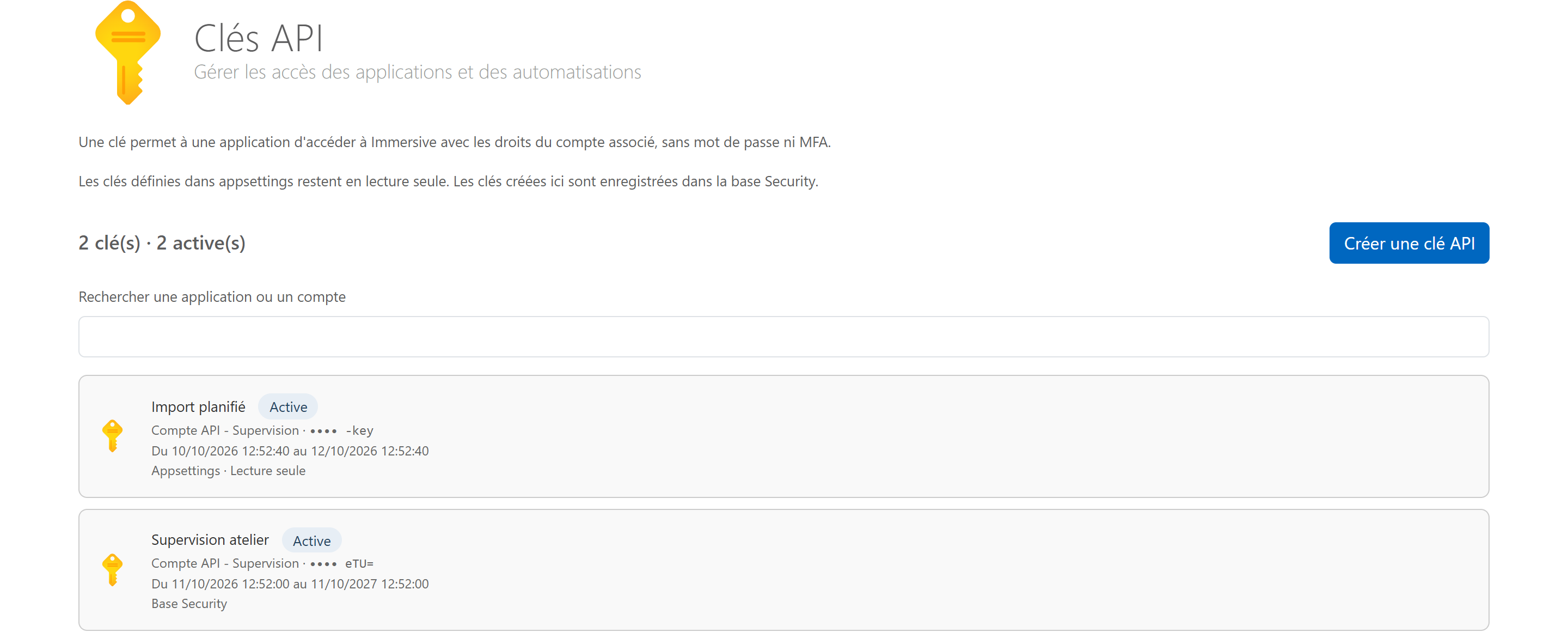
The page displays the number of keys and the number of active keys. Each row shows the application name, the associated account, the last characters of the key, its validity period, and its origin. The last characters help distinguish the keys; they do not replace the full value.
The field Find an app or account filter the list. Click on a row to open its record.
2.1 Understanding states
| Status | Meaning |
|---|---|
| Active | The key is activated, its validity period is in progress, and the associated account is available. Account rights continue to apply to each transaction. |
| Coming soon | The start date has not yet been reached. The key cannot be used yet. |
| Expired | The end date has been reached or passed. The key can no longer be authenticated. |
| Disabled | The key is not activated. It cannot be used. |
| Account unavailable | The linked account is not found, deactivated, deleted, expired, or temporarily locked. |
The status summarizes the situation when the list is loaded. Refresh the page after an external intervention or to check a deadline that has just been reached. Several causes can coexist; also check the dates and the associated account.
2.2 Two origins in the same list
| Origin | Management possible from the site |
|---|---|
| Base Security | Key created from this interface. You can view its card, view its value when available, extend its end date, and delete it. |
| Appsettings · Read-only | Key defined in the server configuration. You can view its card and view its available value. Modifying or deleting it is the responsibility of the operator in the configuration. |
Configuration keys are not automatically transformed into site-managed keys. The two origins can coexist.
3. Create an API key
3.1 Fill in the application and choose your account
- Click Create an API key.
- In App Name, enter a recognizable name, such as Workshop supervision.
- Click on the link Choose a user.
- In the search window, find the account you want to link and select it.
- Check that its name appears in Linked account.
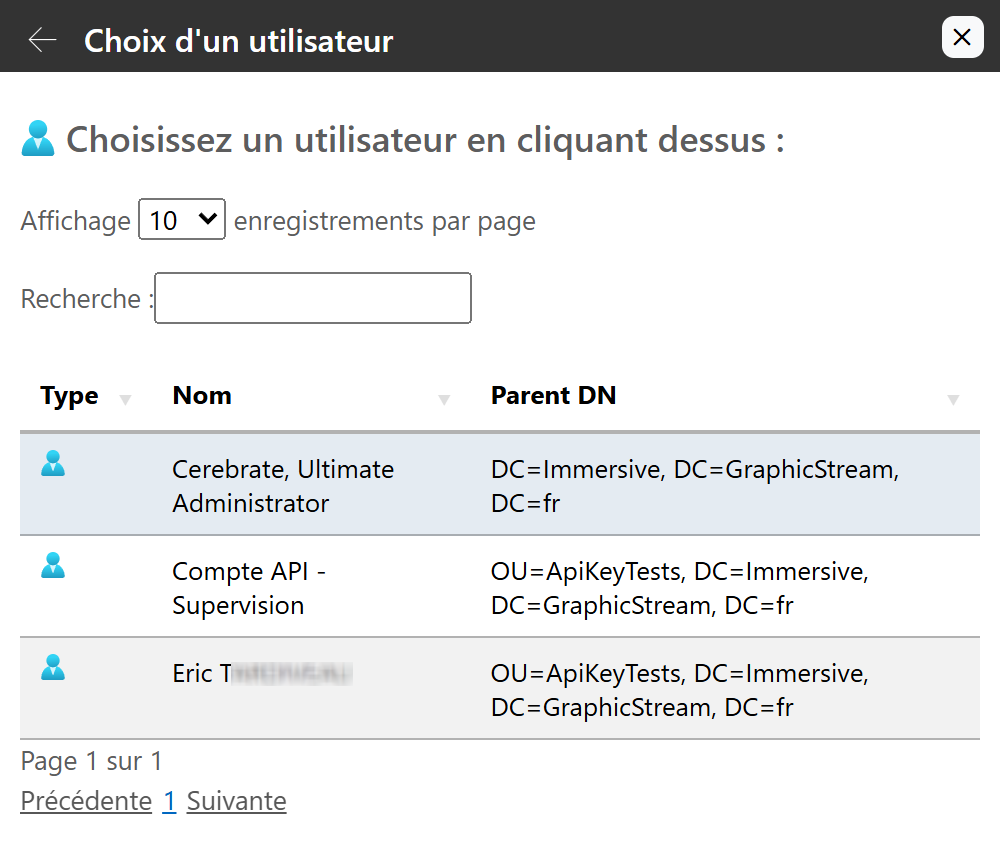
Selecting this opens a second window without losing the information you have already entered. The link with the account name then allows you to choose another user before the creation.
3.2 Set dates and save
- Check the Start of validity.
- Choose the End of validity, which is subsequent to the beginning and located in the future.
- Let Key activated checked for a key that is intended to be usable during this period.
- Click Creating the Key.
- Wait for the message The API key has been saved.
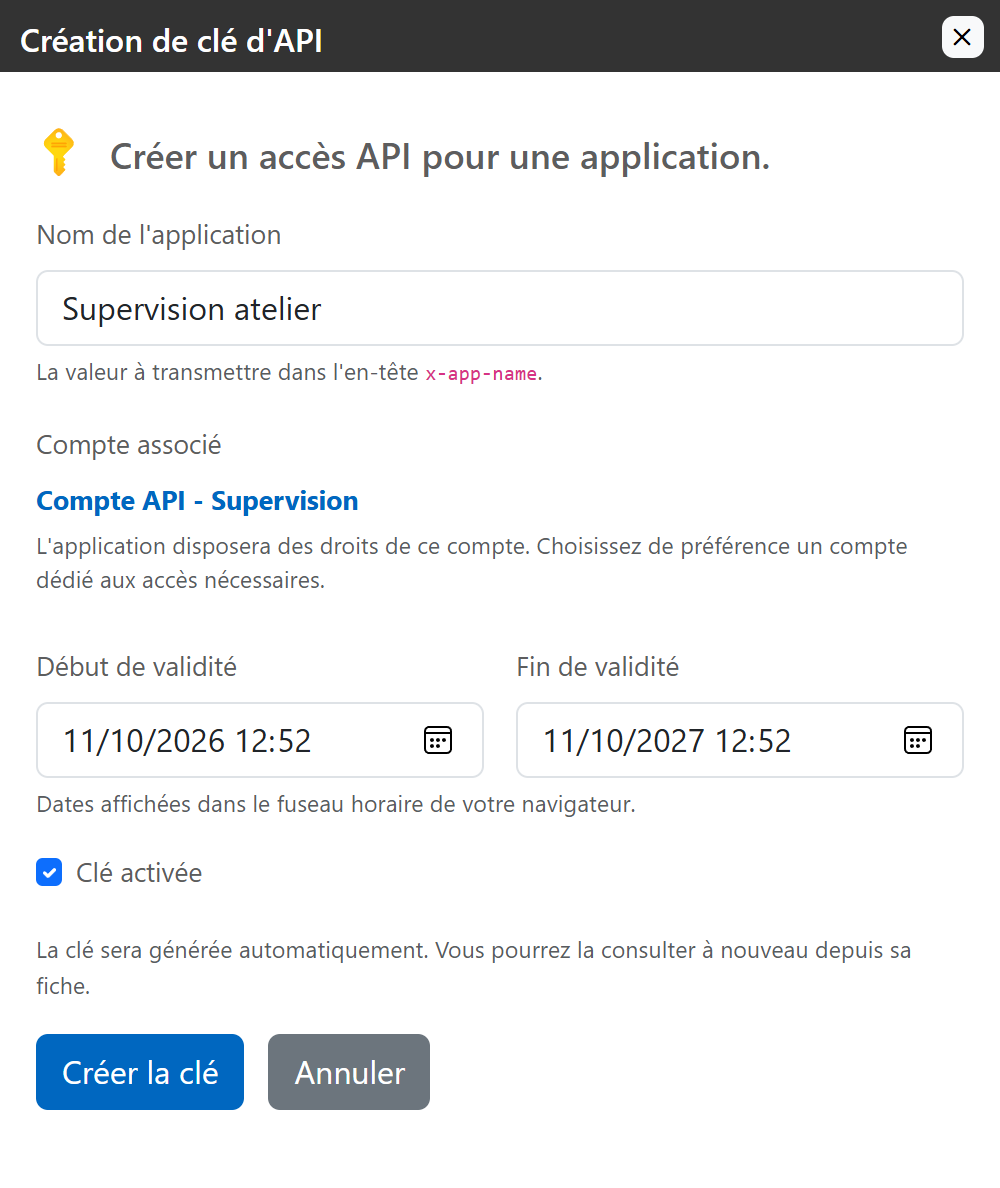
The dates are posted in the Browser time zone. When the form is opened, a period of about one year is proposed; adapt it to the actual needs of the application. To prepare for future access, choose a later start date.
The key value is automatically generated, so you don't have to invent a password or provide MFA for the application.
Check the choices before creating the key. After creation, the listing is read-only, except for extending the end date. It doesn't offer to change the app name, account, start of validity, or enabled status. To edit these items from the site, create a new key and then remove the old one when it's no longer in use.
4. View, view, and copy the key
4.1 Open Properties
Click the key line in the list. The API key properties Shows the app name, associated account, origin, activated status, and dates.

The key is hidden by default, even when you return to its form. The visible points are not its value and do not allow its length to be deduced.
4.2 View and then copy
- Click Show.
- Wait for the value to appear. During loading, an animation replaces the button text.
- Use thecopy icon to the right of the field to copy the full value.
- Paste it into the protected location provided by the client application.
- Click Hide when you're done.
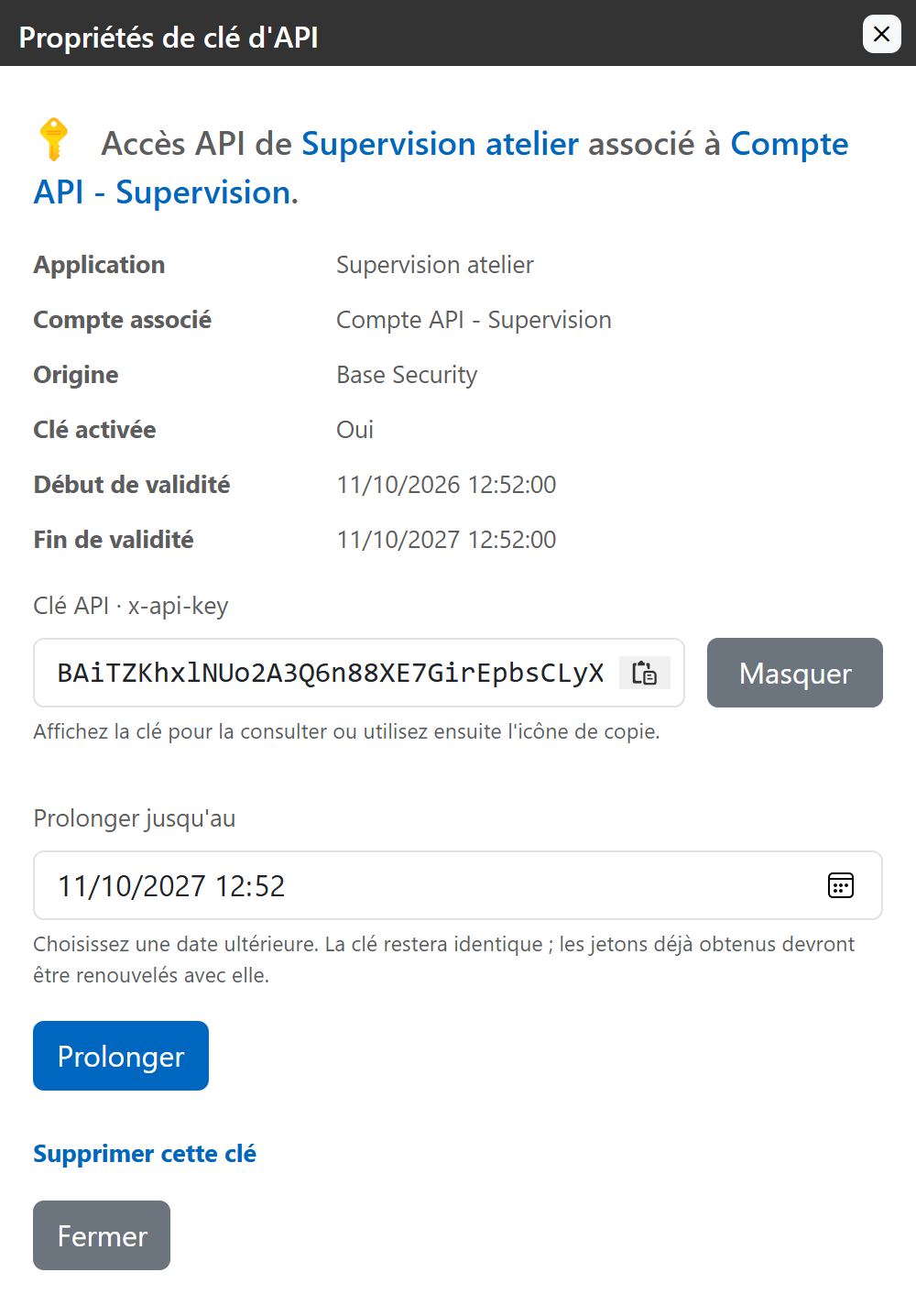
The key visible in this capture belongs only to the demo environment used for the illustrations. It was deleted after the captures were completed.
The copy icon appears only when the key is displayed. If the field is too short to show the full value, use this icon: it copies the full key. Hide removes the value from the screen, but does not erase what has already been copied to the clipboard.
4.3 What information should be transmitted to the application?
The integrator needs the address of the Immersive server, the Application Name and the full API key. The name corresponds to x-app-name and the key to x-api-key in API exchanges.
The password of the associated account and the codes of its MFA application are not required for this key access. Requests and management of access tokens will be detailed in the WebAPI article.
5. Extend the validity period
For an original key Base Security, the extension allows you to keep the same value while extending its end date.
- Open the key card.
- In Extend to, choose a date that is later than the current end and is in the future.
- Click Extend.
- Check the message The end date has been extended. and the new date displayed.
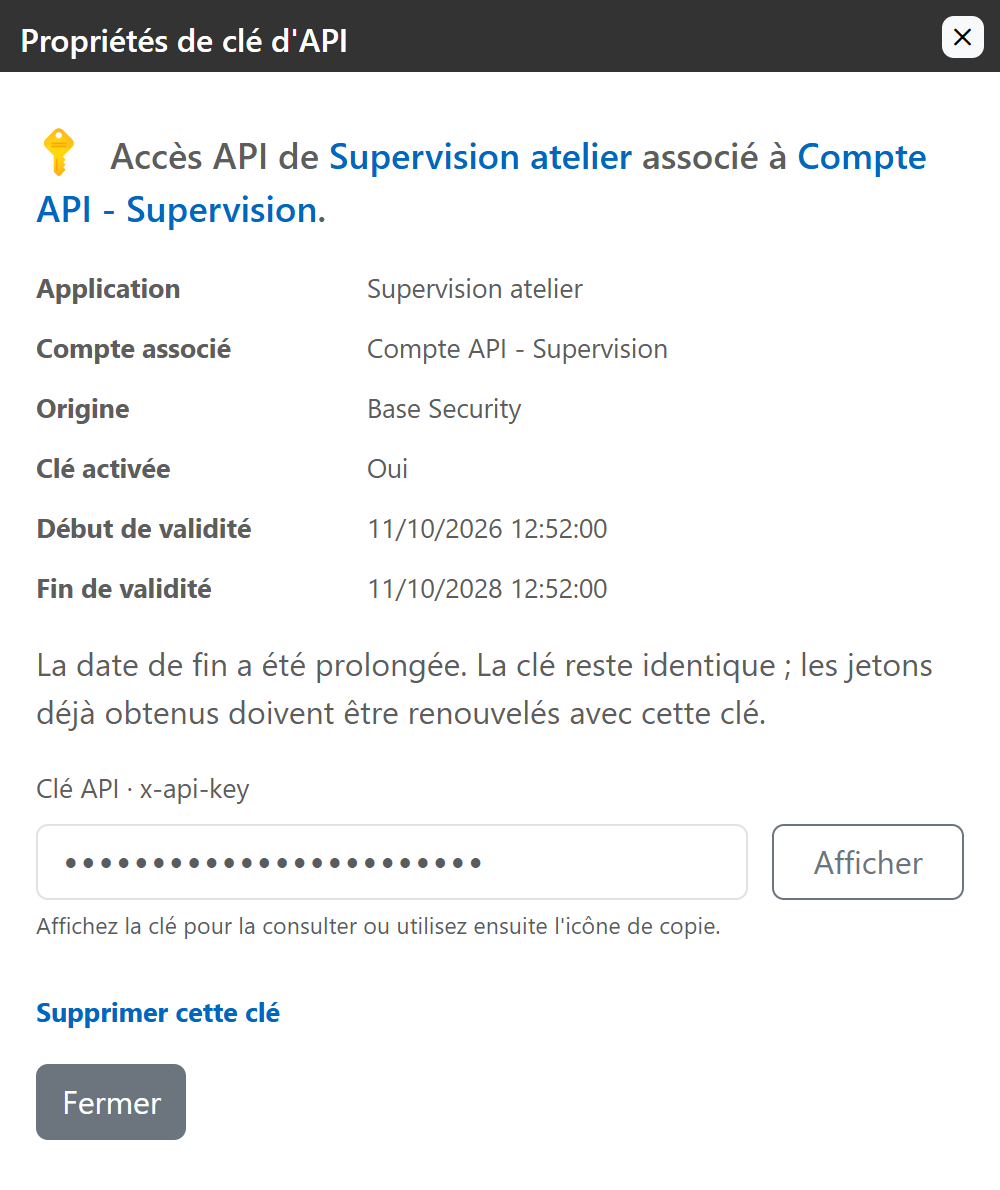
The extension does not change the application name, the associated account, or the value of the key. It does not shorten the validity period.
Access tokens already obtained with this key must be renewed. A token is a temporary authorization that the app can obtain when authenticating itself. After the extension, it must authenticate again with the same key to get a new token. Plan this with its manager if it doesn't do it automatically.
An expired key can be extended to a future date. It becomes usable again if it is activated, its validity has reached the beginning of its validity and the associated account is available. Extension does not reactivate a disabled account.
6. View a key from appsettings
Bearing keys Appsettings · Read-only come from the server configuration.
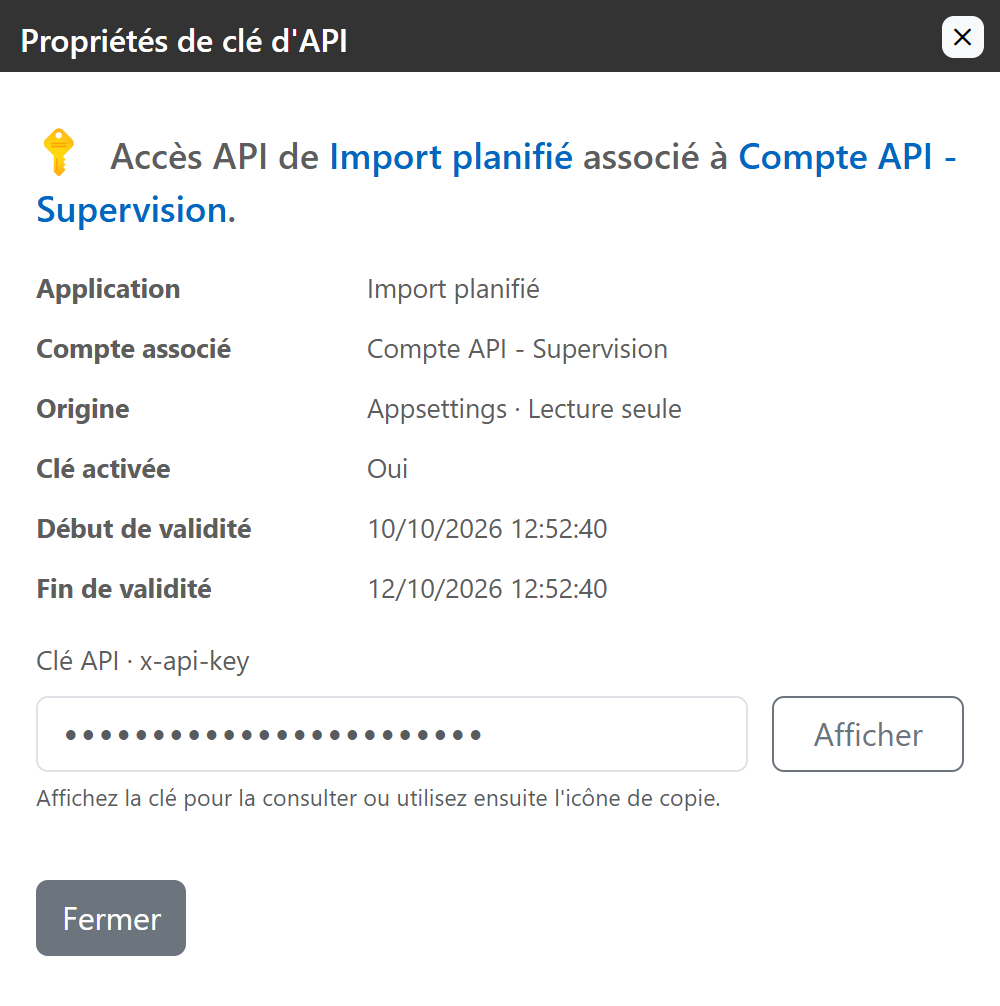
You can open their properties and view their value when available. The listing doesn't offer Extend, nor Delete this key.
To change them, remove them, or extend their deadline, contact the person who operates the server configuration. Don't create another key thinking that it will automatically replace the appsettings key: the two accesses will remain separate.
7. Delete or replace a key
7.1 Remove access that is no longer needed
- Open the original key card Base Security.
- Click Delete this key.
- Check the app name and account in the confirmation window.
- Click Delete the key to confirm, or on Cancel to maintain access.
- Check the deletion message and the disappearance of the line from the list.
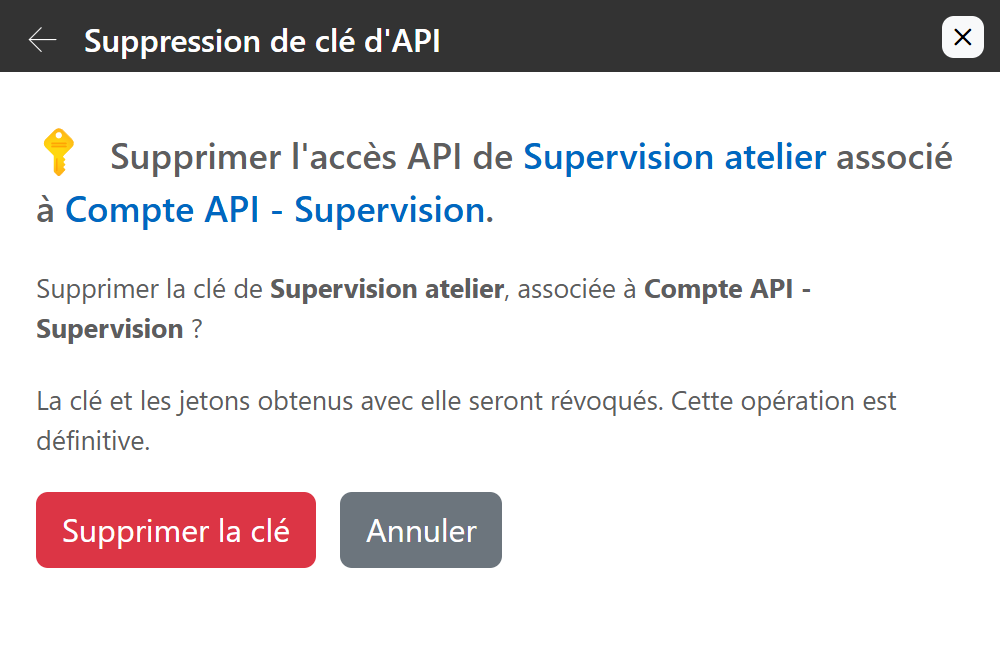
The deletion is definitive. The key and tokens obtained with it are revoked: they no longer allow new access. Data already accessed or copied by the application is not deleted by this action.
7.2 Replace a key without interrupting intended use
For a scheduled renewal, you can create a new key for the same app and account, with a validity period that makes sense. Multiple keys can coexist for the same app name.
flowchart TD
    A["Créer une nouvelle clé"] --> B["Configurer l’application avec la nouvelle clé"]
    B --> C["Vérifier un accès et les opérations nécessaires"]
    C --> D{"Le fonctionnement est-il confirmé ?"}
    D -->|Non| E["Corriger la configuration ou les droits"]
    E --> C
    D -->|Oui| F["Supprimer l’ancienne clé"]
Locate both keys by their dates and last characters, so you can delete the correct one. The new key does not automatically deactivate the old key.
If a key has been leaked, remove the compromised access without waiting for a scheduled replacement. Delete the managed key from the site, and then arrange for the re-provisioning with a new key. For an appsettings key, involve the configuration operator immediately.
8. Solving common challenges
8.1 The selected account is disabled
The creation is disapproved and a message indicates the affected account. In the following example, Eric T. is disabled.
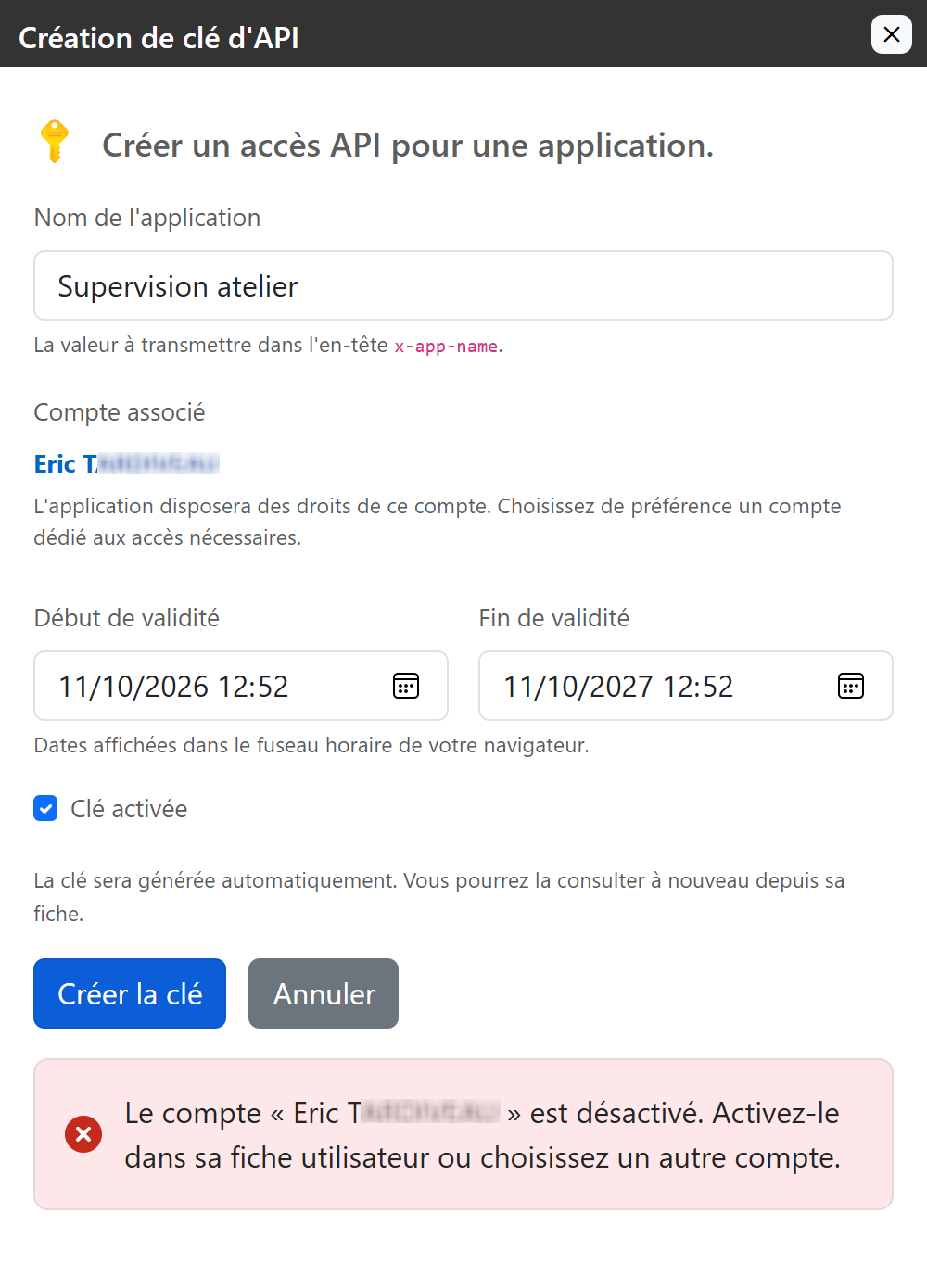
Choose an active account that is appropriate for the app. If you really want the selected account to be reactivated, do it first in its user card, then start creating it again. Don't reactivate a disabled account voluntarily just to make the message disappear.
A validation error does not create the key. The form retains the information entered to allow for correction.
8.2 The key exists, but the app doesn't access the data
Successively check the status of the key, its dates, the associated account, the application name and the full value copied. Also check that the application is using the correct Immersive server.
If authentication succeeds but an operation is denied, review the Associated account's rights to the requested resource. Creating a new key for the same account does not assign it any more rights.
8.3 Other messages and situations
| Location | Action to be taken |
|---|---|
| Expired account | Check if its use should be extended in the user file, or select another active account. |
| End date denied | When you create it, choose a future ending that is later than the beginning. For an extension, also choose a date after the current end of the key. |
| The value of this old key has not been preserved | The existing key is still usable, but its value cannot be redisplayed. If it is lost, create a new key, update the application, and remove the old one. |
| The key cannot be decrypted on this server | Have the server protection keys checked by the operator. This consultation error does not, on its own, modify the API access. |
| This key has been modified or deleted | Close the card and update the list before starting again. Another intervention may have changed its status. |
| The registration could not be confirmed | Refresh the list and check the result before trying again, to avoid a duplicate creation. |
| The copy button does not appear | Click on first Show. The button is purposely absent when the key is hidden. |
For new keys that can be consulted, the server retains a protected value that allows them to be displayed again. The operator must maintain the necessary protection elements during backups and server changes. This point does not require any new passwords from the user.
9. Check the commissioning
Before you give a key to an application, check these points:
- The app name is recognizable.
- The linked account is active and has only the necessary rights.
- the period of validity corresponds to the intended use;
- The app uses the correct server, name, and full key.
- Access and expected operations have been verified from the app.
- The key is kept in a protected location and its expiration date is tracked.
- The old keys that were no longer needed were removed after the replacement.